SMBcrm users can now control which devices handle audio in the web dialer. This helps teams route call audio, inbound ringing, and microphone input more deliberately.
What Changed
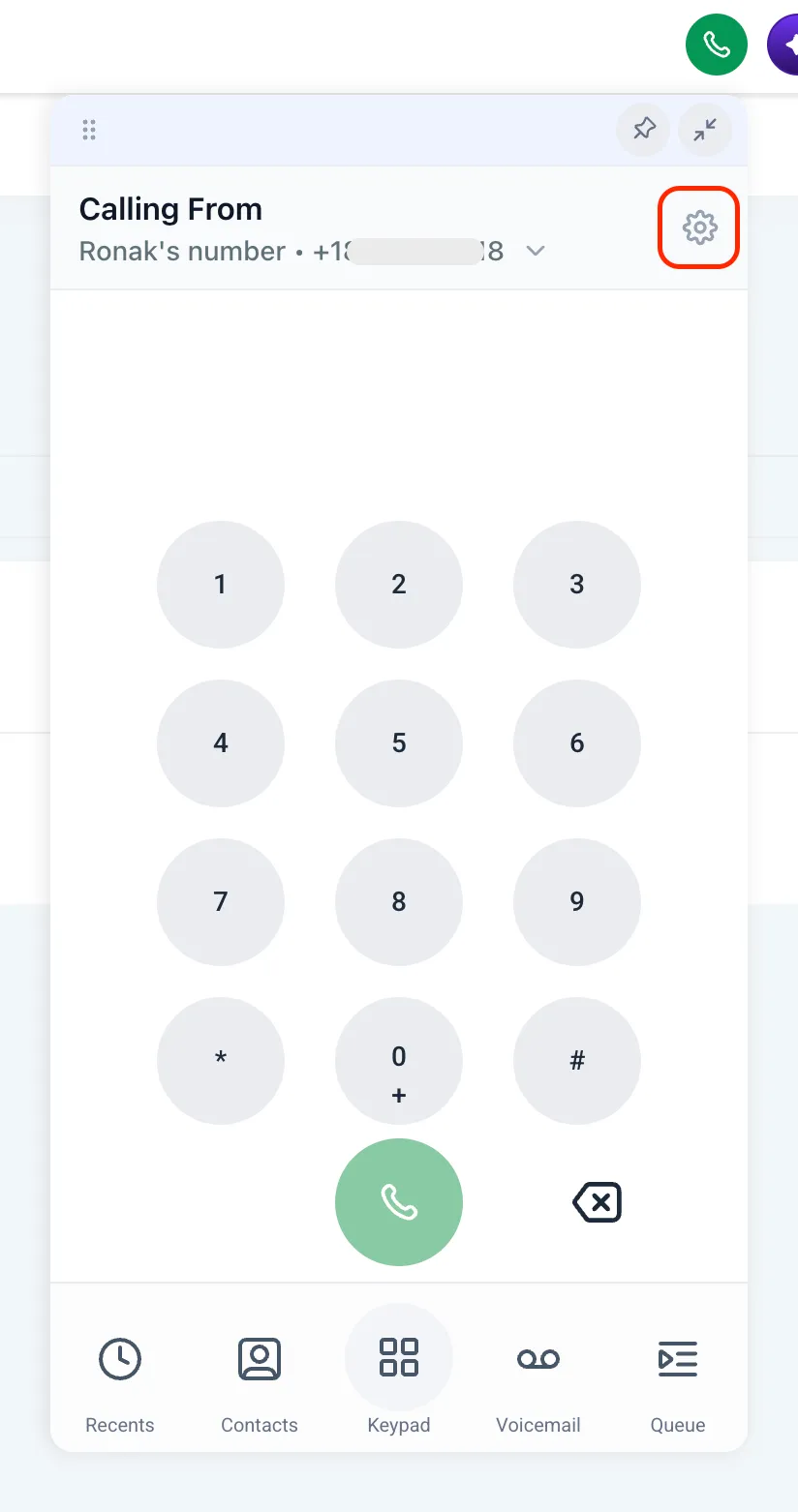
In the web dialer, open audio settings from the gear icon in the dialer header.
From there, users can:
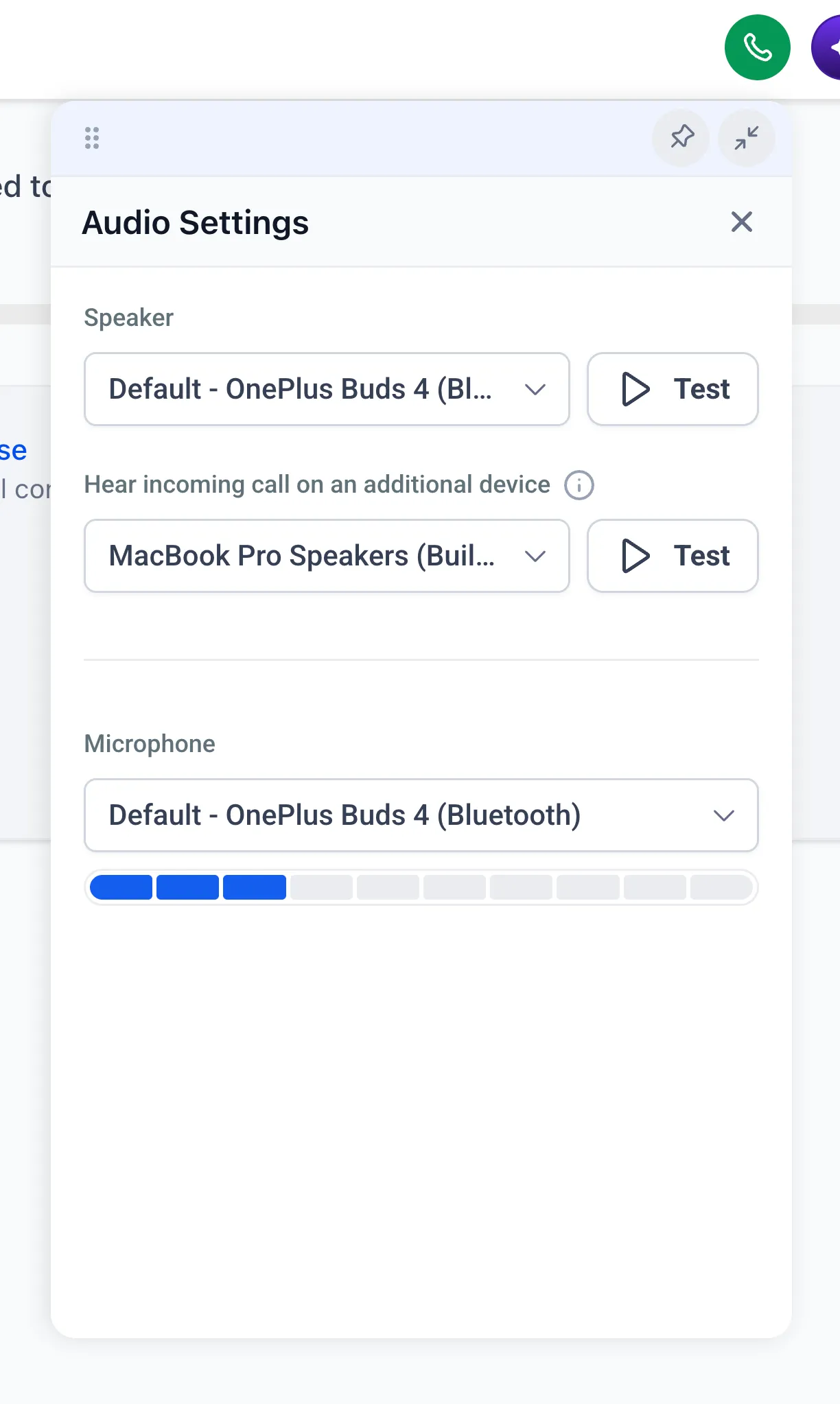
- Pick the main speaker for call audio.
- Ring one additional device at the same time, such as a headset plus a desk speaker, so inbound calls are easier to hear.
- Choose which microphone to use.
Test buttons let users preview the selected speaker and additional ring device before saving. The microphone picker also includes a live volume meter so users can confirm that sound is being detected.
Enable the Labs Feature
This setting is available through Labs. Admins can enable it by:
-
Going to admin settings > Labs.
-
Finding “Audio settings for voice calls”.
-
Selecting “Activate Feature”.
-
Bulk selecting and enabling it for the accounts that should use it.
Browser Note
Safari currently supports only one audio output device. Use Chrome or Edge for full control over device selection.
In Case You Missed It
For another workflow update, read Multi-Role Signing for Documents in Workflows.
Need Help Applying This Update?
Want help turning this update into a working part of your CRM, marketing, or automation setup?
Get Started or schedule a demo and we’ll help you map the right next step.
Explore this in SMBcrm
Connect calls with the customer conversation.
Explore phone tools and the shared inbox, then review call routing, staff availability, and usage charges before setup.
Explore the phone systemAlready using this feature? Find setup help