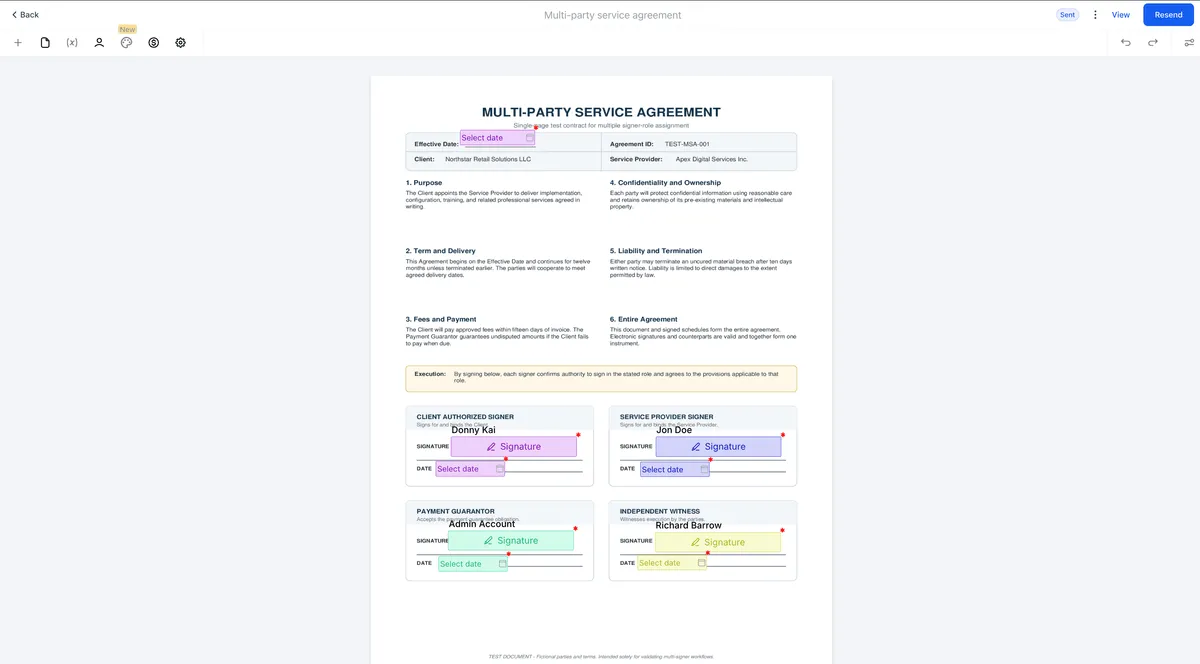
SMBcrm document templates can now support multiple signer roles, such as buyer, seller, witness, or another role you define. When a document is sent through a workflow, those roles can be automatically populated and routed for signature.
This helps teams send multi-party agreements without manually re-entering signer details each time.
What changed
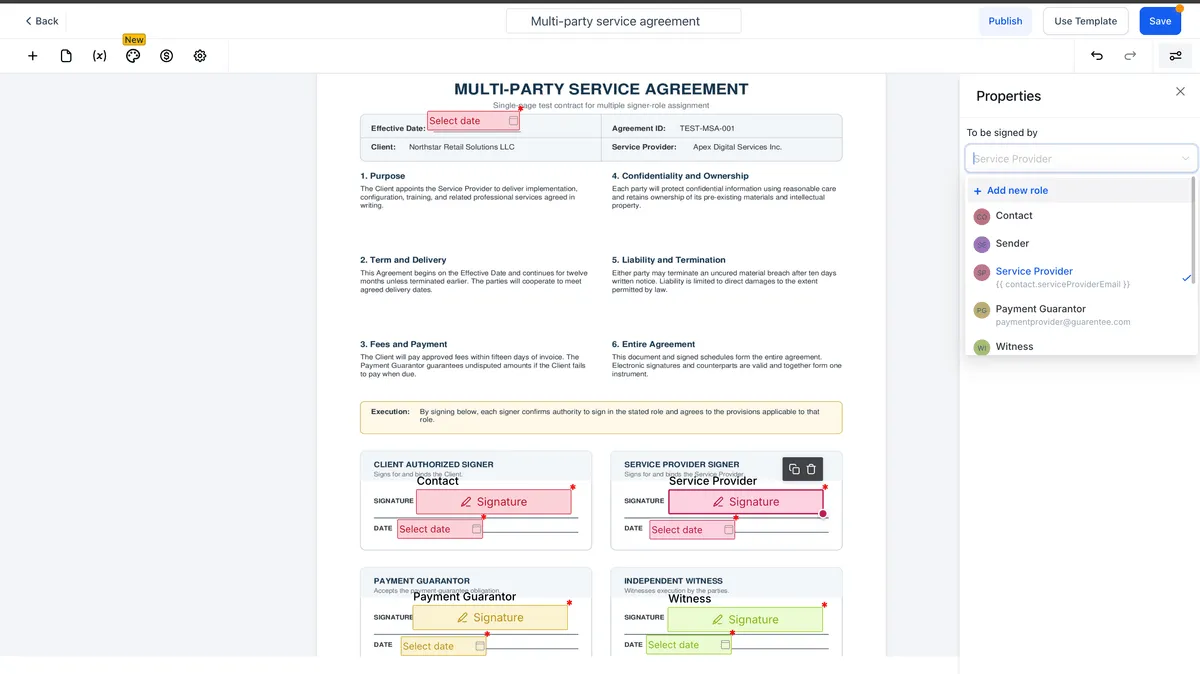
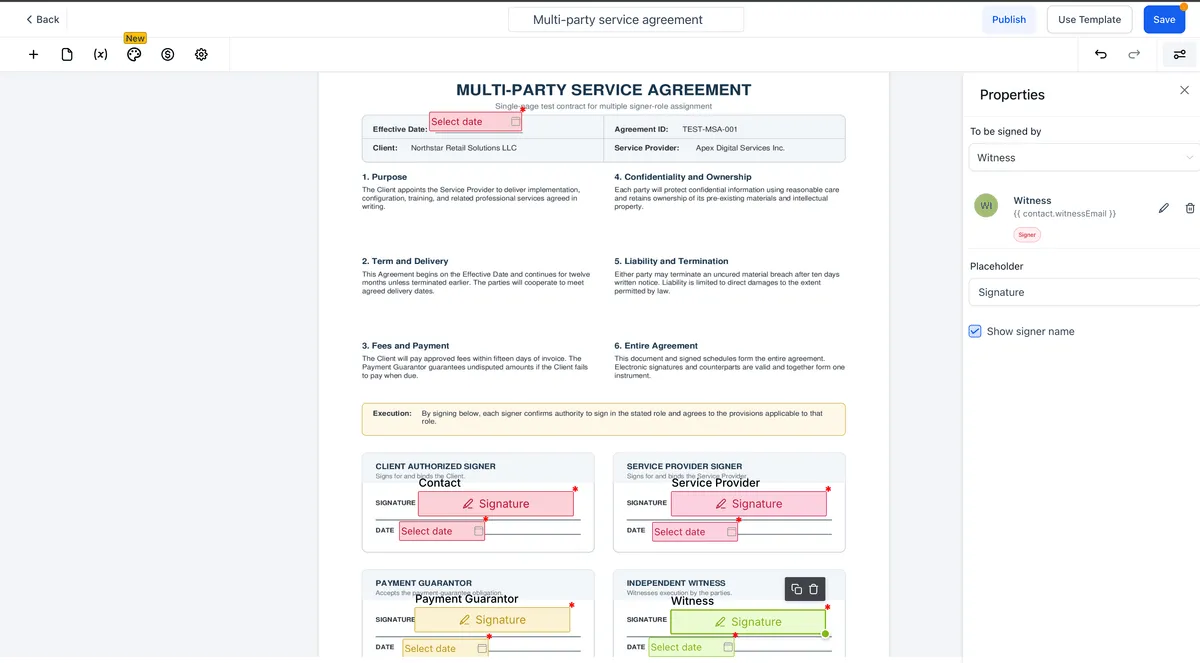
You can define up to six signer roles on a document template and assign fields, such as signature or date fields, to each role. When the template is used in a workflow, SMBcrm uses the role setup from the template to populate signer details.
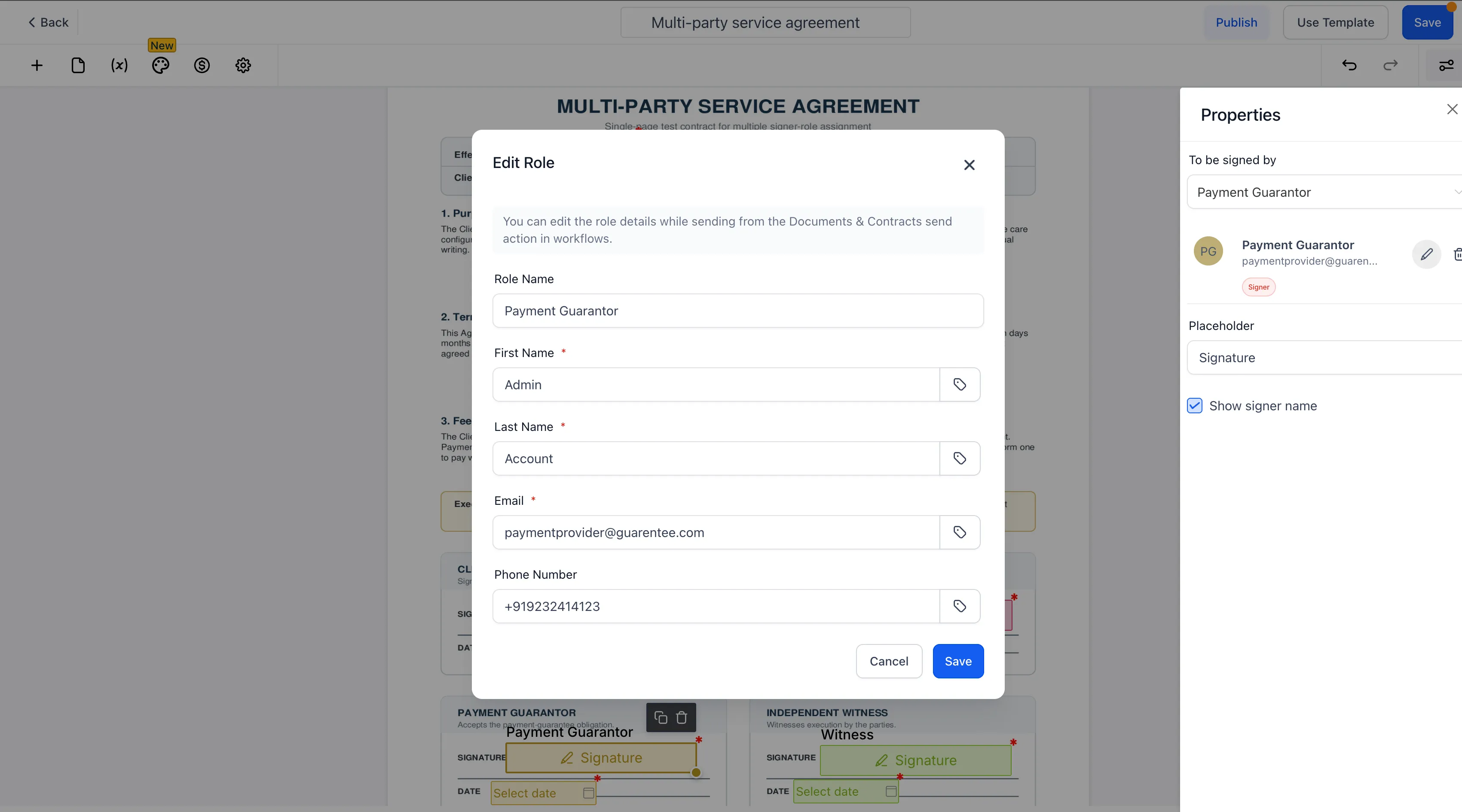
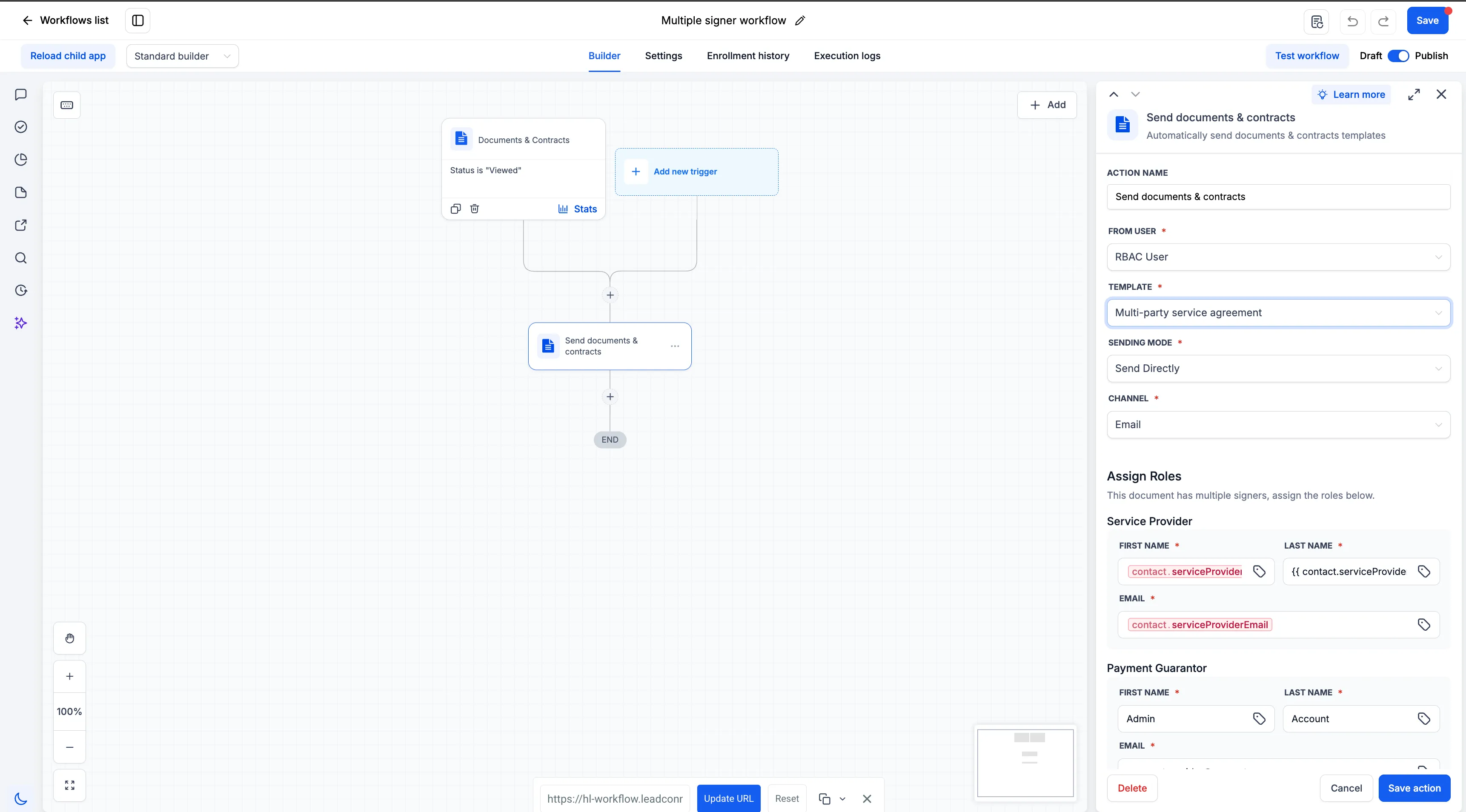
If a role needs different information for a specific workflow, the signer name, email, or phone can be adjusted at the workflow level. Workflow-level values take precedence over the template defaults.
This update is especially useful for agreements that involve more than one signer, such as buyer and seller, client and co-signer, or tenant and guarantor.
How it helps
- Save time: Reuse one template instead of rebuilding signer details for each multi-party agreement.
- Reduce errors: Template role values can auto-populate when the document is sent through a workflow.
- Stay flexible: Override role details within a workflow without editing the original template.
- Support more complex agreements: Route documents that require multiple signatures in a single send.
How to use it
- Open your document template and define signer roles with name, email, and phone details.
- Assign at least one fillable element to each role.
- Make sure at least one fillable element is assigned to Contact, which is required for the workflow send action.
- In workflow automation, add the Send Document action and select the multi-role template.
- Review or override any role details at the workflow level if needed.
- Send the document through the workflow.
Good to know
- Up to six roles can be added per template.
- Roles are local to the specific template where they are created.
- Roles only populate automatically when the document is sent through a workflow, not from manual send.
- If a required role email is missing, you will be prompted to complete it before sending.
- Duplicate emails across roles will trigger an alert.
- This is currently available on web.
In Case You Missed It
You may also want to read about how AI Studio form submissions can trigger workflows.
Release Images
Need Help Applying This Update?
Want help turning this update into a working part of your CRM, marketing, or automation setup?
Get Started or schedule a demo and we’ll help you map the right next step.