SMBcrm QR Code Profile and Business Cards have been updated with a refreshed design, more styling controls, and additional ways to help visitors connect with you.
What changed
Profile and Business Cards now have a cleaner, more modern layout. Each card also includes a Save Contact button by default, so visitors can save your contact information directly to their device with one tap.
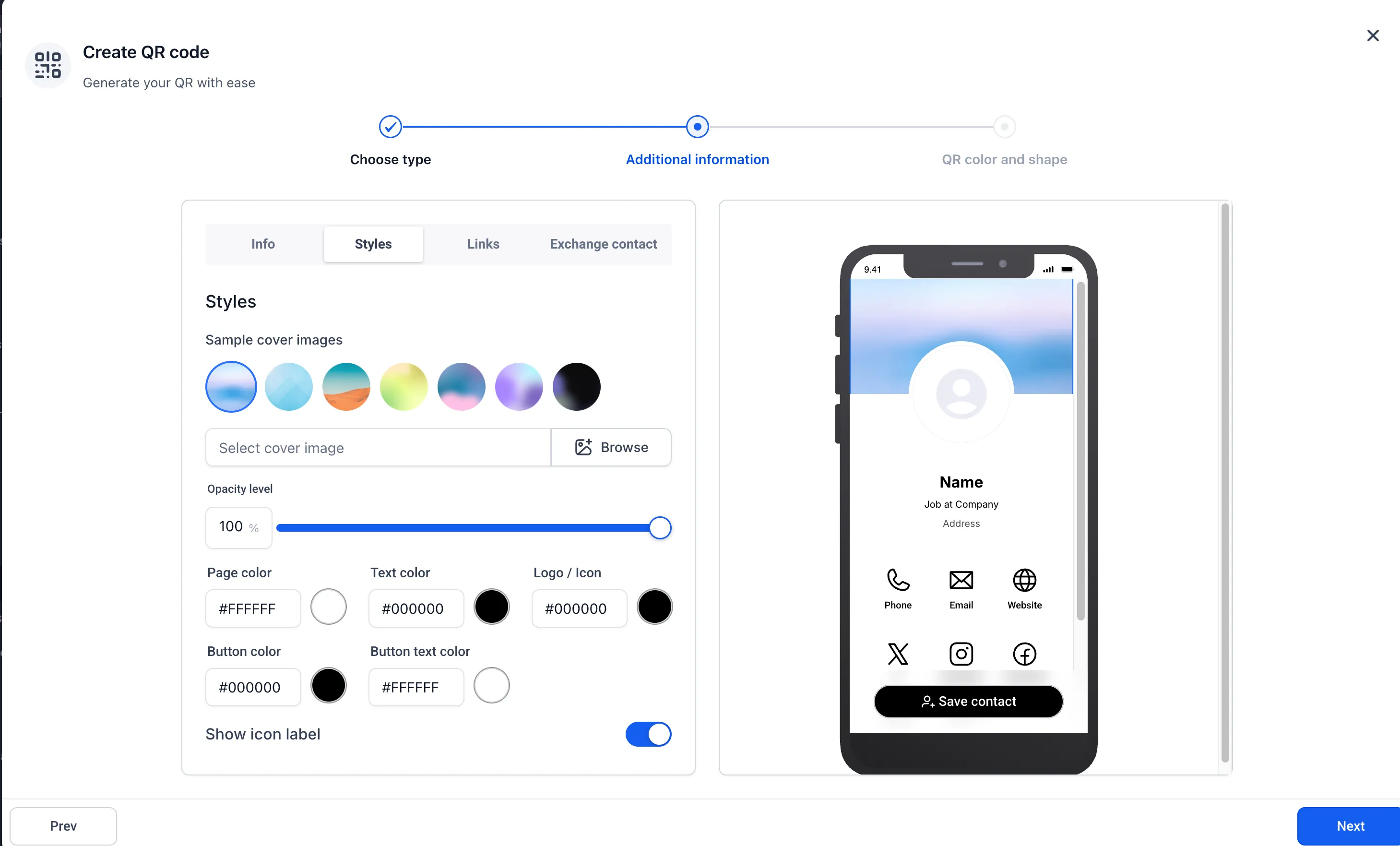
More ways to customize your card
You can now adjust more of the visual experience directly inside the QR Code Builder, including:
- Cover images, either uploaded by you or selected from available templates
- Page background color
- Text color
- Icon color
- Button color
- Button text color
- A minimalist view that hides icon labels
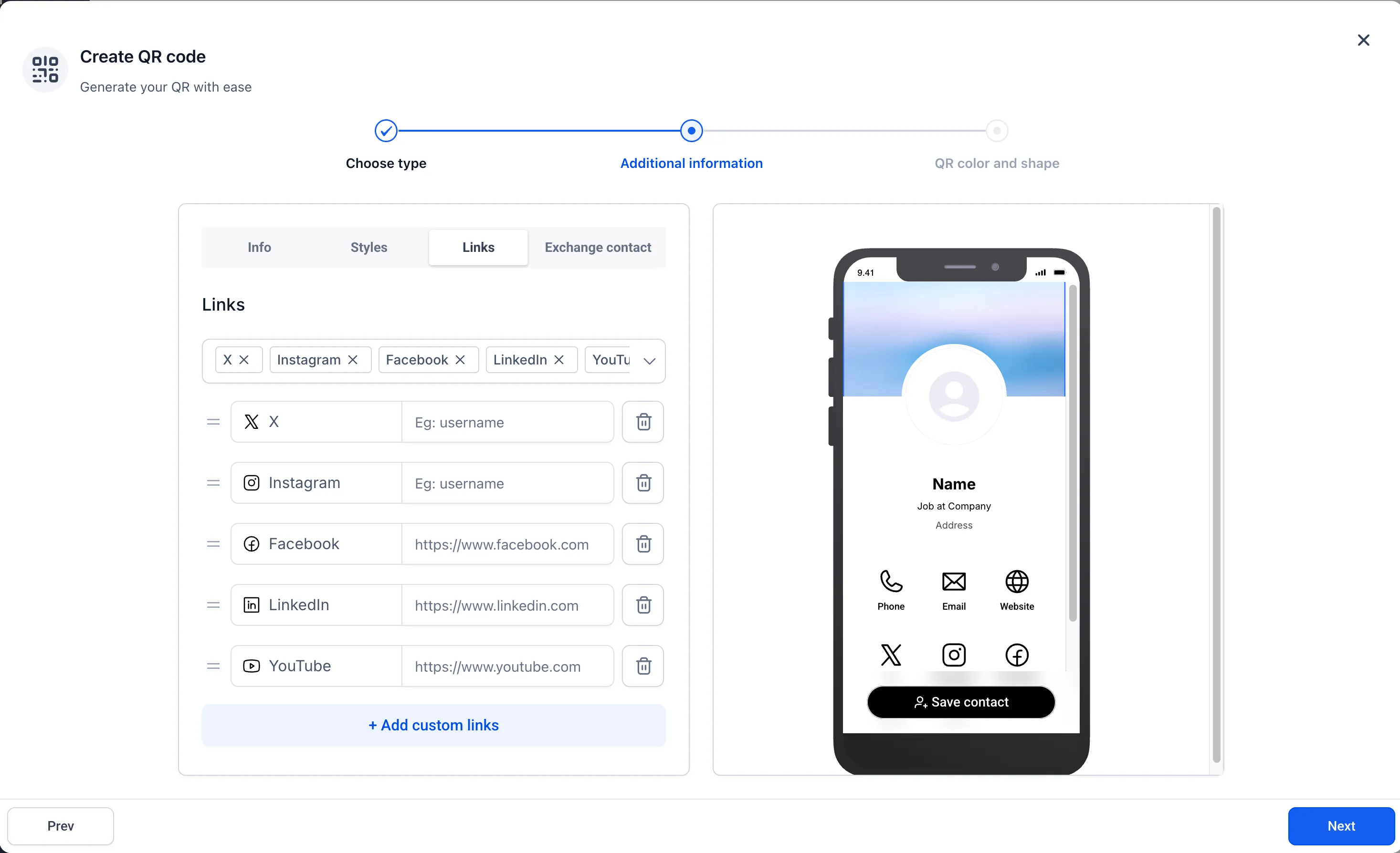
Custom links and icons
Profile and Business Cards now support custom links, making it easier to share key destinations from one digital card. You can add links for websites, calendar booking pages, portfolios, social profiles, landing pages, and similar resources.
Each custom link can also be paired with an icon using the built-in Icon Picker.
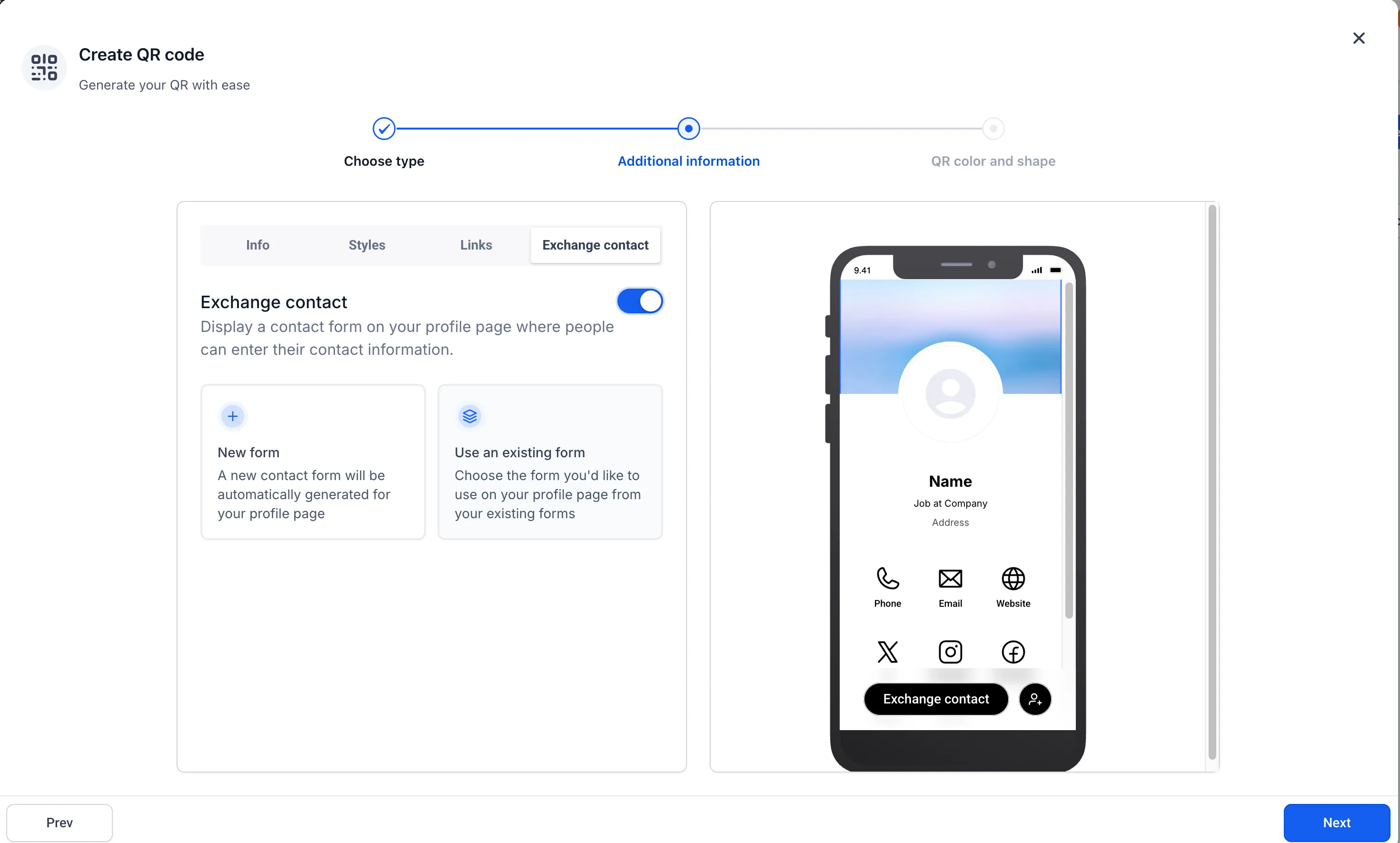
Exchange contact forms and CRM tracking
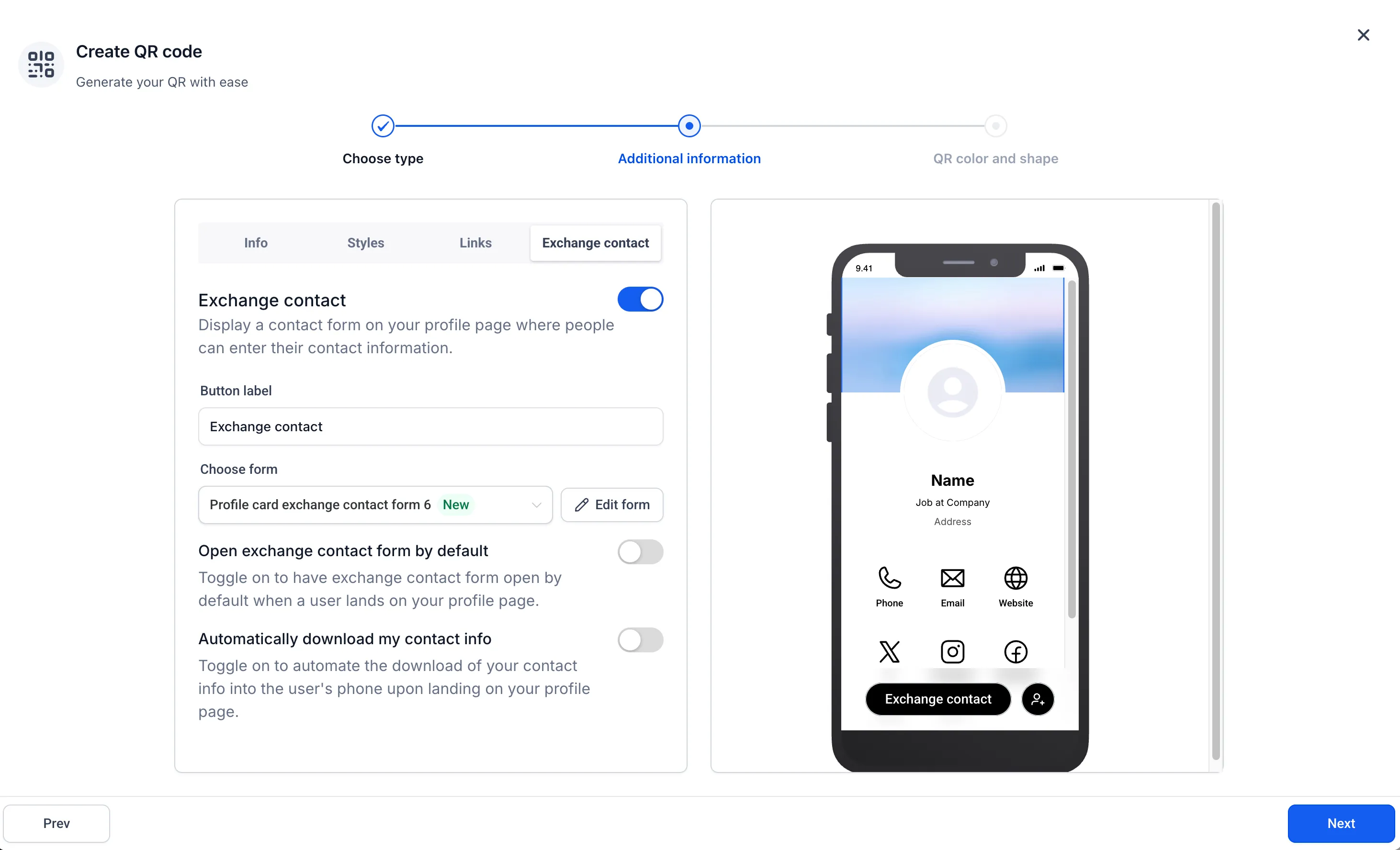
You can collect visitor information directly from a Profile or Business Card using an Exchange Contact form. Create a form from the built-in form builder or select an existing form.
The form builder opens in a large popup, so you can make edits without leaving the QR Code Builder. You can also rename the Exchange Contact call-to-action button to better match your card.
When a visitor submits their details, SMBcrm creates a new CRM contact and records activity showing that the lead came from the Profile or Business Card.
Optional automation settings
Two optional automation toggles are available:
- Open Exchange Contact Form by Default: Shows the Exchange Contact form as soon as someone opens the card.
- Automatically Download Contact Info: Downloads your contact information to the visitor’s device when they land on the card.
How to use it
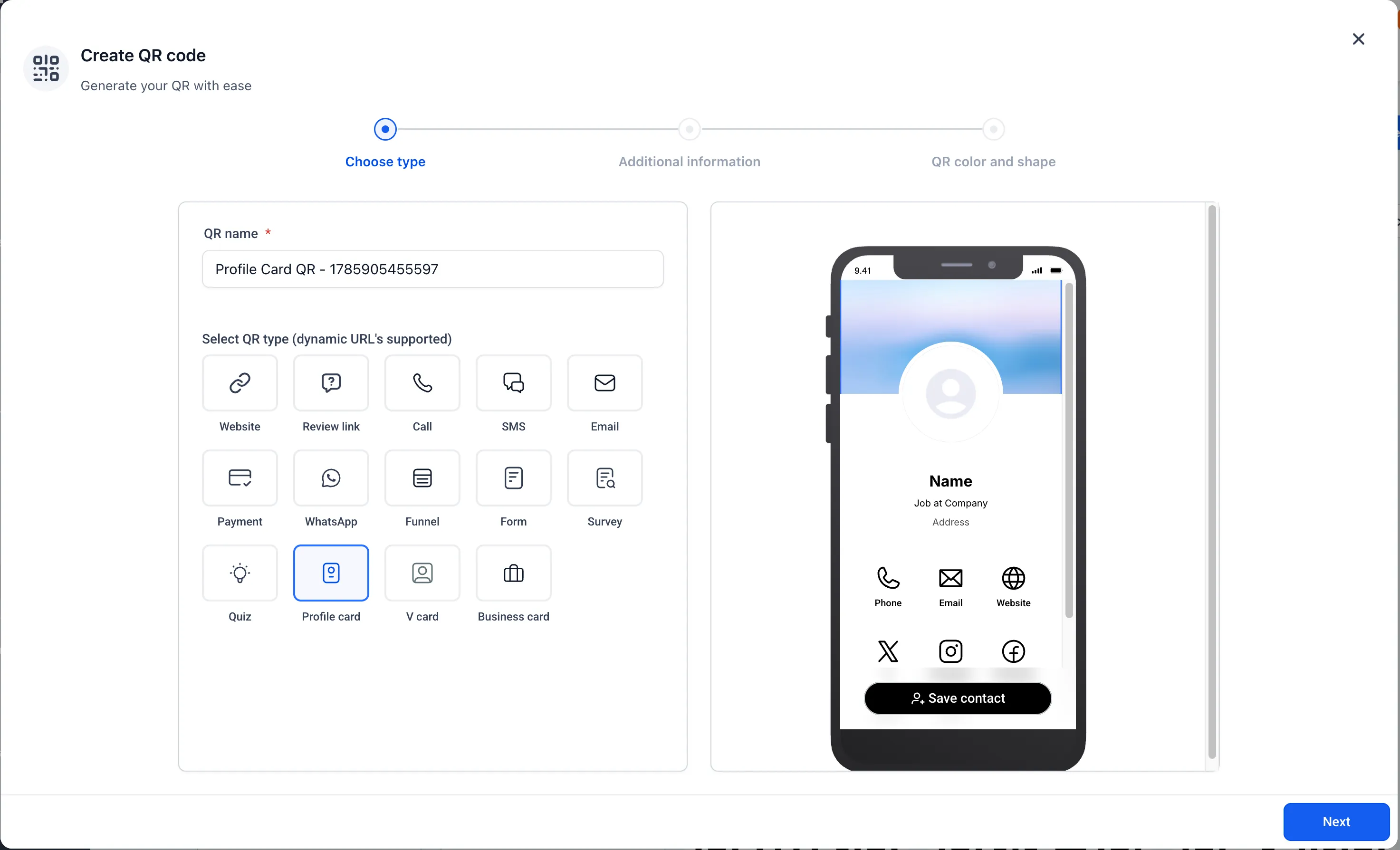
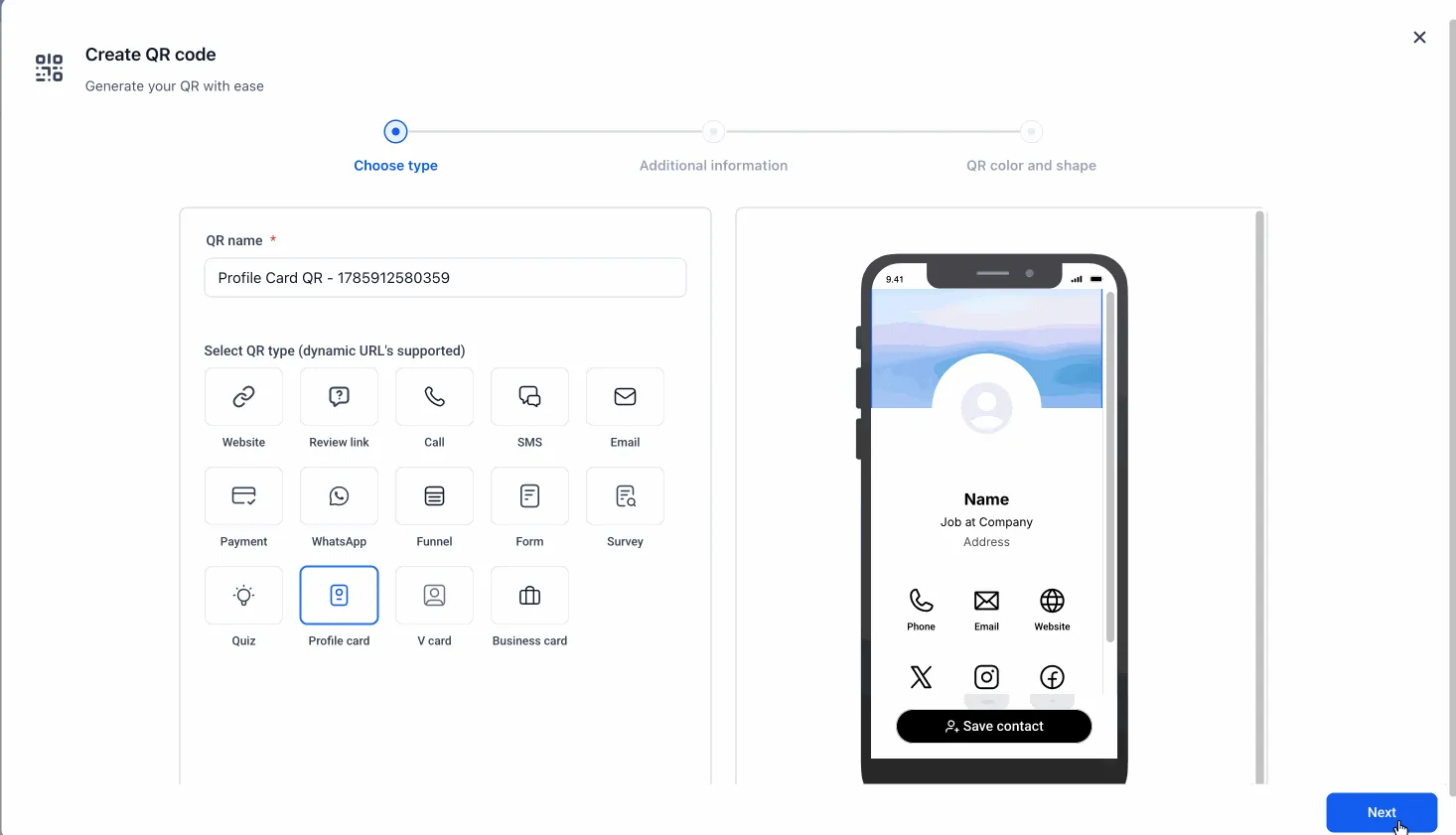
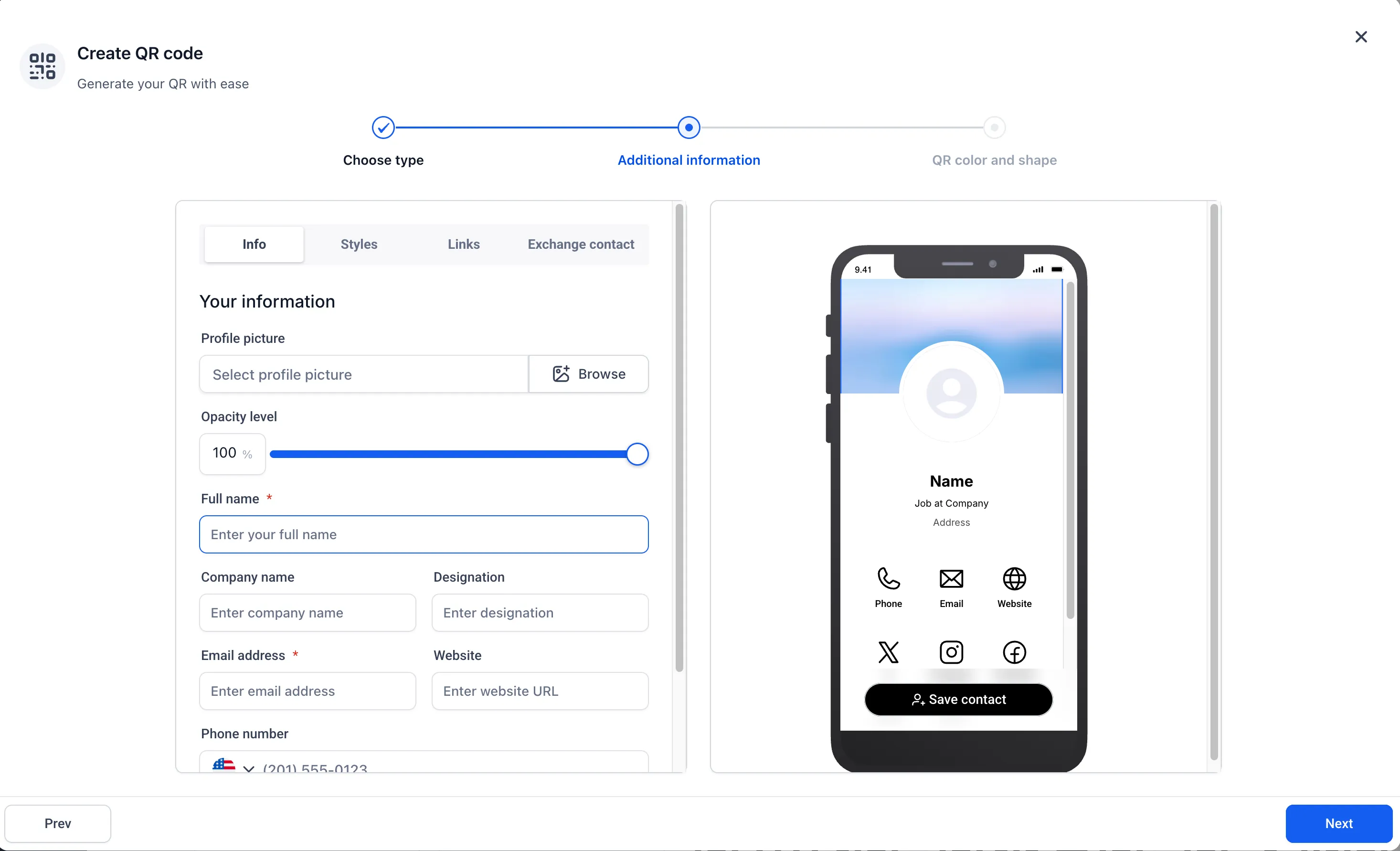
Open the QR Code Builder, customize your Profile or Business Card, add any custom links, configure the Exchange Contact form, and enable optional automation settings if needed. After that, publish the QR Code and share your digital business card.
All customization options are available directly in the QR Code Builder. Existing Profile and Business Cards need to be updated manually to use these capabilities.
In Case You Missed It
You may also want to read about Button Hover Animations in the Page Builder.
Release Images
Need Help Applying This Update?
Want help turning this update into a working part of your CRM, marketing, or automation setup?
Get Started or schedule a demo and we’ll help you map the right next step.