Entrance animations are no longer limited to individual page elements. In the SMBcrm Page Builder, you can now apply entrance animations directly to sections, rows, and columns.
The builder automatically sequences animations by layout hierarchy as visitors scroll, so pages can reveal content in a more intentional order without manual timing calculations.
What changed
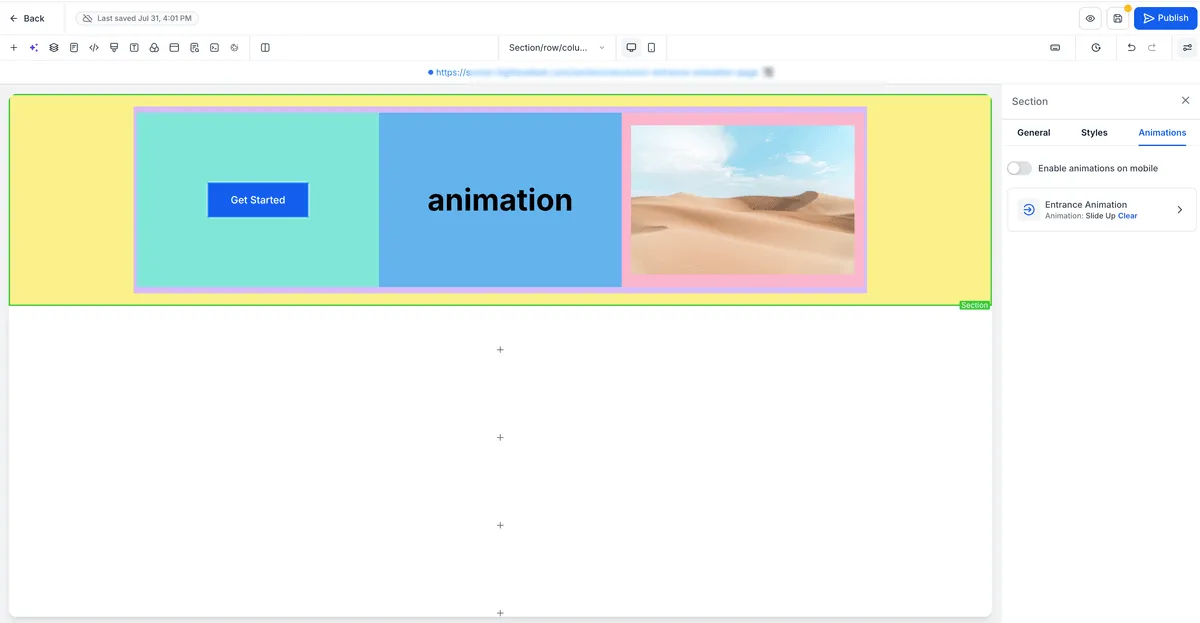
You can now select a section, row, or column and apply an entrance animation from the Animations tab in the sidebar.
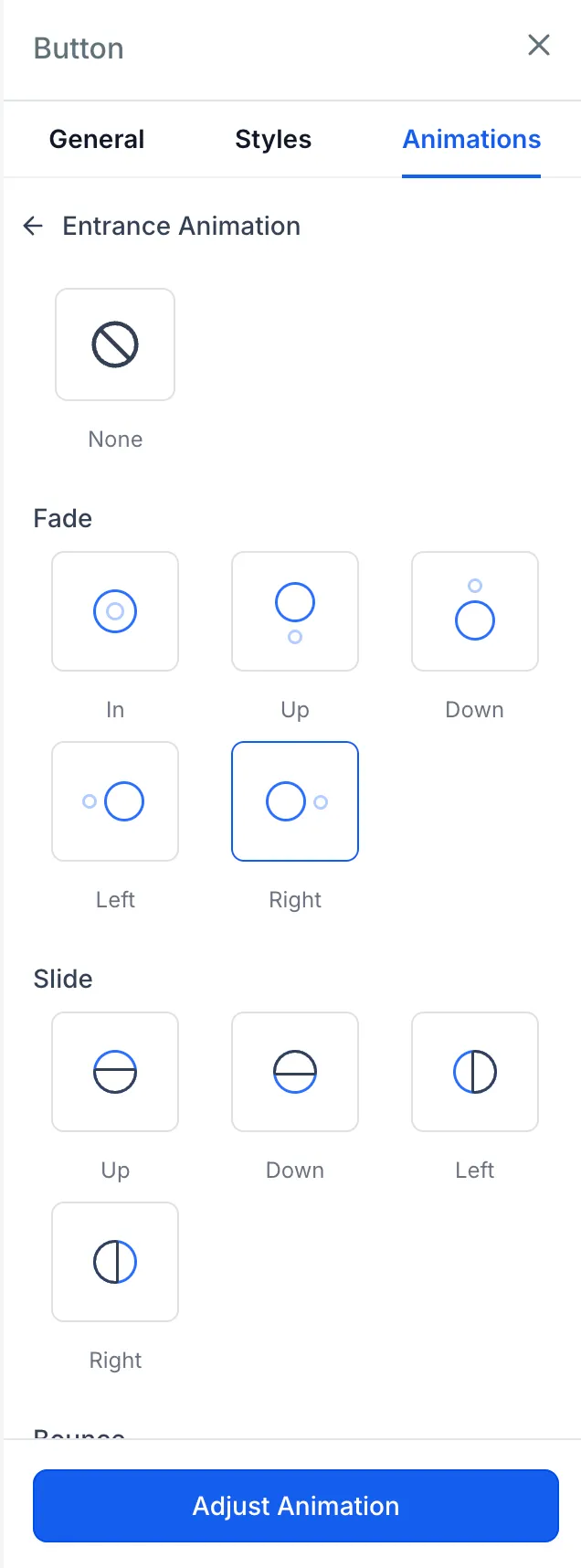
Supported animation groups include:
- Fade: In, Up, Down, Left, Right
- Slide: Up, Down, Left, Right
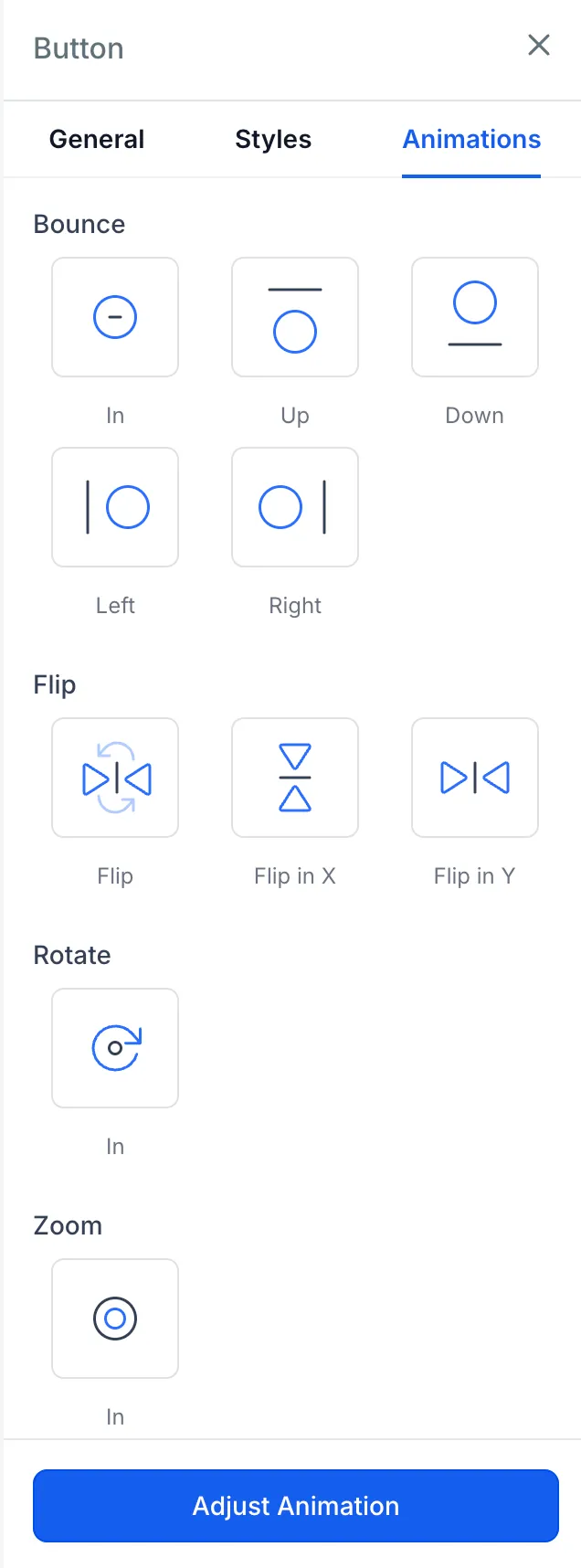
- Bounce: In, Up, Down, Left, Right
- Flip: Flip, Flip In X, Flip In Y
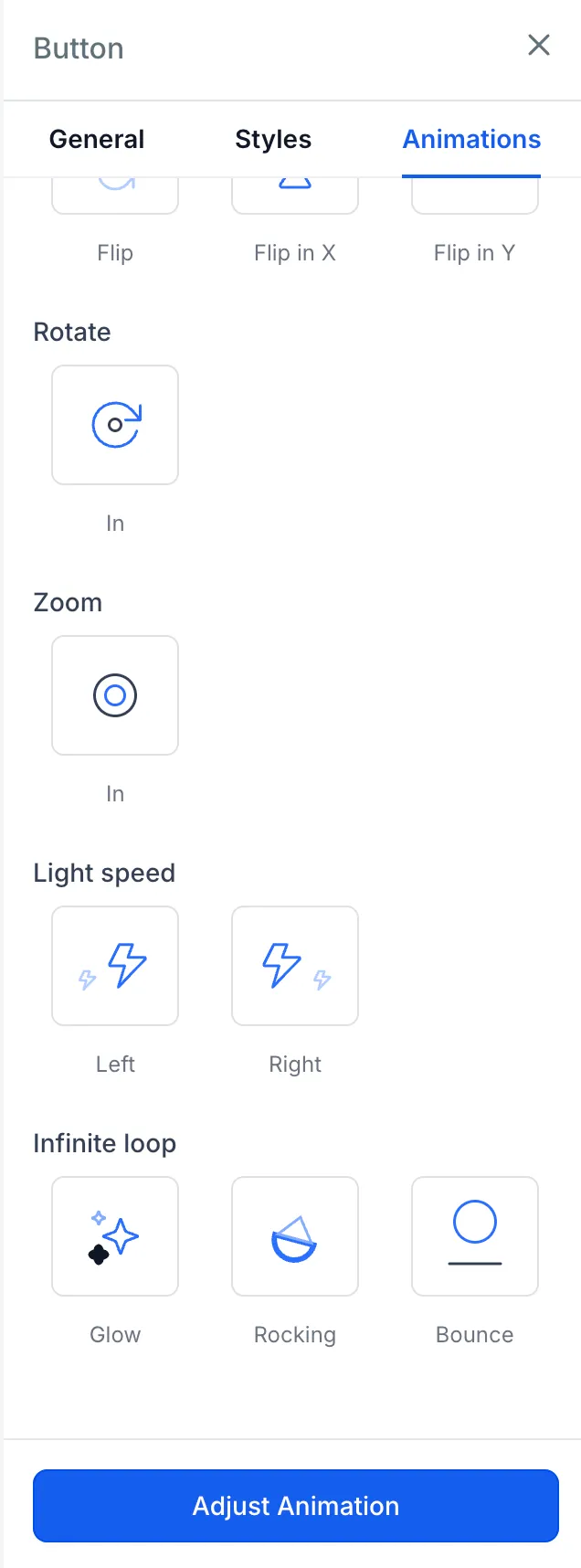
- Rotate and Zoom: Rotate In, Zoom In
- Special Effects: Light Speed Left, Light Speed Right, Glow, Rocking, Bounce
Animation tuning options
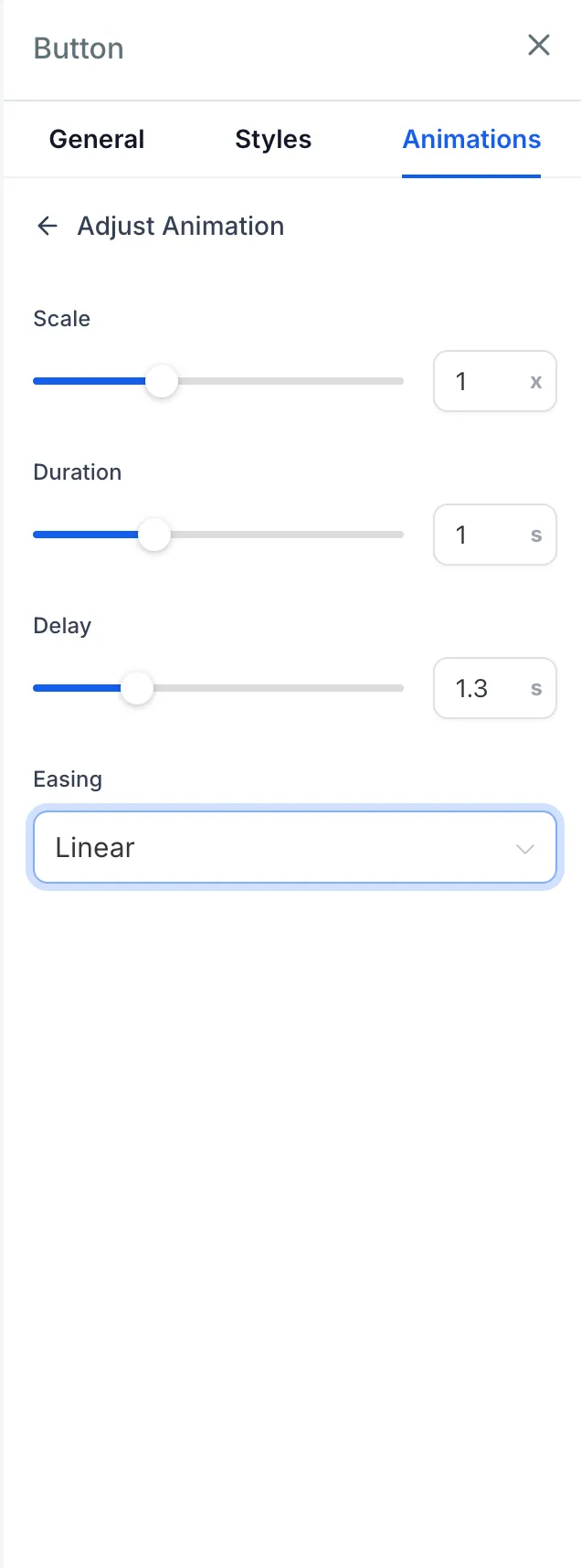
Each selected layout block can be fine-tuned with:
- Duration from 0.1 seconds to 3 seconds
- Delay from 0 seconds to 5 seconds
- Scale from 0.5x to 2x
- Easing options including Linear, Ease-in, Ease-out, and Ease-in-out
You can also hover over an animation option in the sidebar to preview it live on the selected canvas block before applying it.
Automatic sequencing
Animations now follow the page structure automatically:
- Section
- Row
- Column
- Content
Each item waits for its parent container to finish animating before it begins. This removes the need to calculate delays manually and helps preserve the intended sequence when blocks are added, removed, or reordered.
Motion is scroll-triggered, so animations play when elements come into view.
Mobile animation control
Animations are disabled on mobile by default to help preserve performance. If you want an animation to play on mobile devices, enable it for that block using the Enable animations on mobile toggle.
If some animated blocks remain disabled on mobile, the remaining enabled blocks still sequence around them automatically.
How to use it
- Open the Page Builder.
- Select a section, row, or column on the canvas.
- Open the Animations tab in the sidebar.
- Choose Entrance Animation.
- Hover over animation cards to preview effects.
- Select an animation style.
- Adjust duration, delay, scale, and easing as needed.
- Optionally enable animations on mobile for that block.
Existing published pages automatically benefit from the updated sequencing logic without requiring a re-save.
In Case You Missed It
You may also want to review Inline Schema Markup Validation in JSON View.
Release Images
Need Help Applying This Update?
Want help turning this update into a working part of your CRM, marketing, or automation setup?
Get Started or schedule a demo and we’ll help you map the right next step.
Explore this in SMBcrm
Connect a website visit to a useful next step.
Explore website and funnel tools, then plan the form, booking, or conversation that follows a visit.
Explore website and funnel toolsAlready using this feature? Find setup help