SMBcrm now supports list-type values in workflow text fields, making it easier to use collections such as order line items, inbound webhook lists, or other grouped values inside automation content.
This update improves how list data works in SMBcrm automation by letting you choose which field to extract and how the list should appear before inserting it.
What changed
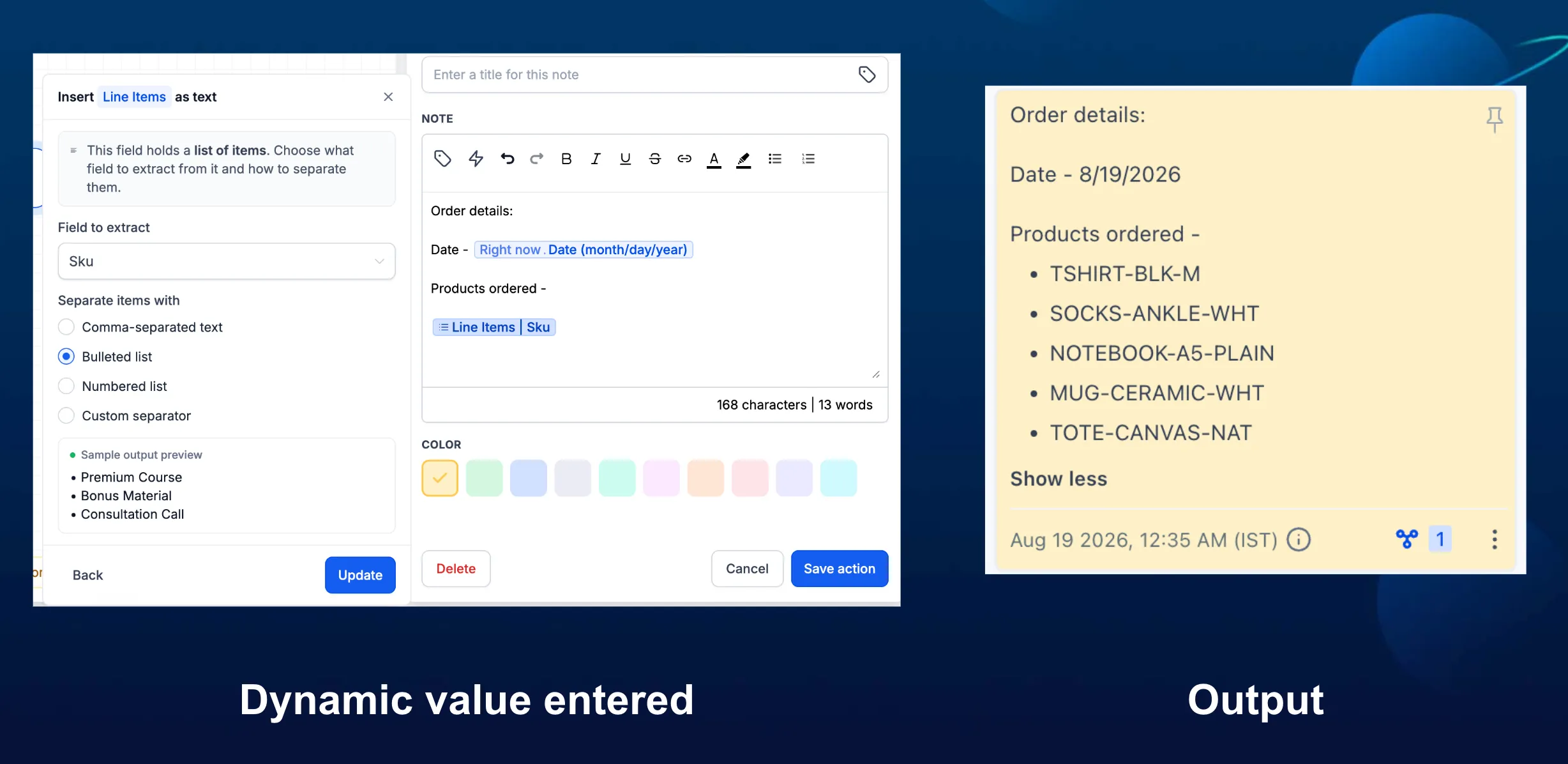
When the custom value picker detects a list-type value, it no longer inserts the raw list directly. Instead, it opens an inline form inside the current text field so you can configure:
- The field to extract from the list
- The display format
- An optional fallback for empty lists
- A preview before insertion
Supported formats include:
- Comma-separated values
- Bulleted lists
- Numbered lists
- Custom separators
The selected formatting rules are saved with the custom value and applied each time the workflow runs.
How to use it
- Open the custom value picker in a workflow text field.
- Select a list-type value.
- Choose the field to extract.
- Select the list format and optional empty-list fallback.
- Preview the result.
- Click Insert to add it at the cursor.
Example
If an inbound webhook sends a line_items list that includes a sku field, you can select line_items, extract sku, and choose a numbered list format. Each product SKU will be inserted on its own numbered line.
Additional notes
Text, number, date, and other single-value variables keep their existing instant-insert behavior.
List formatting appears only when the workflow detects a list-type output in the execution context. The preview shows how the selected field and format will appear before you insert it.
In Case You Missed It
You may also want to read WhatsApp Analytics Added to Workflow AI Assistant.
Release Images
Need Help Applying This Update?
Want help turning this update into a working part of your CRM, marketing, or automation setup?
Get Started or schedule a demo and we’ll help you map the right next step.