The Linear integration brings Linear into the SMBcrm Workflow Builder so support, sales, and marketing teams can connect customer activity with engineering and product work.
With SMBcrm automation, workflows can respond to Linear events and create or update Linear records without separate webhook setup or third-party handoffs.
What changed
The integration includes two parts:
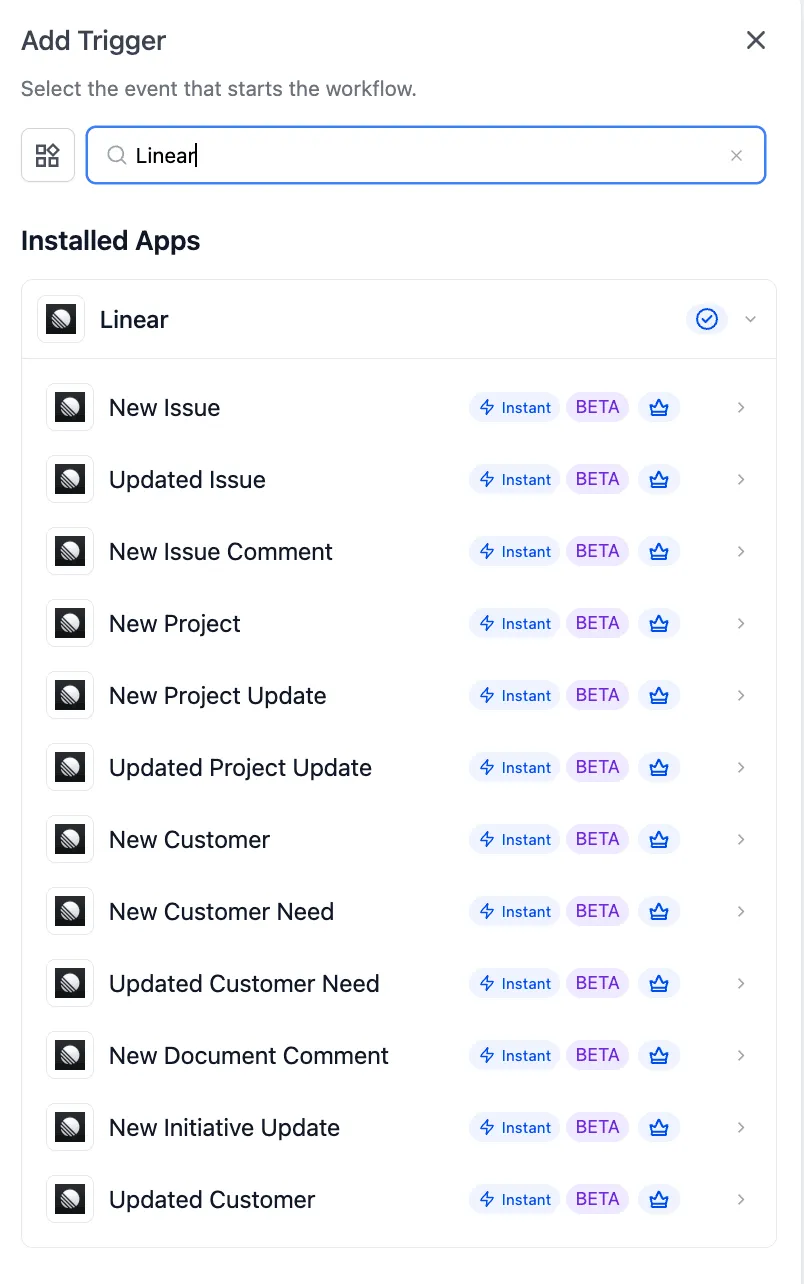
- 12 instant Linear triggers that fire when Linear records change
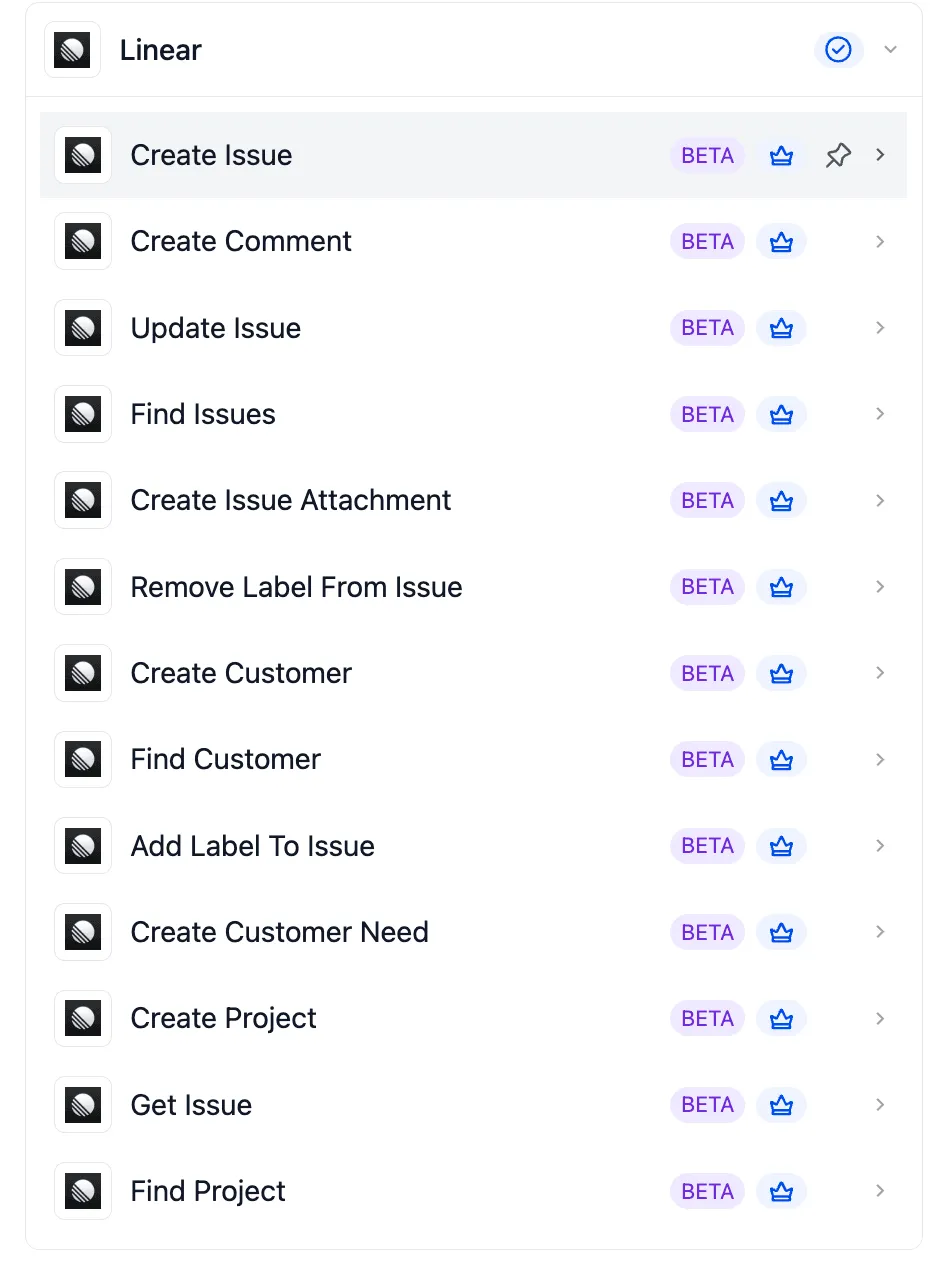
- 13 workflow actions that create, update, find, or attach Linear records
- OAuth-based connection with workspace and team scoping
- Support for issues, projects, customers, customer needs, initiatives, documents, comments, labels, and attachments
All Linear triggers and actions are premium workflow components and consume premium action credits at the standard automation rate.
Available Linear triggers
All 12 triggers are instant and powered by Linear webhooks:
- New Issue
- Updated Issue
- New Issue Comment
- New Project
- New Project Update
- Updated Project Update
- New Customer
- Updated Customer
- New Customer Need
- Updated Customer Need
- New Document Comment
- New Initiative Update
These triggers can help teams react when an issue is created, a project update is posted, a customer need changes, or a Linear document receives a comment.
Available Linear actions
SMBcrm workflows can also take action in Linear:
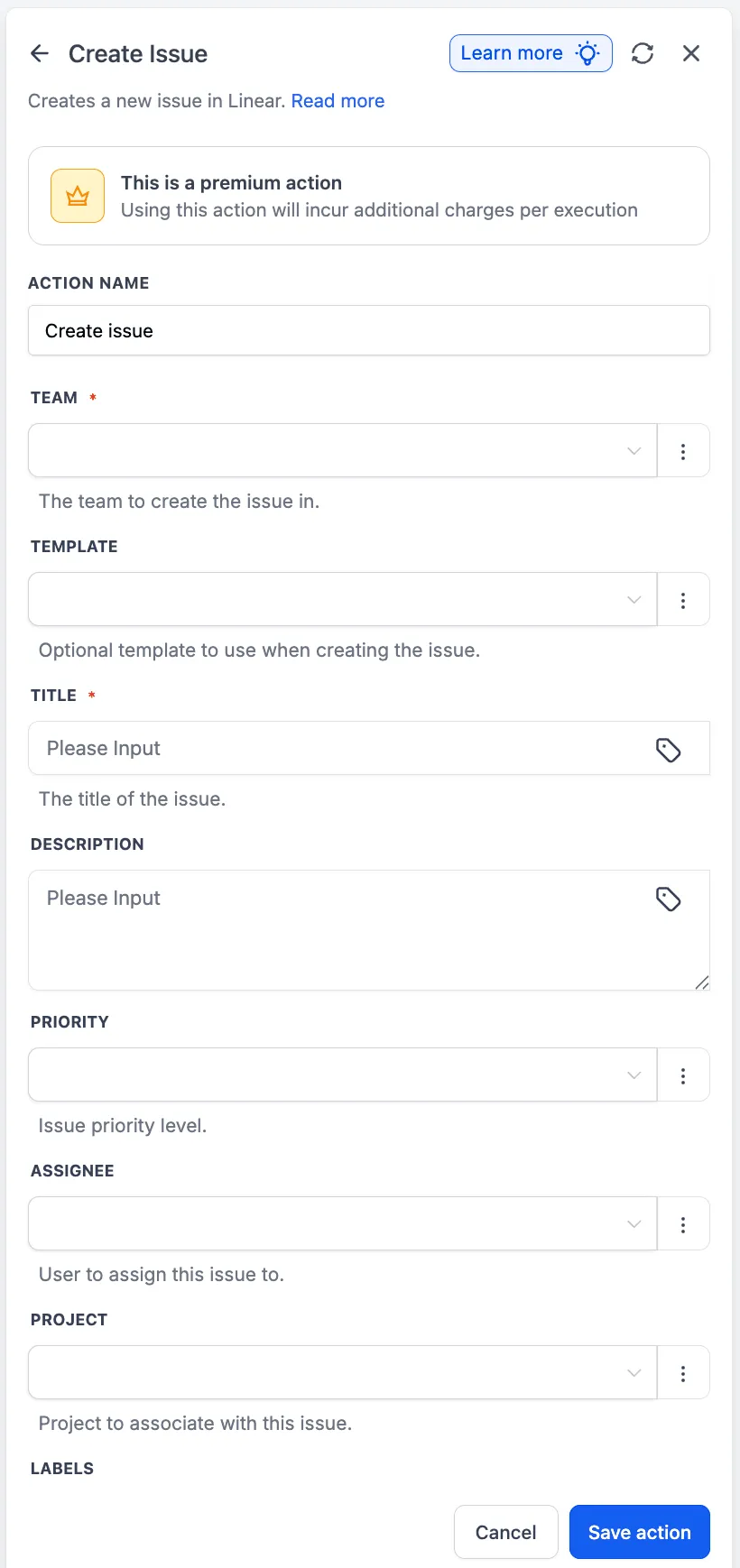
- Create Issue
- Update Issue
- Get Issue
- Find Issues
- Create Comment
- Create Issue Attachment
- Add Label To Issue
- Remove Label From Issue
- Create Project
- Find Project
- Create Customer
- Find Customer
- Create Customer Need
For example, a workflow can turn a customer-reported bug into a tagged Linear issue, attach the CRM record URL, and create a related customer need for product prioritization.
How to connect Linear
You can connect Linear from the Workflow Builder or from Settings.
Connect from Workflow Builder
- Open Automation, then Workflows.
- Choose an existing workflow or create one.
- Add a Linear trigger or action from the Apps tab.
- Select the Linear trigger or action you want to use.
- Click Connect Now.
- Sign in to Linear and authorize the workspace and teams you want to use.
- Save the connection.
Connect from Settings
- Go to Settings, then Integrations.
- Find Linear in the integrations list.
- Click Connect.
- Authenticate with OAuth and authorize the workspace.
Example workflows
Customer-reported bug to Linear issue
A support form or inbound conversation can trigger a workflow that finds the customer in Linear, creates a tagged issue, attaches CRM context, and logs a customer need.
Linear issue resolved to customer notification
An Updated Issue trigger can watch for issues marked Done with a support-related label. The workflow can get the latest issue state, summarize the resolution, and send the original reporter an email or SMS.
Engineering project update to customer communication
A New Project Update trigger can convert engineering updates into customer-ready release notes, stakeholder digests, or opportunity updates.
CRM and Linear customer sync
A workflow can create a Linear customer when a CRM customer is created, or update CRM fields when a Linear customer changes.
Sales conversation to customer need
A workflow can use a call transcript, extract feature requests, find the matching Linear customer, and create customer needs for product review.
Setup and testing tips
Before publishing a workflow, test both the trigger and the action.
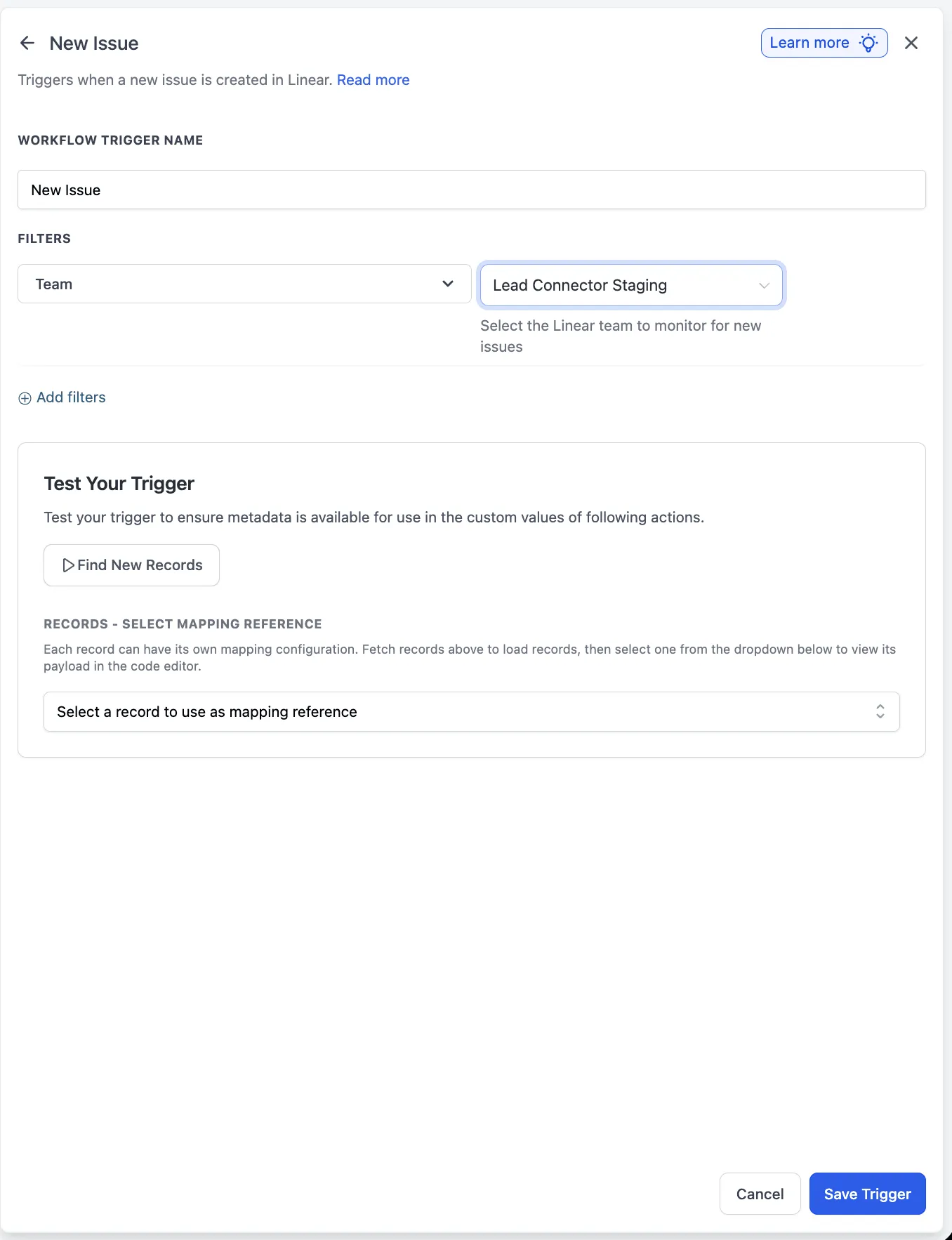
- Use Find New Records in the trigger panel to select a mapping reference.
- Confirm the payload includes the fields needed by downstream steps.
- Use Test Action to verify the result in Linear.
- Run a full workflow test before publishing.
For cleaner workflows, set a Team filter on Linear triggers, add clear source labels such as from-customer-support, and use Create Issue Attachment to connect the Linear issue back to the CRM record.
If you use workflow variables in fields, wrap them carefully in titles and descriptions. For example: [Customer Bug] {{trigger.subject}} - {{contact.full_name}}.
Important notes
Linear actions are partial where applicable. Update Issue only sends fields that are explicitly set, so unrelated Linear fields remain unchanged.
Customer and Customer Need records depend on Linear’s Customer Requests feature, which is gated behind specific Linear plan tiers. Check Linear’s current pricing for those details.
The Linear triggers and actions are released as Beta. The source release notes that they are safe to use in live workflows and that incremental UX changes, additional filters, and additional fields may follow as the integration moves out of Beta.
In Case You Missed It
For another workflow update, read AI Builder for Workflows Gets a Major Upgrade.
Release Images
Need Help Applying This Update?
Want help turning this update into a working part of your CRM, marketing, or automation setup?
Get Started or schedule a demo and we’ll help you map the right next step.