Add Task in Workflows Gets More Flexible Due Dates and Rich Text
SMBcrm has updated the Add Task action in Automation to give you more control over task scheduling and formatting.
What changed
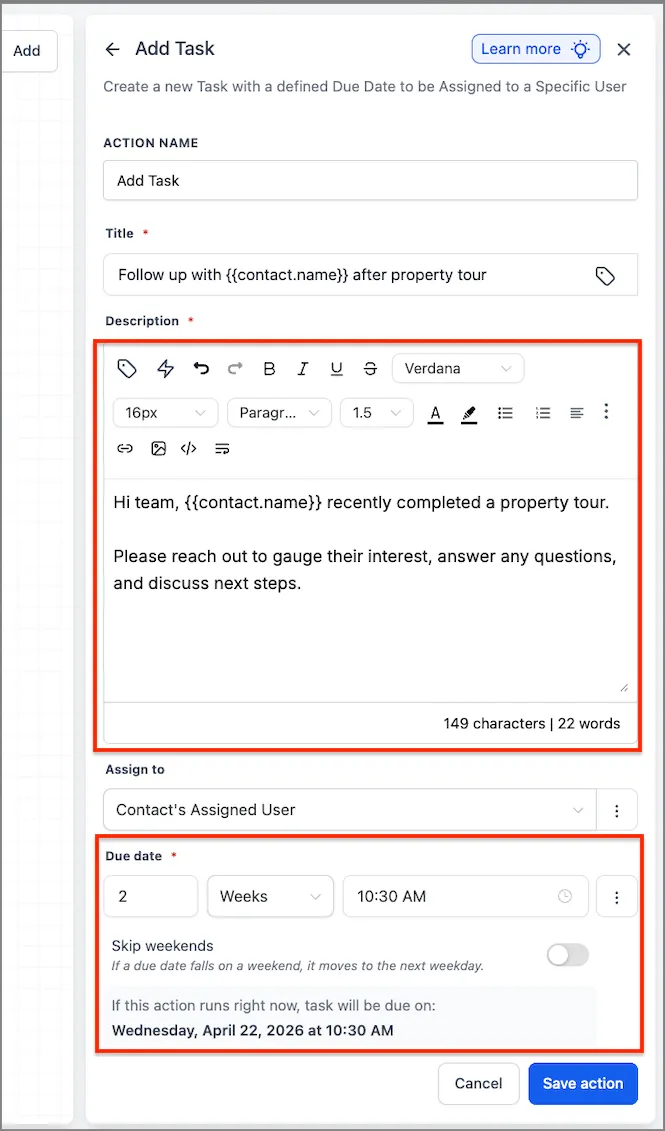
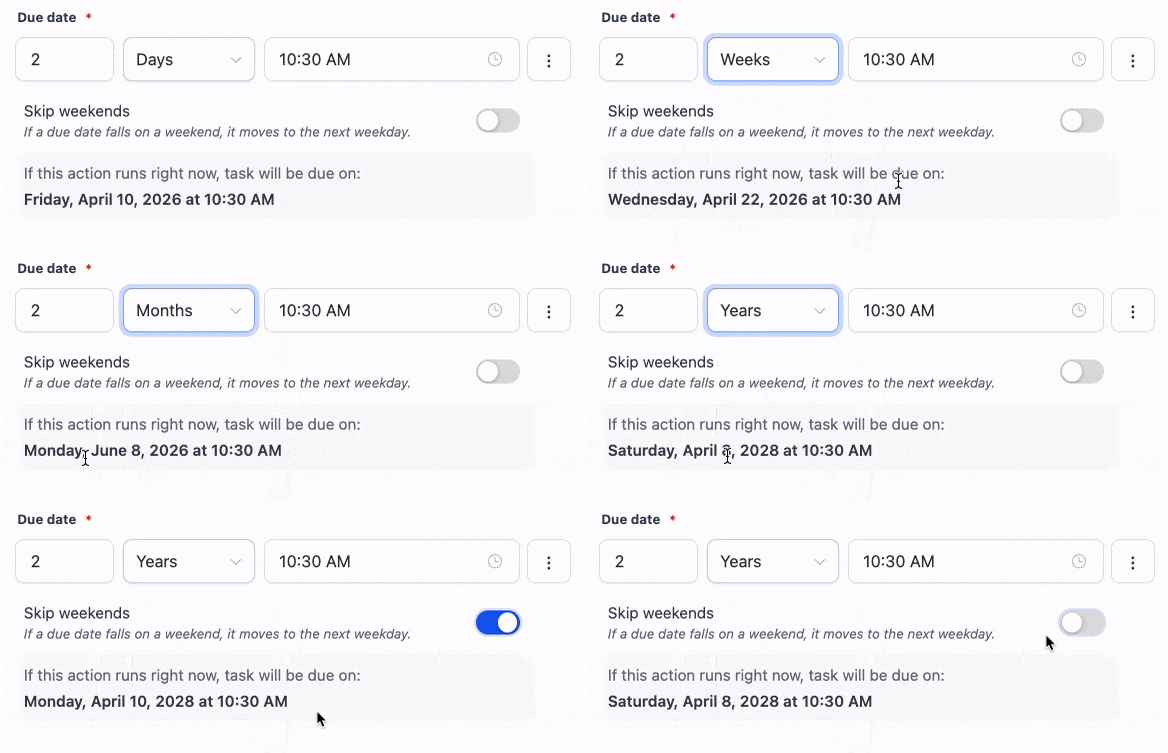
You can now configure task due dates using:
- Days
- Weeks
- Months
- Years
You can also:
- Set a specific due time
- Use Exclude Weekends when needed
- See a live preview of the evaluated due date and time
- Add rich text formatting to task descriptions
Task description formatting is preserved when the task is saved and displayed in Tasks.
How it works
In the Add Task action, due dates are now set through a Due In field with a numeric value and time unit. If you choose, you can also set a specific due time.
The action shows a live preview of the final due date and time based on the current configuration. If Exclude Weekends is enabled, weekends are skipped in the calculation, and the preview uses the same logic as the final task creation.
Rich text descriptions keep their formatting after the task is saved and when it appears across task views.
Why it matters
This update makes it easier to plan follow-up work beyond a short day-based window and assign tasks for a specific time of day. It also helps teams create clearer task instructions directly from workflows.
For example, a real estate team can create a task due in 2 weeks at 10:30 AM for a follow-up call after a property tour.
Compatibility note
Existing workflows that use the current day-based due date setup continue to work the same way.
In Case You Missed It
You can also read about AI Builder now clarifying missing details before creating workflows.
Need Help Applying This Update?
If you’d like help rolling this out in SMBcrm, visit Support or request a demo.