Canva Integration in Media Storage
You can now connect Canva directly in Media Storage to browse designs, edit files, download assets, and import designs into My Media.
This update reduces back-and-forth work between Canva and SMBcrm and helps keep asset management in one place.
What You Can Do
With the Canva connection in Media Storage, you can:
- Browse Canva designs
- Edit a design in Canva
- Download files
- Import designs into My Media
How It Works
Canva is connected at the account level.
- Only one Canva account can be connected per account
- All users in the account can view assets
- Proxy users using Login As cannot access the Canva connection
How to Use It
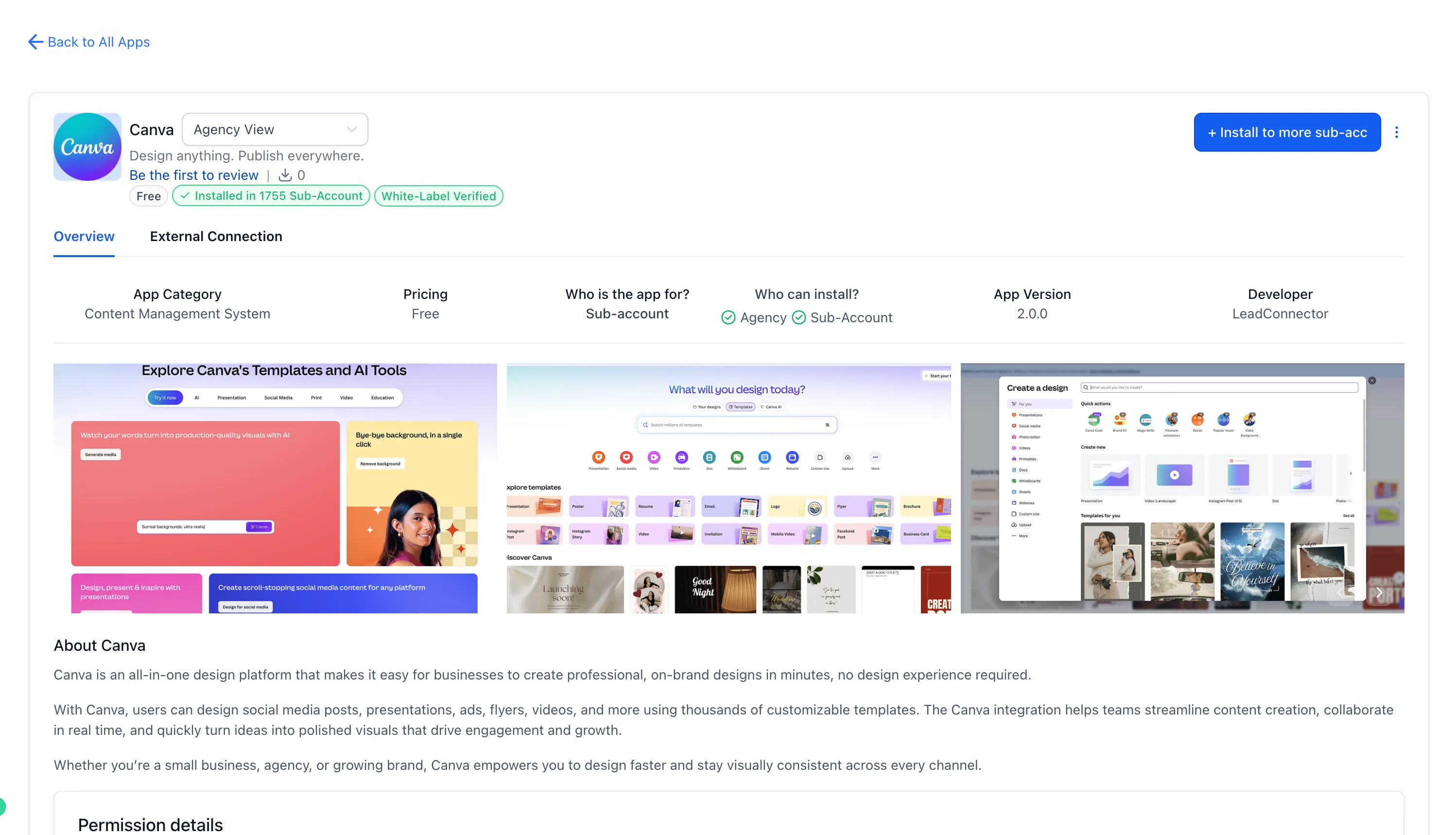
Connect Canva
- Go to Media Storage and open the Canva tab
- Select Connect
- Install Canva from the App Marketplace
- Complete OAuth
- Your designs will appear in Media Storage
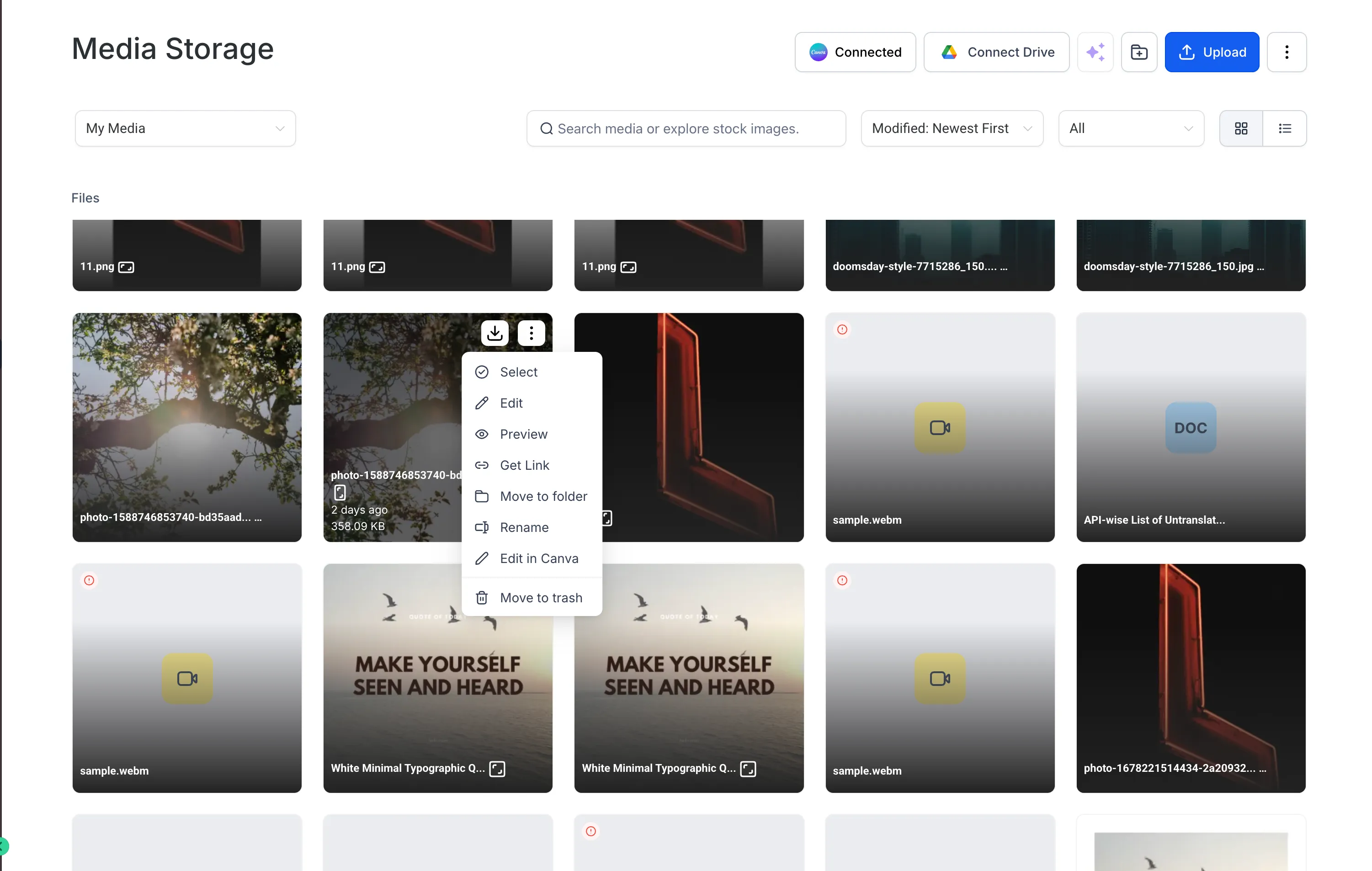
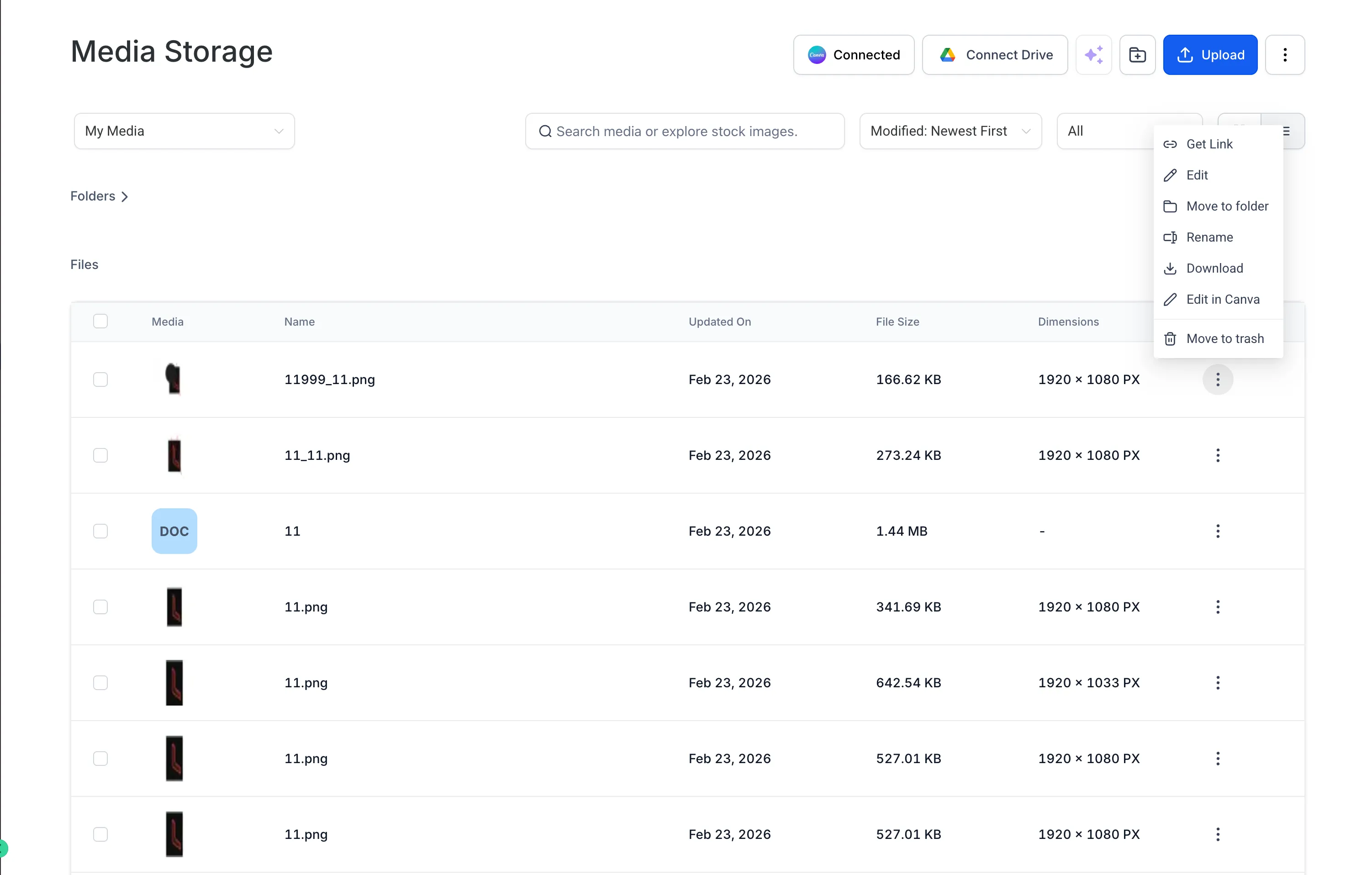
Edit from the Canva Tab
- Open the 3-dot menu on a design
- Select Edit in Canva
- Import the updated version back into My Media
Edit from My Media
Editing from My Media is available for PNG, JPG, and JPEG files.
- Open the file in My Media
- Select Edit in Canva
- Re-import the updated version
Permissions and Access
- The installer has full edit access
- Other users can view, search, download, and import assets
- Only one OAuth connection is allowed per installation
If a non-installer tries to edit a file, they will have view-only access and may need to import it into their own storage or contact an admin.
Additional Notes
Smart Design Tracking
Smart design tracking helps prevent duplicate Canva copies when editing from My Media.
Disconnecting Canva
To disconnect Canva, uninstall it through the App Marketplace.
Previously imported files will remain in your account.
Good to Know
- Only one Canva account can be connected per account
- Files must be imported before they can be used in funnels or emails
- Private Canva files cannot be edited
Need Help Applying This Update?
If you’d like help rolling this out in SMBcrm, visit Support or request a demo.