Digital Product Delivery by Email and Instant Access
SMBcrm now supports more flexible digital product fulfillment for ecommerce stores. You can deliver files by email, share external URLs, and give customers instant access after checkout without requiring a login.
What changed
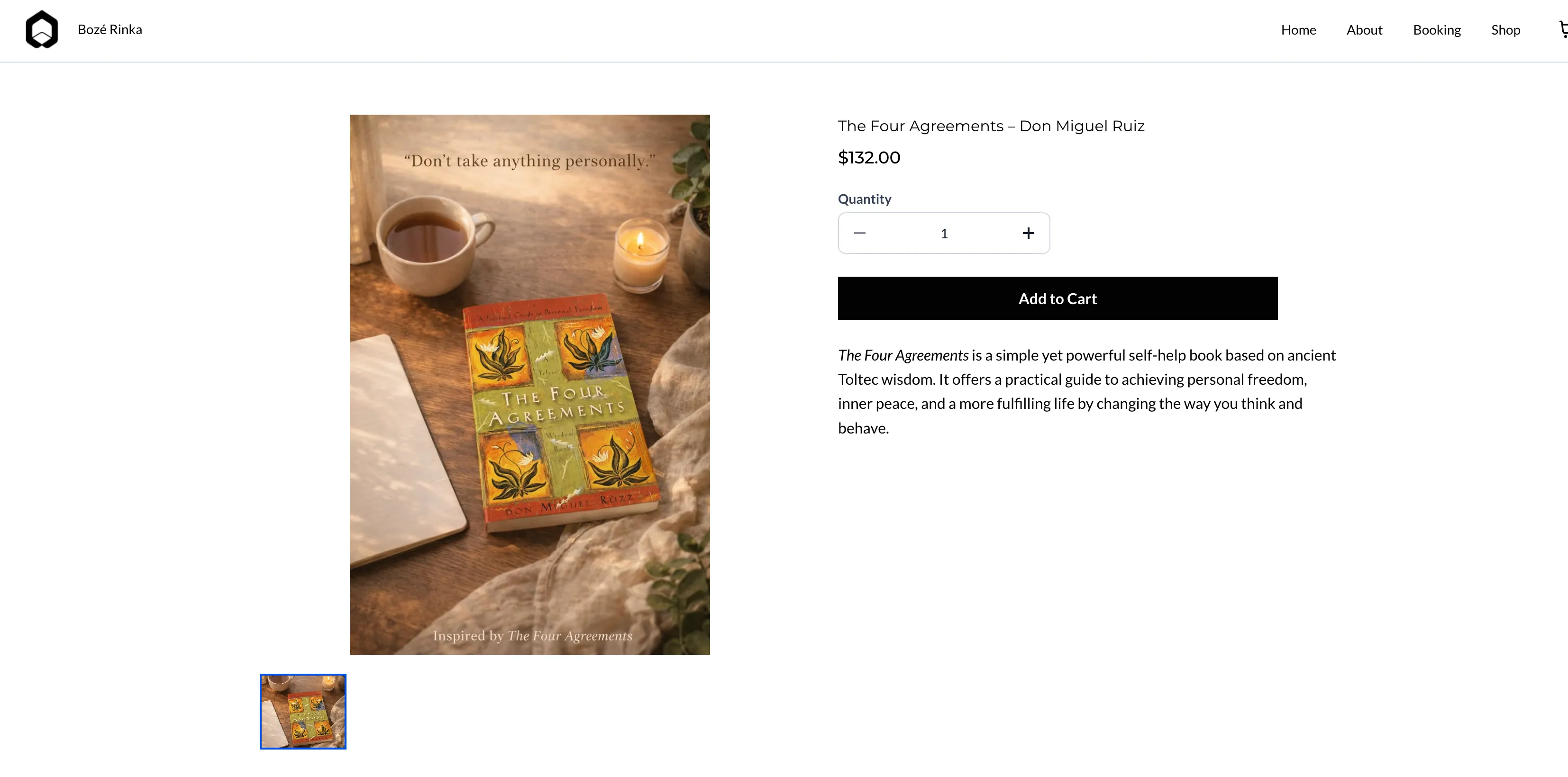
Store owners can now choose how digital products are delivered after a purchase. Supported delivery methods include:
- Email attachments for smaller files
- External URL delivery for digital products hosted elsewhere
- Instant access from the Thank You page after checkout
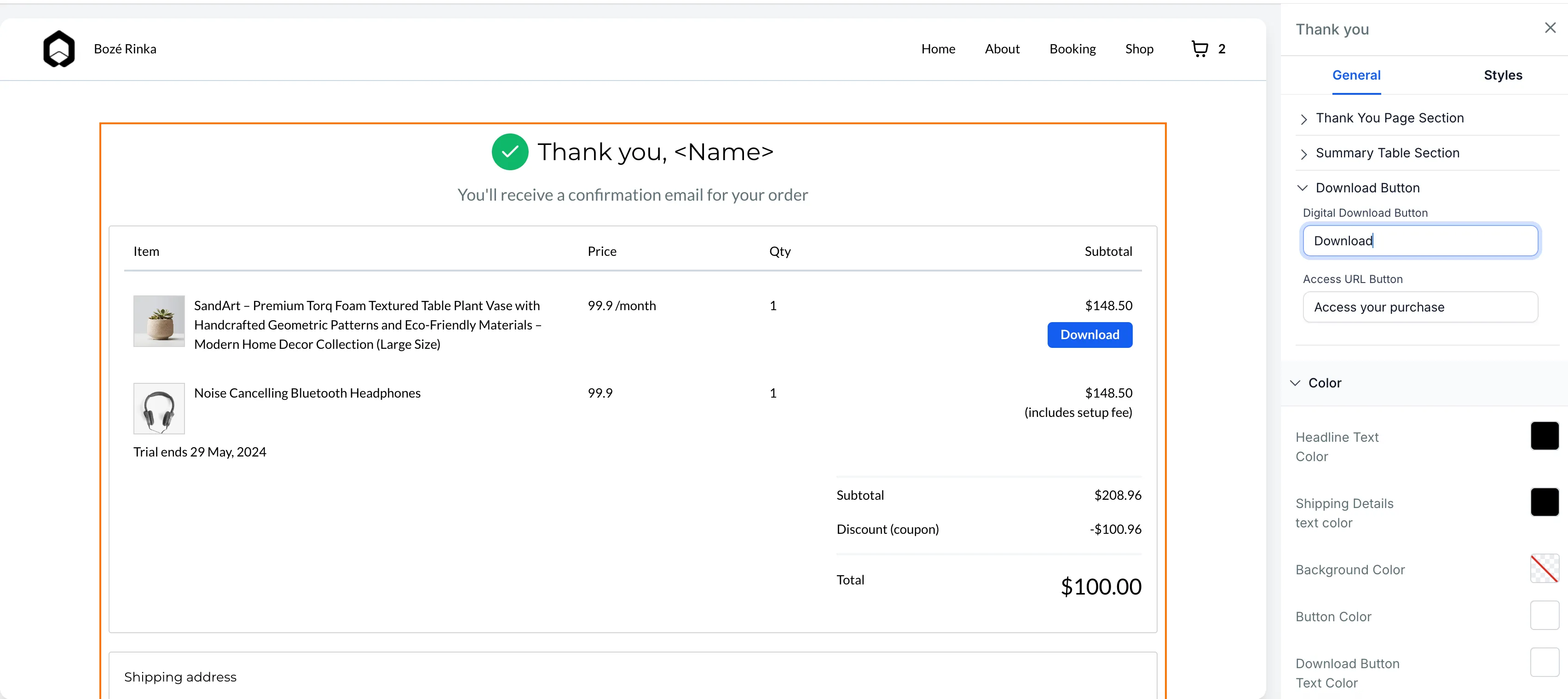
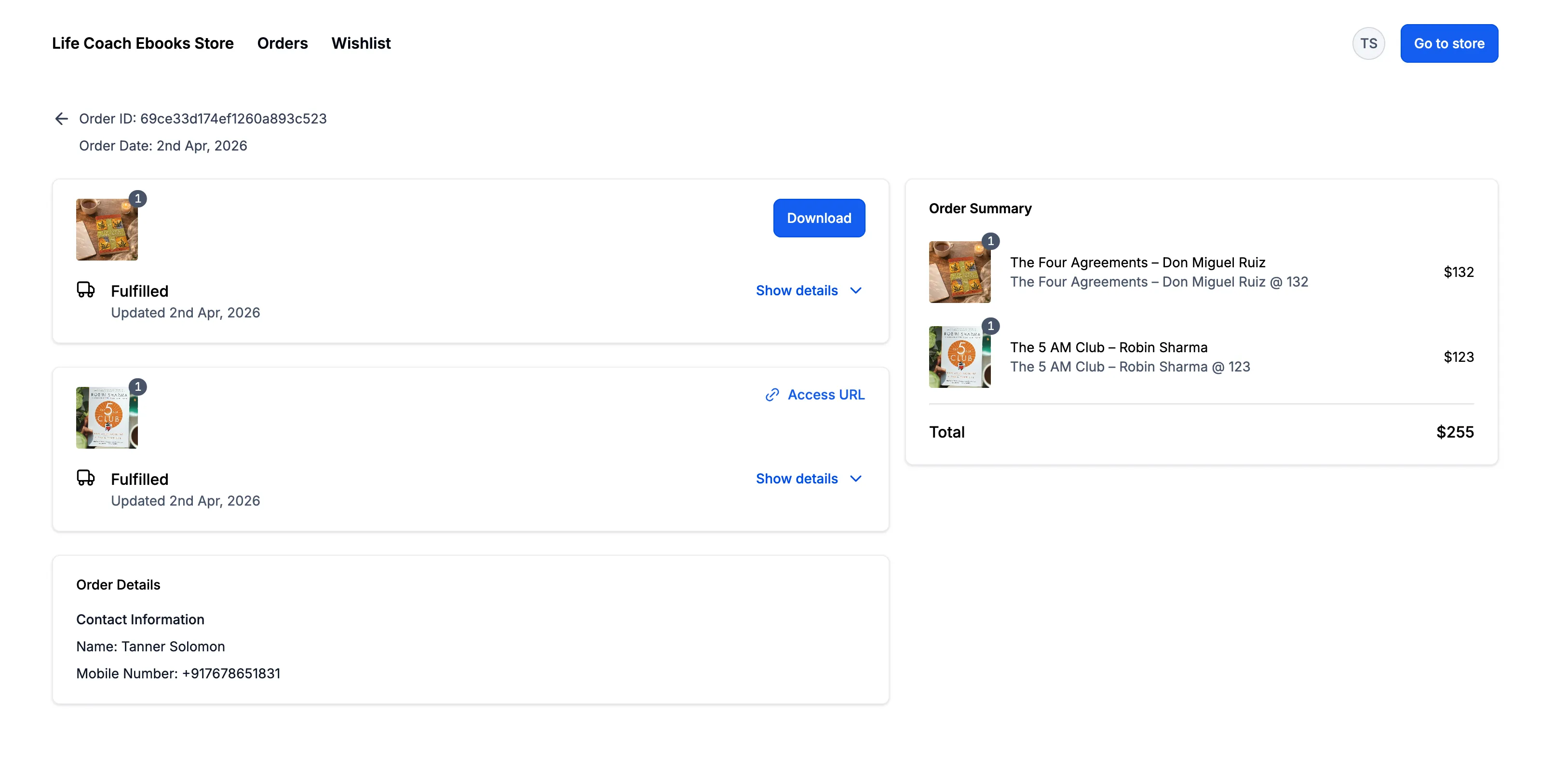
Customers can also access download or URL buttons in order emails and on the Thank You page when direct delivery is enabled.
Email delivery behavior
SMBcrm handles file delivery based on file size:
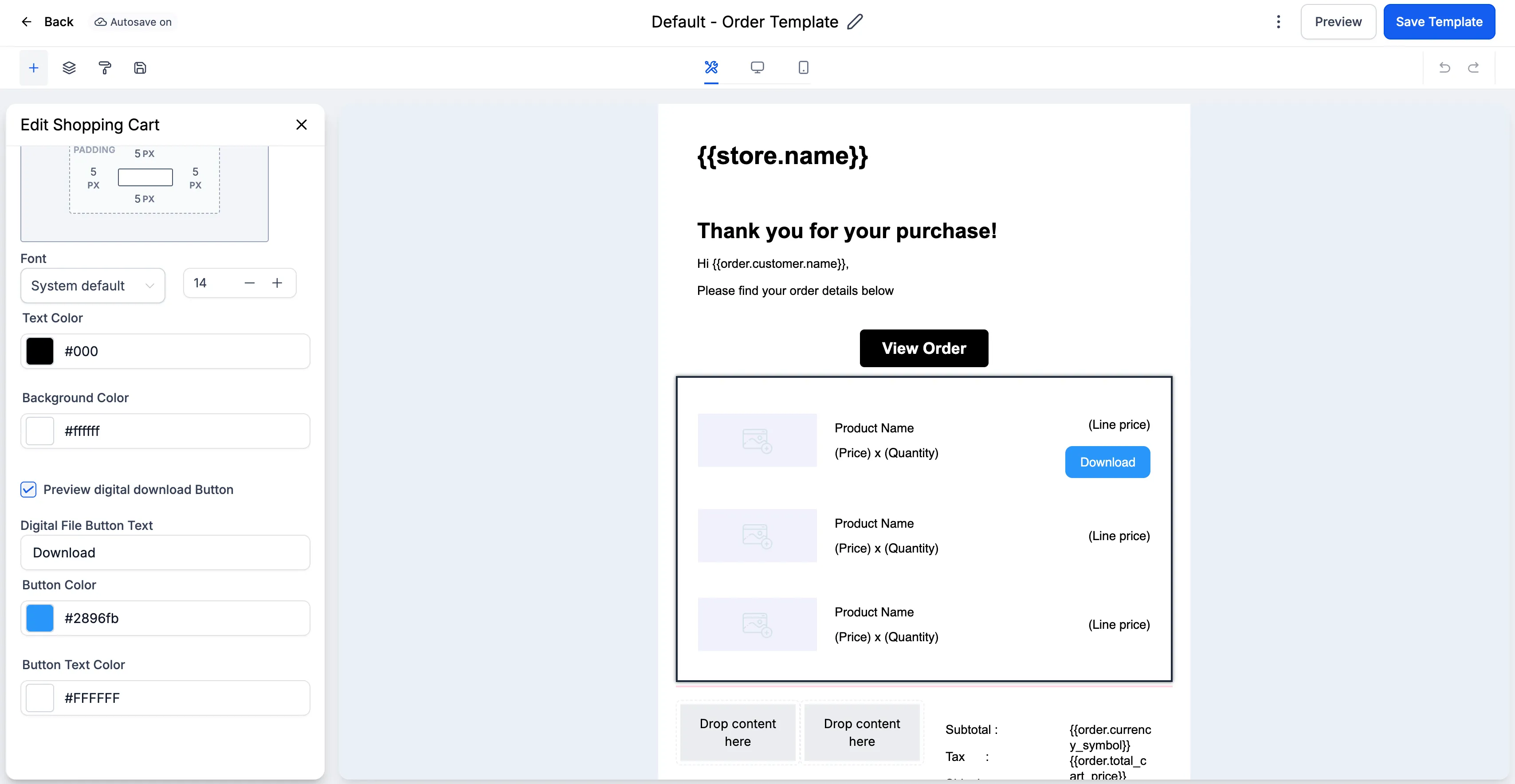
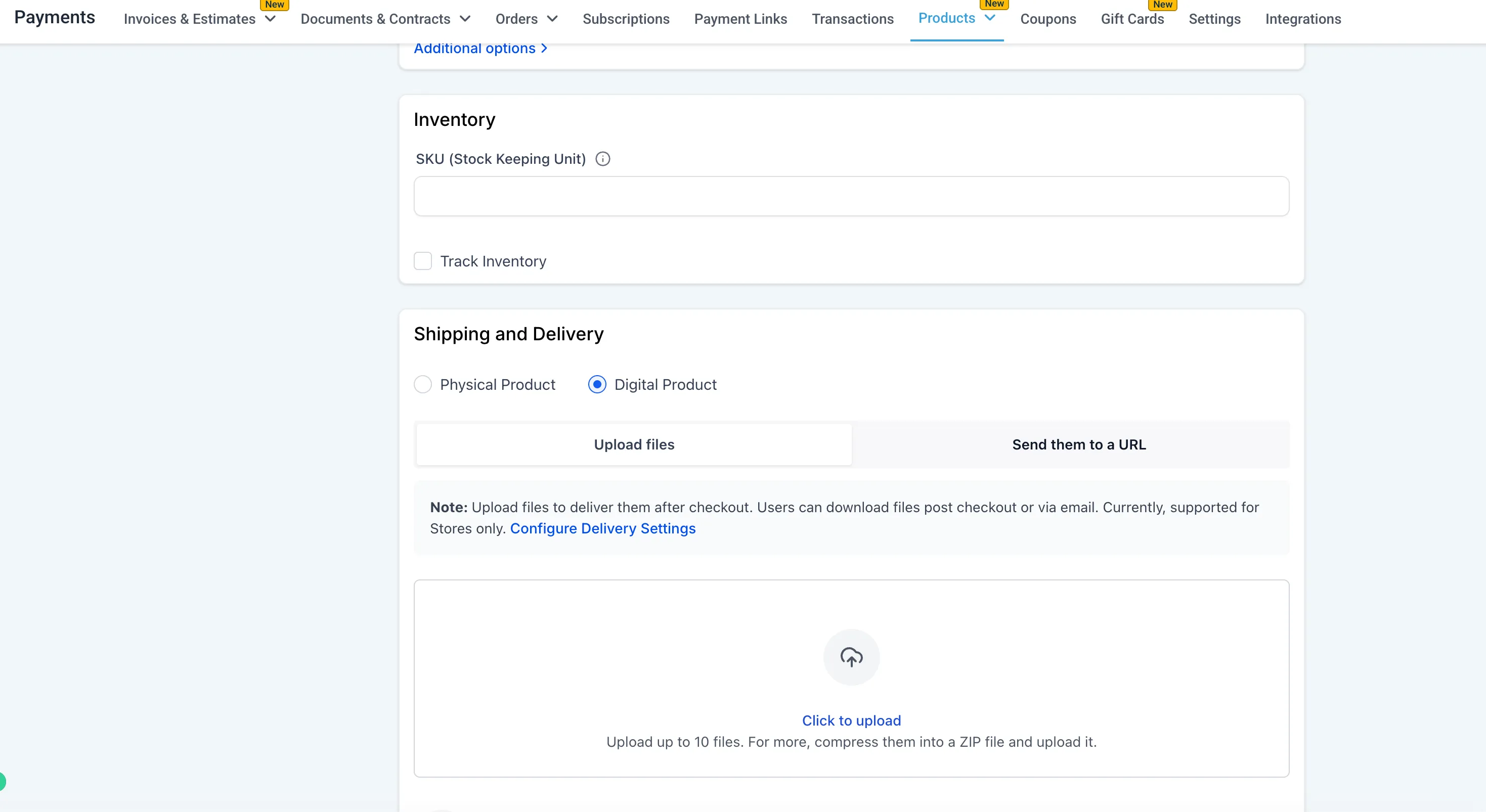
- Files 20 MB or smaller are attached to the order confirmation email
- Files larger than 20 MB are delivered through a secure download button in the email
This helps avoid email attachment size issues while still giving customers access to their purchase through your communication tools.
Instant access after checkout
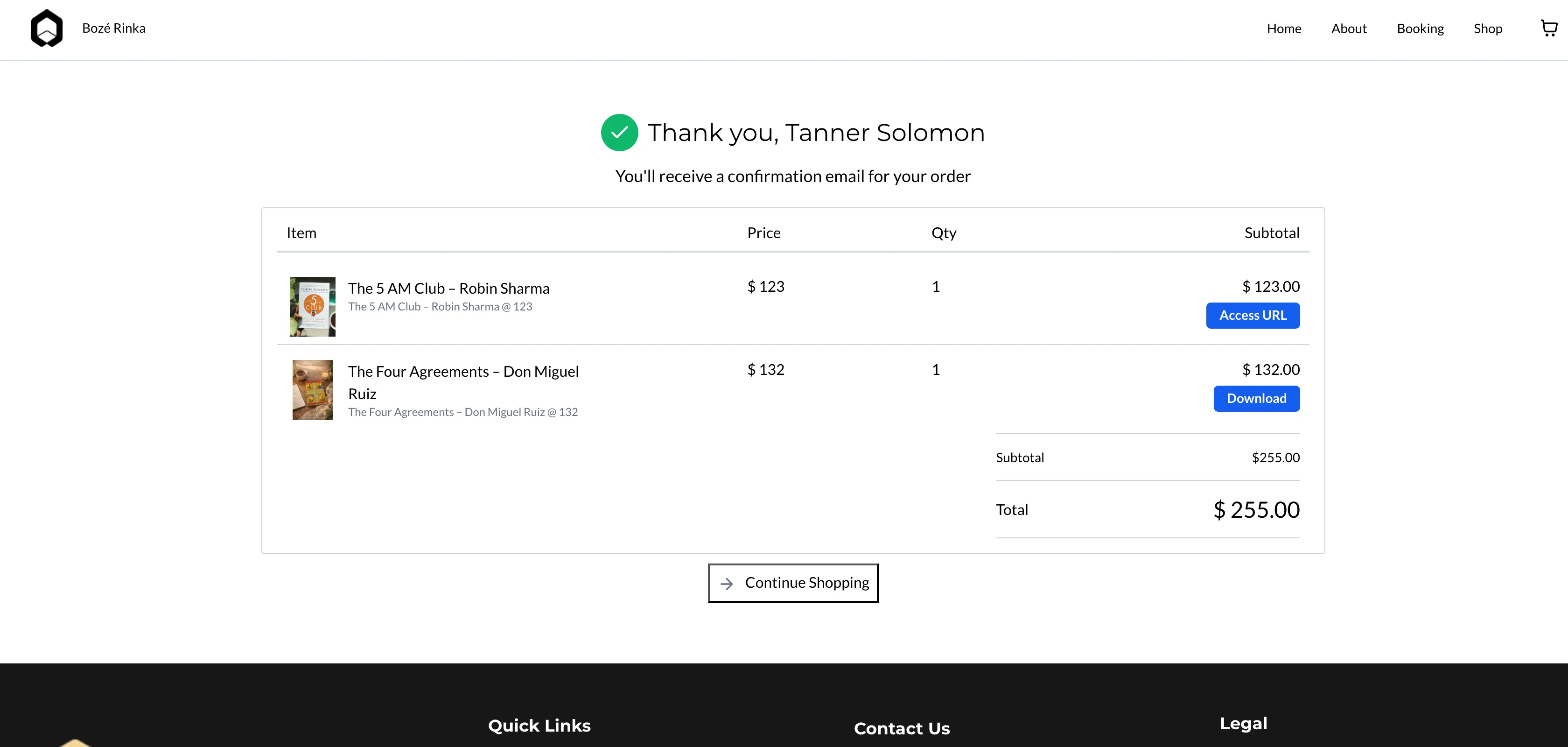
When direct delivery is turned on, customers can download files or open URL-based products immediately after checkout without signing in. Access buttons appear:
- On the Thank You page
- In order confirmation emails
Delivery control settings
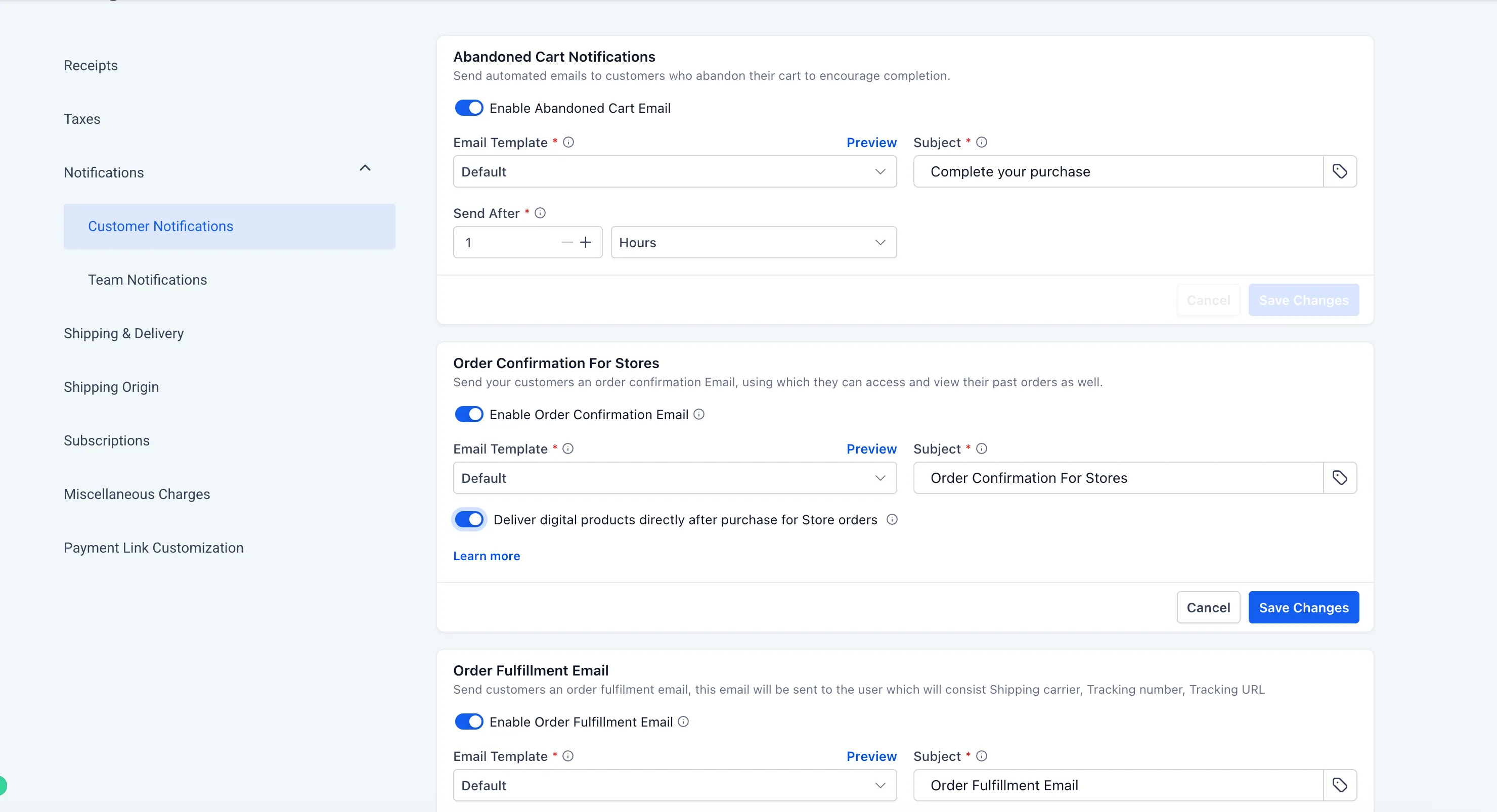
A new setting is available in Payments → Settings → Notifications:
Deliver digital products directly after purchase for Store orders
- When enabled, digital products are delivered right away by email and on the Thank You page
- When disabled, fulfillment defaults to the Customer Access Center
New accounts have direct delivery enabled by default.
URL-based fulfillment with expiration
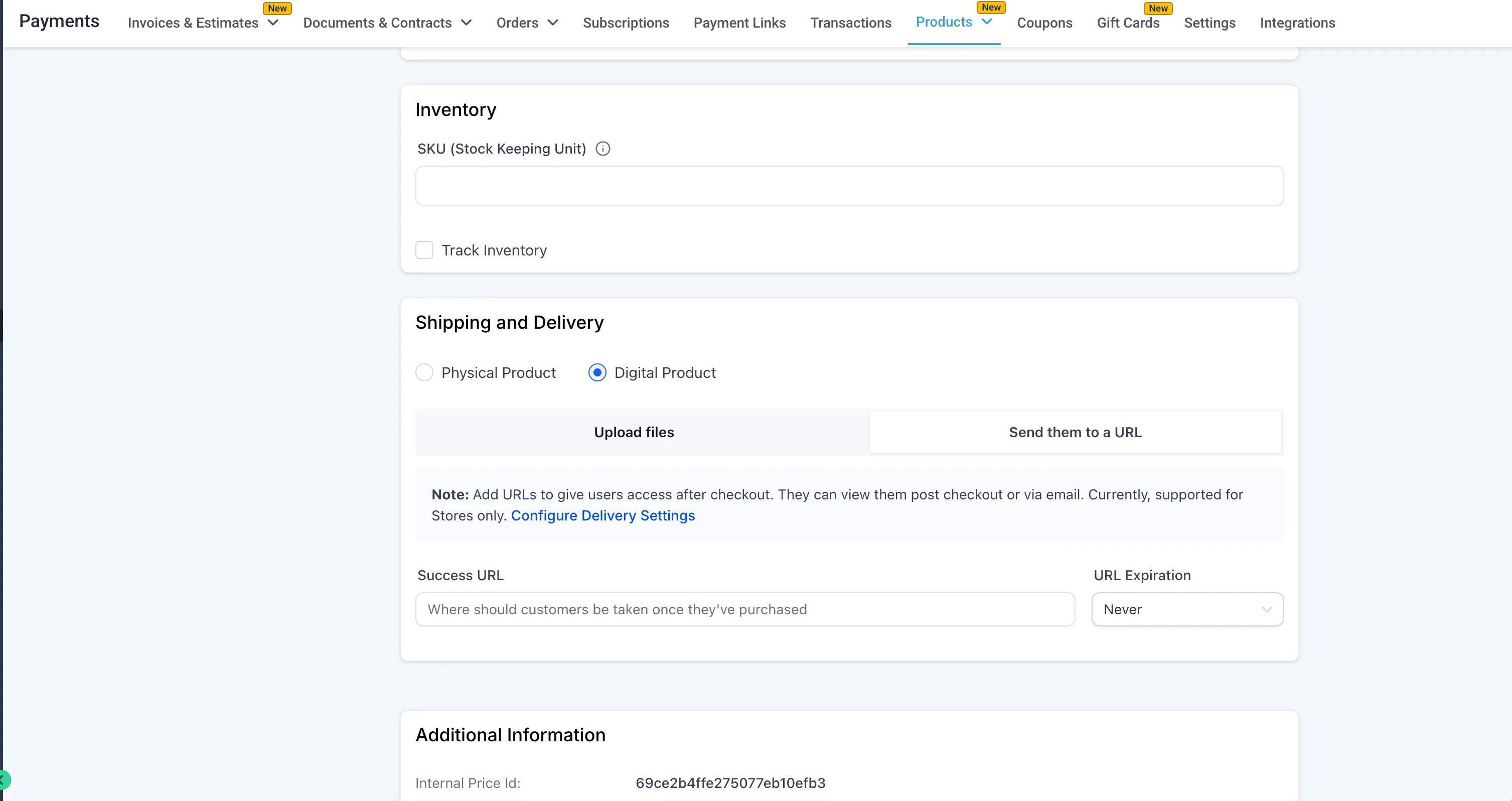
You can also add an external URL as a digital product and set an expiration period starting from the time of purchase. This is useful when you want to control access to hosted content instead of delivering a file directly.
How to use it
- Go to Payments → Settings → Notifications in your store
- Enable Deliver digital products directly after purchase for Store orders
- Create or edit a product variant
- Select Digital Product
- Upload a file or add an external URL with an expiry setting
- Optionally update your order confirmation email
- Save your changes
Important notes
- If direct delivery is disabled, files are delivered through the Customer Access Center by default
- Existing custom email templates must be re-saved to show the updated download button behavior
- If no digital file or external URL is attached to the product, no download button appears in the order flow
- On iOS devices, downloads may redirect to a file list or the Customer Access Center due to device restrictions
- If multiple files are included, iOS users may need to download them one at a time
In Case You Missed It
You can also read about Improved Border Controls in Page Builder.
Release Images
Need Help Applying This Update?
If you’d like help rolling this out in SMBcrm, visit Support or request a demo.