Schema Markup Generator in Website and Funnel Builder
SMBcrm now includes a built-in Schema Markup Generator in the Website and Funnel Builder. It lets you create, validate, and publish structured data on a page without external tools or manual code injection.
This release also renames the SEO Meta Data section to SEO & AI search optimization.
Why it matters
Schema markup helps search engines and AI systems understand what a page is about. This can support visibility in rich results, AI overviews, and citation-focused experiences.
Instead of relying on outside validators or manual code edits, you can now manage schema directly inside SMBcrm while working on your website or funnel pages. This fits naturally alongside your broader Reputation & Growth tools.
What the Schema Markup Generator includes
- More than 140 schema types
- A no-code Form View for guided setup
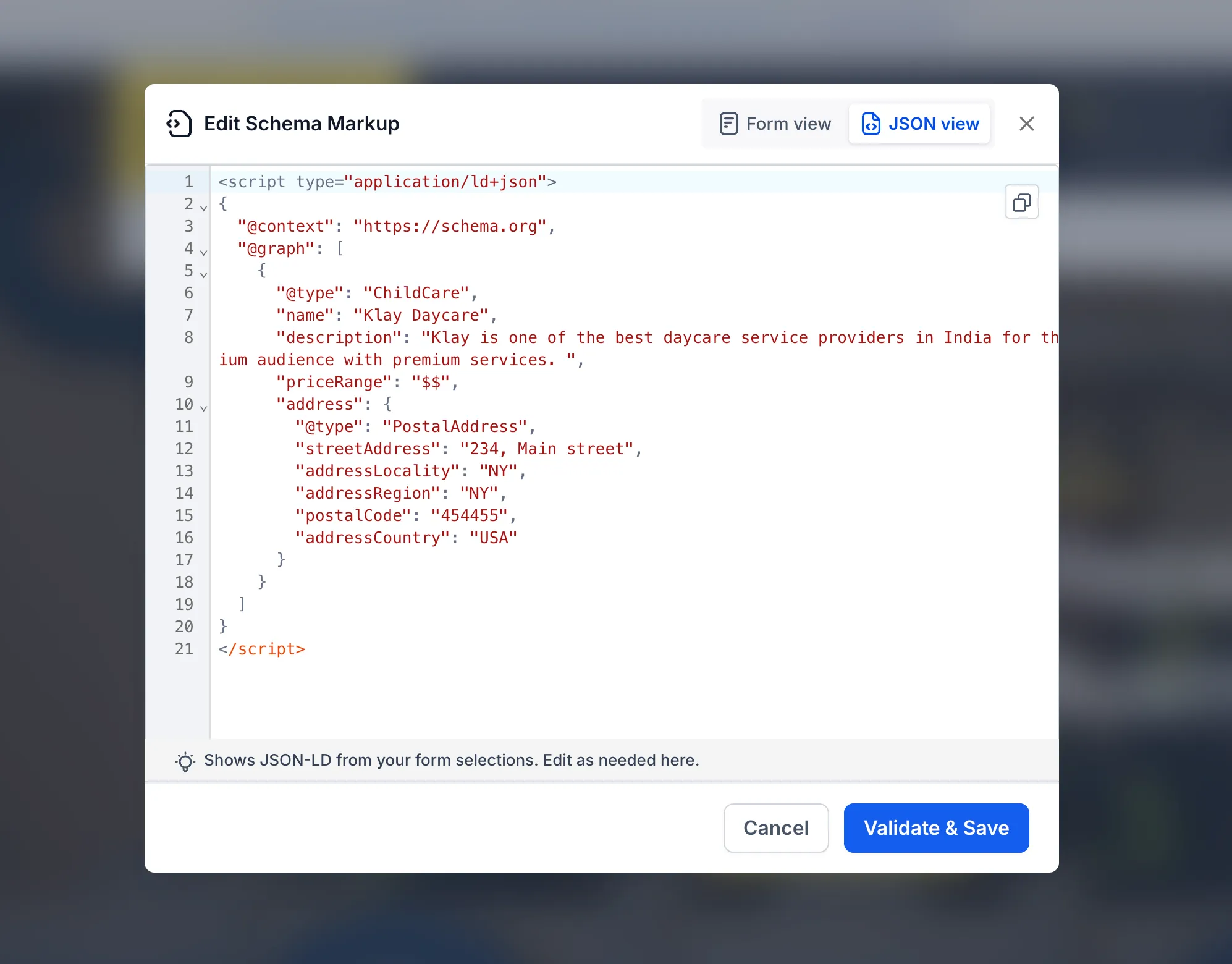
- A JSON View for direct JSON-LD editing
- Built-in validation against Schema.org and Google rich results guidelines on save
- One-click save and publish workflow
- Support for multiple schema types on a single page
Where to find it
To use the feature:
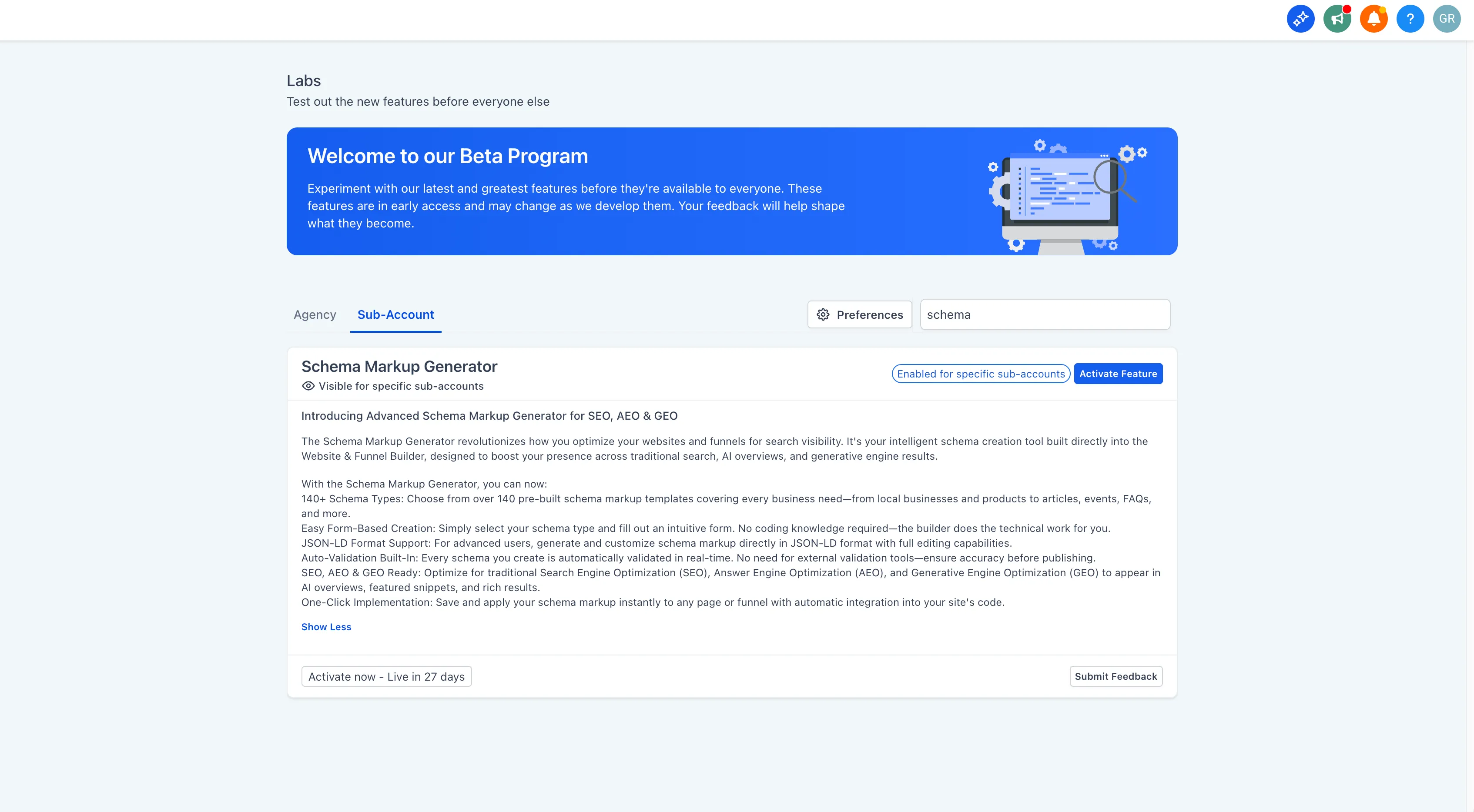
- Go to Agency Settings and enable Schema Markup Generator in Labs for selected accounts or all accounts.
- Open the Website/Funnel Builder.
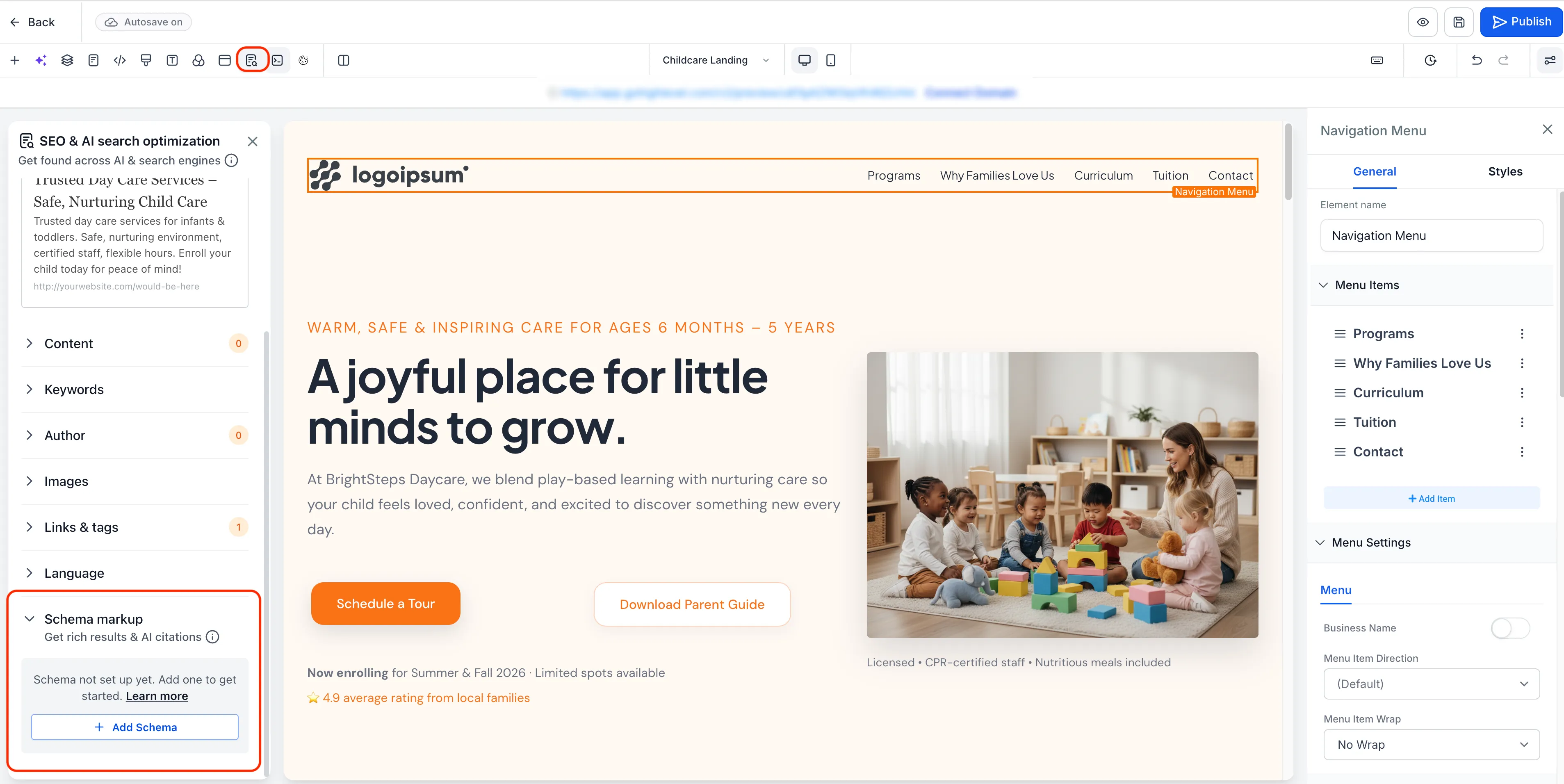
- Edit a page and open SEO & AI search optimization in the left panel.
- Select Schema Markup and click Add Schema.
How it works
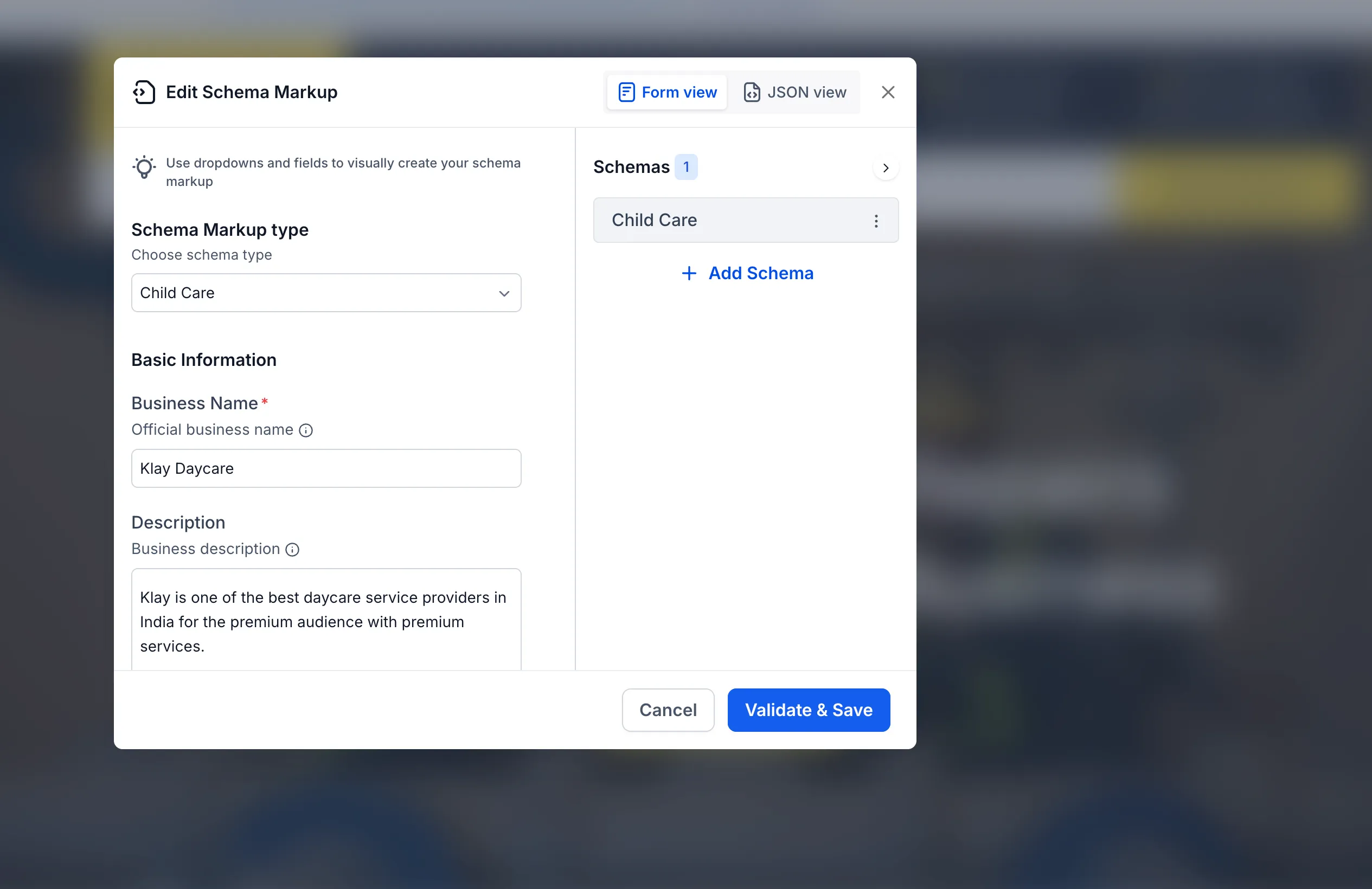
- Choose a schema type such as LocalBusiness, FAQPage, or Product.
- Complete the fields in Form View, or switch to JSON View to paste or write JSON-LD directly.
- Click Validate & Save. If validation fails, errors are shown inline.
- Publish the page to make the schema live.
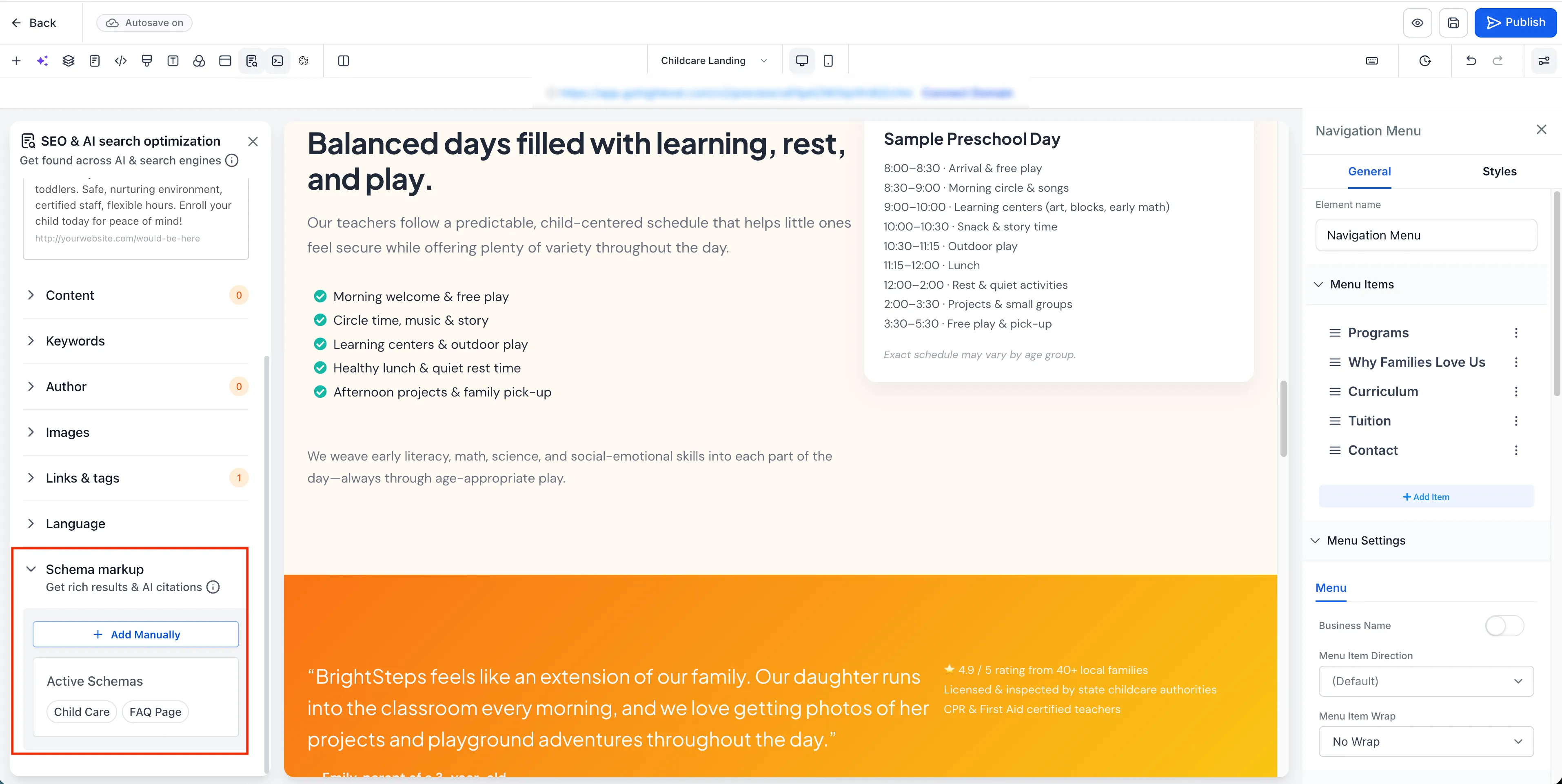
Supported schema types
Supported options include:
- Organization
- Website
- BreadcrumbList
- Article and BlogPosting
- FAQPage
- QAPage
- HowTo
- VideoObject
- Person
- Product
- LocalBusiness
- Event
This also includes child types under those categories.
Good to know
- Schema is page-specific and does not carry over to other pages or funnel steps.
- Schema appears in preview after saving, but it only goes live when the page is published.
- Schema is not auto-generated when creating a new page with AI. You need to add it manually after the content is ready.
Need Help Applying This Update?
If you’d like help rolling this out in SMBcrm, visit Support or request a demo.