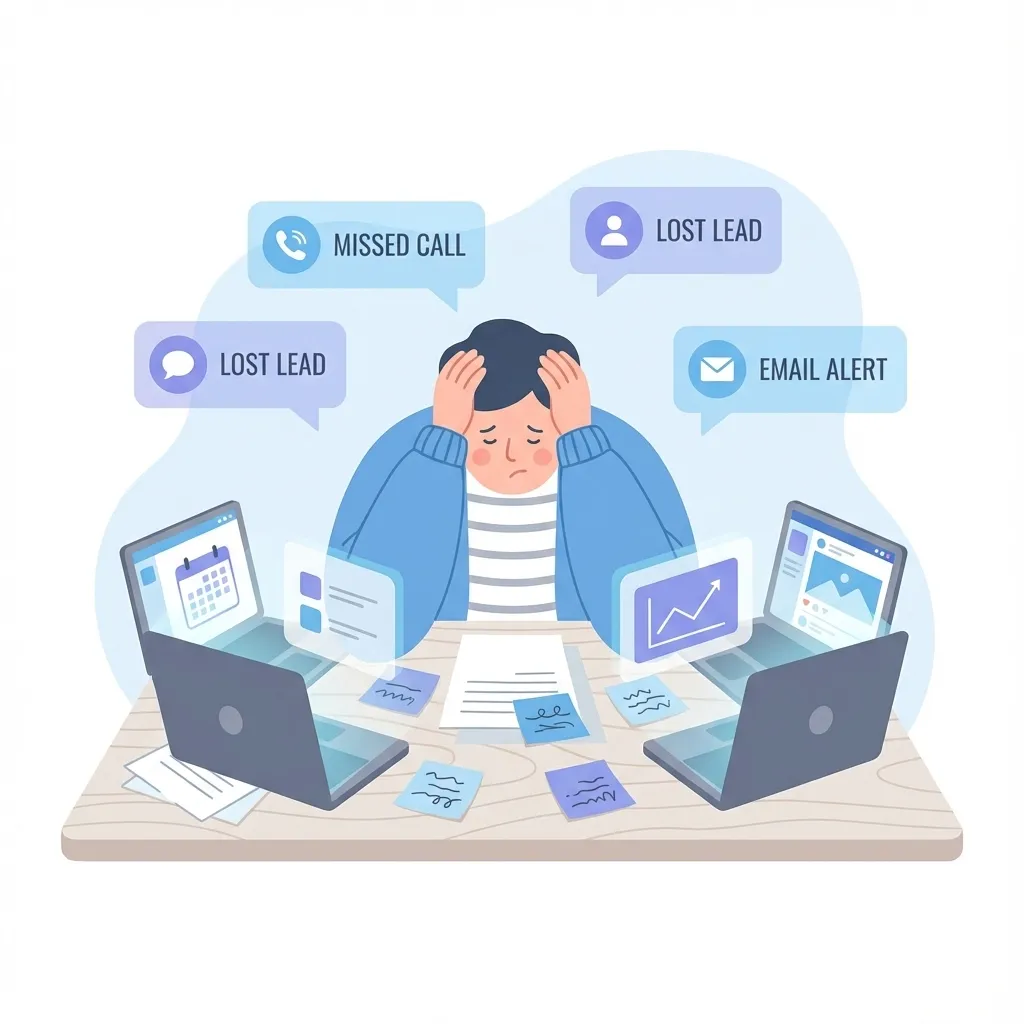
CRM workflow automation uses software to execute repetitive business tasks automatically based on predefined triggers and conditions. Instead of manually sending follow-up emails, updating contact records, or assigning leads, the CRM handles these actions instantly when specific events occur.
For small and medium-sized businesses, workflow automation transforms how teams operate:
- Time savings: Automate tasks that consume 10+ hours per week
- Consistency: Every lead receives the same professional experience
- Reduced errors: Eliminate forgotten follow-ups and data entry mistakes
- Scalability: Handle more customers without adding staff
This guide covers everything SMBs need to implement workflow automation effectively, including ready-to-use templates, setup instructions, and pitfalls to avoid.
What Is Workflow Automation in a CRM?
Workflow automation in a CRM follows a simple logic: when X happens, do Y automatically. This “if-then” structure powers every automated process, from simple email responses to complex multi-step sequences.
Key components of CRM workflow automation:
| Component | Description | Example |
|---|---|---|
| Trigger | The event that starts the workflow | New form submission, deal stage change |
| Condition | Optional rules that filter when the workflow runs | Only if lead source = “website” |
| Action | What the CRM does automatically | Send email, create task, update field |
| Timing | When the action executes | Immediately, after delay, at specific time |
Understanding these components helps you design workflows that match your actual business processes rather than forcing your team to adapt to rigid automation.
Why CRM Workflow Automation Matters for Small Businesses
Small business teams wear multiple hats. The same person handling sales might also manage customer service and marketing. Workflow automation addresses this reality by handling routine tasks that would otherwise fall through the cracks.
The Real Impact of Automation
Research from Salesforce shows that sales reps spend only 28% of their time actually selling. The rest goes to administrative tasks, data entry, and internal meetings. Automation reclaims much of that lost time.
What automation replaces:
- Manual data entry between systems
- Remembering to follow up with leads
- Copying information across spreadsheets
- Sending repetitive emails one by one
- Updating deal stages and contact records
What your team gains:
- More time for high-value conversations
- Confidence that nothing slips through cracks
- Consistent customer experience at scale
- Data accuracy for better decision-making
For a deeper understanding of how CRM systems benefit businesses, see our guide on why CRM is used.
8 CRM Workflow Automation Templates for SMBs
These templates represent the most valuable automations for small businesses. Each can be set up in most CRM platforms, including SMBcrm, within 15-30 minutes.
Template 1: New Lead Response Sequence
Purpose: Respond to new leads instantly and nurture them over time
Trigger: New contact created from web form
Workflow steps:
- Immediately: Send personalized welcome email with relevant resource
- After 2 days: If no reply, send follow-up with case study
- After 5 days: If no reply, send email offering to schedule call
- After 10 days: If no reply, send final check-in email
- After 14 days: Move to nurture sequence if no engagement
Why it works: Speed matters. Research from Harvard Business Review found that companies responding within an hour are 7x more likely to qualify leads than those waiting even one hour longer.
Template 2: Appointment Reminder Sequence
Purpose: Reduce no-shows for scheduled meetings
Trigger: Appointment booked in calendar
Workflow steps:
- Immediately: Send confirmation email with meeting details
- 24 hours before: Send reminder email with preparation checklist
- 2 hours before: Send SMS reminder with meeting link
- If rescheduled: Cancel existing reminders, restart sequence
Why it works: Automated reminders reduce no-show rates by 29% on average, according to appointment scheduling research.
Template 3: Sales Pipeline Stage Updates
Purpose: Keep deals moving and notify the right people
Trigger: Deal moved to new pipeline stage
Workflow steps:
- On stage change: Update deal record with timestamp
- Proposal sent stage: Notify sales manager, schedule follow-up task
- Negotiation stage: Alert finance team to prepare contract
- Closed won: Trigger customer onboarding sequence
- Stalled 7+ days: Alert sales rep and manager
Why it works: Visibility into pipeline health helps teams focus on deals most likely to close. Learn more in our guide to sales pipeline management.
Template 4: Customer Onboarding Workflow
Purpose: Deliver consistent welcome experience to new customers
Trigger: Deal marked as “Closed Won”
Workflow steps:
- Immediately: Send welcome email with login credentials
- After 1 day: Send getting started guide
- After 3 days: Check-in email asking about initial experience
- After 7 days: Send tips for advanced features
- After 14 days: Request feedback survey
- After 30 days: Schedule success call with account manager
Why it works: Structured onboarding improves customer retention and reduces support tickets by setting expectations early.
Template 5: Lead Scoring and Routing
Purpose: Prioritize hot leads and assign them to the right sales rep
Trigger: Any lead activity (email open, page visit, form submit)
Workflow steps:
- On activity: Add points to lead score based on action type
- Score reaches 50: Change status to “Marketing Qualified”
- Score reaches 80: Change status to “Sales Qualified”
- On qualification: Auto-assign to sales rep based on territory/product
- On assignment: Create follow-up task for assigned rep
Scoring example:
- Email opened: +5 points
- Link clicked: +10 points
- Pricing page visited: +15 points
- Demo requested: +30 points
- Email unsubscribed: -20 points
Template 6: Re-engagement Campaign for Cold Leads
Purpose: Revive leads who went quiet
Trigger: No activity for 90 days + not marked as “Closed Lost”
Workflow steps:
- Day 0: Send “We miss you” email with new content or offer
- Day 7: If opened, send follow-up with scheduling link
- Day 7: If not opened, try different subject line
- Day 14: Final attempt with different value proposition
- Day 21: If no engagement, move to long-term nurture list
Why it works: Cold leads already know your company. Re-engagement campaigns cost less than acquiring new leads and can reactivate 5-10% of dormant contacts.
Template 7: Review Request Sequence
Purpose: Generate more online reviews from satisfied customers
Trigger: Support ticket closed with positive satisfaction score OR 30 days post-purchase
Workflow steps:
- Immediately: Send thank you email with review request
- After 3 days: If no review, send reminder via SMS
- After 7 days: If no review, send final request with direct link
- On review submission: Send thank you email, notify marketing team
Why it works: Reviews build trust and improve local SEO. Our guide on improving local SEO with Google reviews covers the full strategy.
Template 8: Invoice and Payment Follow-Up
Purpose: Improve cash flow with automated payment reminders
Trigger: Invoice created
Workflow steps:
- Immediately: Send invoice email with payment link
- 7 days before due: Payment reminder email
- On due date: Reminder email + SMS
- 3 days overdue: Past due notice to customer
- 7 days overdue: Alert to accounts receivable team
- On payment received: Send receipt, update customer record
Why it works: Consistent follow-up reduces days sales outstanding (DSO) without awkward manual chasing.
How to Set Up CRM Workflow Automation: Step-by-Step
Follow these steps to implement your first workflow automation. The process works similarly across most CRM platforms.
Step 1: Map Your Current Process
Before building automation, document what you’re trying to automate:
- List every step in the process as it happens today
- Identify who performs each step
- Note timing between steps
- Flag decision points where outcomes vary
- Document exceptions that require human judgment
Example process map for lead follow-up:
Lead submits form → Sales rep notified → Rep reviews lead →
Rep sends email → Wait for response → Follow up if no reply →
Repeat 3x → Mark as unresponsive
Step 2: Define Triggers and Conditions
Choose the specific event that starts your automation:
Common triggers:
- Form submission
- Tag added or removed
- Pipeline stage change
- Date/time reached
- Email opened or clicked
- Appointment scheduled
- Payment received
Add conditions to refine when the workflow runs:
- Lead source equals specific value
- Contact has specific tag
- Deal value above threshold
- Contact is not already in another workflow
Step 3: Build the Action Sequence
Create each step the automation will execute:
- Choose action type: Send email, create task, update field, wait, etc.
- Configure timing: Immediate, delayed by hours/days, specific date/time
- Personalize content: Use merge fields for names, company, custom data
- Set exit conditions: When should contacts leave this workflow?
Step 4: Test Before Launching
Never launch automation without testing:
- Create a test contact with your email address
- Trigger the workflow and verify each step fires
- Check email content for personalization errors
- Verify timing between steps
- Test exit conditions to ensure contacts leave appropriately
Step 5: Monitor and Optimize
After launch, track these metrics:
- Email open rates: Below 20%? Improve subject lines
- Click-through rates: Below 2%? Improve content and CTAs
- Conversion rates: How many complete the desired action?
- Unsubscribe rates: High rates signal content problems
- Workflow completion: How many finish vs. exit early?
Common CRM Workflow Automation Mistakes to Avoid
Learning from others’ mistakes saves time and protects your customer relationships.
Mistake 1: Over-Automating Human Touchpoints
The problem: Automating conversations that need a personal touch makes your company feel robotic.
The fix: Use automation for administrative tasks and initial outreach. Reserve personal communication for:
- Complex negotiations
- Customer complaints
- High-value opportunities
- Relationship-building conversations
Mistake 2: Setting and Forgetting
The problem: Workflows built months ago may send outdated information or reference discontinued offers.
The fix: Schedule quarterly workflow audits:
- Review all email content for accuracy
- Check links still work
- Verify offers are still valid
- Update statistics and dates
- Remove workflows for discontinued products
Mistake 3: Ignoring Workflow Conflicts
The problem: A contact enrolled in multiple workflows receives overwhelming or contradictory messages.
The fix:
- Use exclusive workflow enrollment (one workflow at a time)
- Set clear priority rules
- Add conditions to prevent duplicate enrollment
- Track how many workflows each contact is in
Mistake 4: Too Much Too Fast
The problem: Sending five emails in two days burns out your list and triggers spam filters.
The fix: Follow these frequency guidelines:
- Marketing emails: Maximum 2-3 per week
- Sales follow-ups: Space 2-3 days apart
- Transactional emails: Send immediately (receipts, confirmations)
- Re-engagement: Longer gaps (7+ days between messages)
Mistake 5: No Clear Exit Path
The problem: Contacts keep receiving messages even after converting, unsubscribing, or becoming customers.
The fix: Define exit conditions for every workflow:
- Contact replies to email
- Contact books appointment
- Contact makes purchase
- Contact unsubscribes
- Contact marked as “Do Not Contact”
- Contact joins different workflow
Mistake 6: Ignoring Mobile Experience
The problem: Emails designed for desktop look broken on mobile devices where most people read email.
The fix:
- Use single-column layouts
- Keep subject lines under 40 characters
- Make buttons large and tappable
- Preview emails on mobile before sending
For more on effective email communication, see our guide on email marketing for small business.
CRM vs Marketing Automation: Understanding the Difference
Both CRM and marketing automation involve automated workflows, but they serve different purposes. Understanding the distinction helps you choose the right tool for each job.
| Aspect | CRM Workflow Automation | Marketing Automation |
|---|---|---|
| Primary focus | Sales and customer management | Lead generation and nurturing |
| Typical users | Sales reps, account managers | Marketing teams |
| Data scope | Individual contact and deal level | Campaign and segment level |
| Key workflows | Lead assignment, deal updates, tasks | Email campaigns, scoring, landing pages |
Many platforms, including SMBcrm, combine both capabilities into an all-in-one CRM. For a detailed comparison, read our guide on CRM and marketing automation: what’s the difference.
Measuring Workflow Automation Success
Track these metrics to ensure your automations deliver results:
Time Saved
Calculate hours saved by comparing before and after:
- Before: Manual task took 15 minutes, done 20x per week = 5 hours
- After: Automated task takes 0 minutes = 5 hours saved weekly
Response Time
Measure how quickly leads receive first contact:
- Goal: Under 5 minutes for hot leads
- Track: Average time between form submission and first email
Conversion Rates
Compare conversion rates with and without automation:
- Email sequences: What percentage book meetings?
- Onboarding: What percentage complete setup?
- Re-engagement: What percentage return to active status?
Customer Satisfaction
Monitor whether automation helps or hurts customer experience:
- Support ticket volume: Decreasing suggests better self-service
- NPS scores: Tracking trends after automation launch
- Churn rate: Automated onboarding should reduce early churn
Frequently Asked Questions
What is CRM workflow automation?
CRM workflow automation is software functionality that executes predefined business tasks automatically when specific triggers occur. Common examples include sending follow-up emails when a lead submits a form, creating tasks when deals reach certain stages, and updating contact records based on activity. The goal is replacing manual, repetitive work with consistent automated processes.
How much time does CRM automation actually save?
Time savings vary by workflow, but most businesses report saving 10-20 hours per week across their team. Individual workflows typically save 2-5 hours weekly. For example, automating lead follow-up eliminates 15-30 minutes per lead in manual email composition and scheduling.
Can small businesses afford CRM workflow automation?
Yes. Most modern CRM platforms include workflow automation in standard pricing tiers. SMBcrm includes automation features at price points designed for small businesses. The ROI typically becomes positive within the first month through time savings alone.
What workflows should I automate first?
Start with high-volume, low-complexity tasks: lead follow-up sequences, appointment reminders, and customer onboarding. These workflows deliver quick wins and help your team learn the automation tools before tackling complex processes.
How do I prevent automation from feeling impersonal?
Use personalization tokens (name, company, recent activity) in automated messages. Write in a conversational tone rather than corporate speak. Most importantly, design workflows that route warm leads to human follow-up rather than trying to automate the entire relationship.
What happens if an automation makes a mistake?
Build safety checks into your workflows: approval steps for high-stakes actions, test runs before full deployment, and monitoring alerts for unusual activity. When errors occur, most platforms allow you to pause workflows, edit the issue, and restart without losing progress.
Getting Started with SMBcrm Workflow Automation
SMBcrm provides workflow automation designed specifically for small and medium-sized businesses. Our visual workflow builder requires no coding knowledge, and templates for common use cases get you started in minutes rather than hours.
Key capabilities include:
- Visual workflow builder: Drag-and-drop interface for creating automations
- Multi-channel automation: Combine email, SMS, and task workflows
- Lead scoring: Automatically prioritize your hottest opportunities
- Pipeline automation: Keep deals moving with stage-based triggers
- Custom conditions: Build workflows that match your exact business logic
The difference between struggling with manual tasks and running a streamlined operation often comes down to implementing the right automations. Start with one workflow from the templates above, measure the results, and expand from there.
Build Your First Workflow in SMBcrm
SMBcrm’s visual workflow builder lets you create the automations above in minutes with no coding required. Combine email, SMS, pipeline triggers, and lead scoring in one platform built for small businesses.
Start your free trial to build your first automated workflow, or schedule a demo to see the workflow builder in action.