Collapse and Resize Pipeline Stages in Kanban View
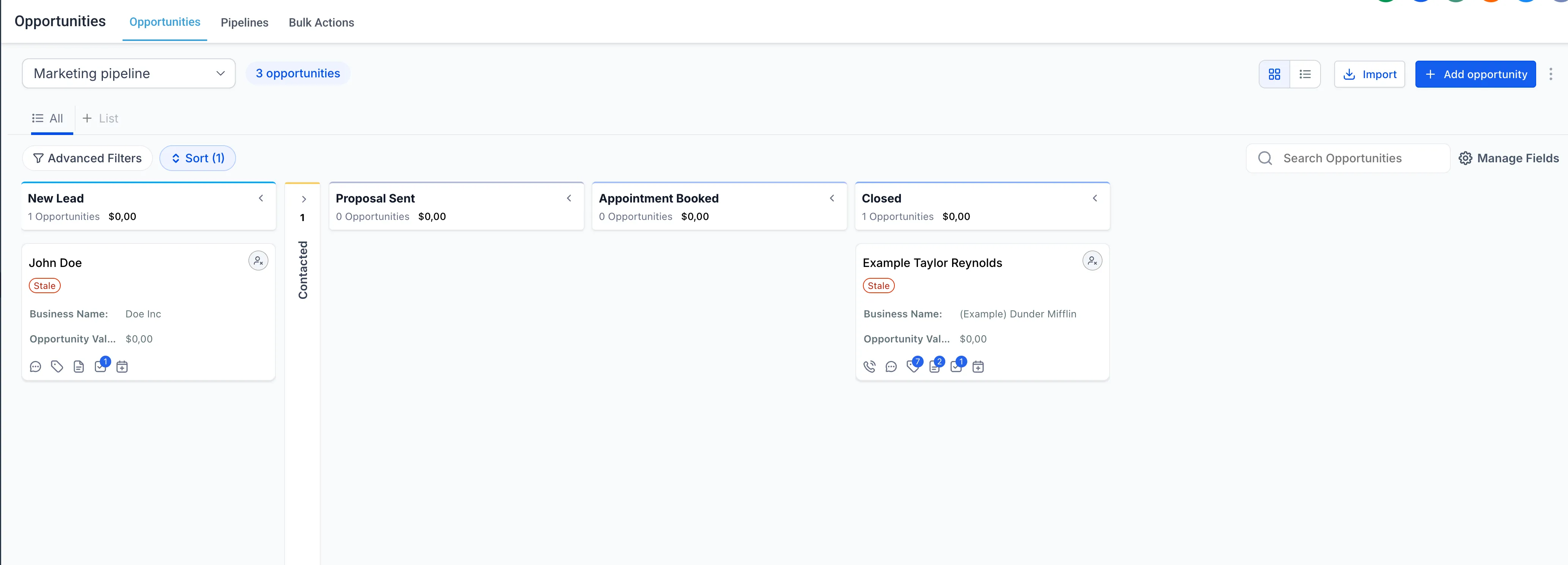
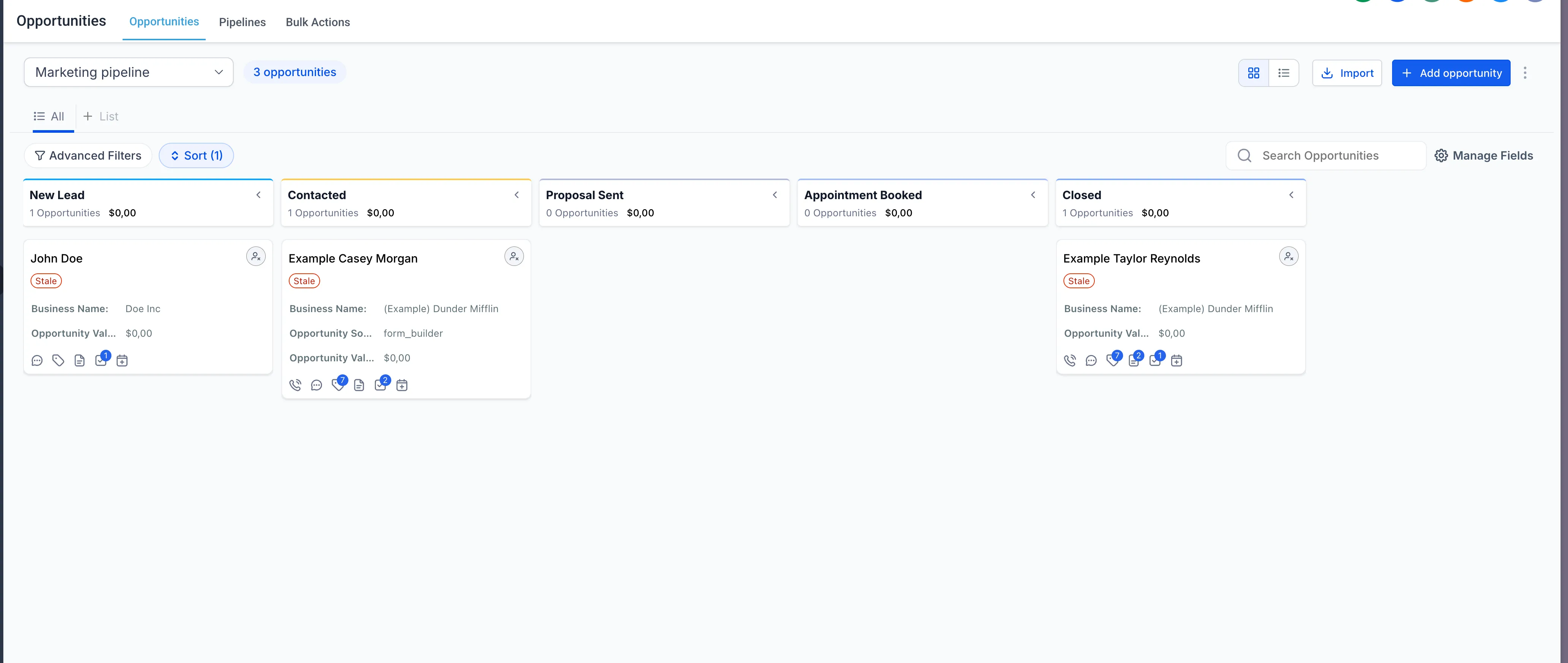
You can now collapse, expand, and resize stages in the Opportunities Kanban view. This gives each user more control over how pipeline columns are displayed, helping reduce clutter and improve focus while managing deals in CRM & Sales.
What’s Changed
- Collapse and expand stages in Kanban view
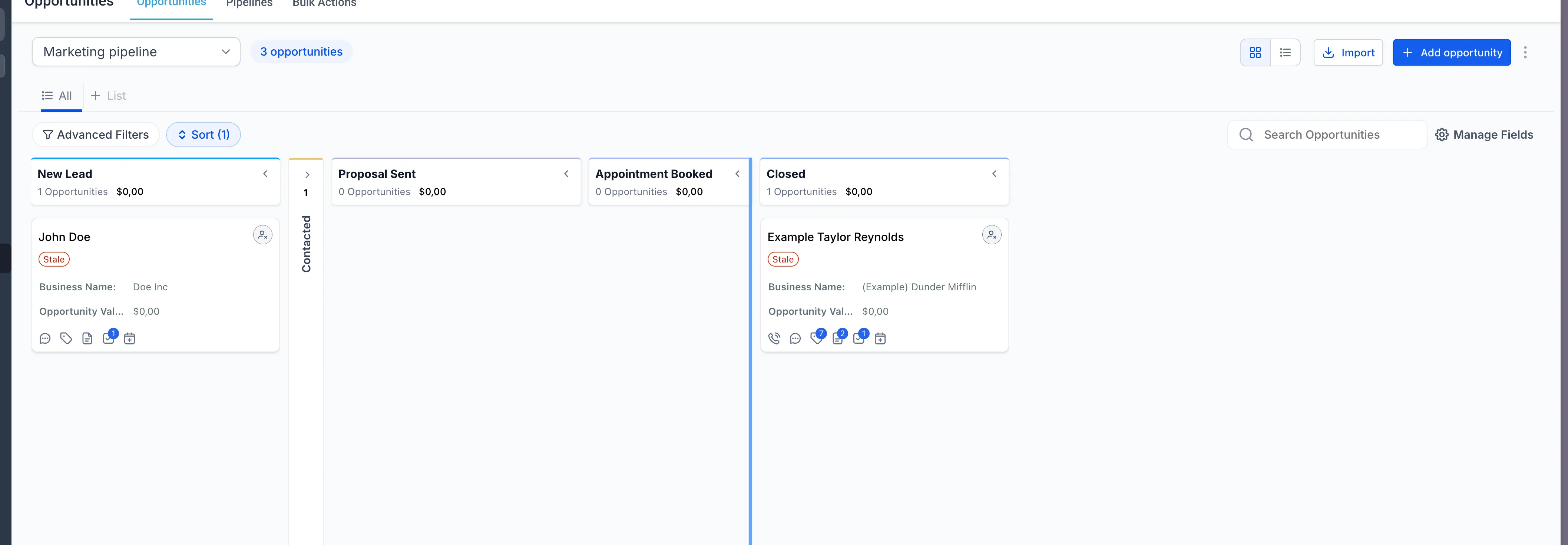
- Resize columns to give more space to priority stages
- Save layout preferences automatically for each user
How It Works
- Go to Opportunities and open Kanban view.
- Click a stage header using the collapse or expand icons to hide or show that stage.
- Drag a column edge to resize a stage.
- Double-click the divider to reset a column to its default width.
Why It Matters
- Reduce clutter in larger pipelines
- Keep high-priority stages visible
- Customize your workspace without affecting teammates
- Spend less time scrolling across the board
Notes
Layout preferences are stored locally in your browser for now. The source notes that support for smart views is planned so changes can be saved permanently.
These layout changes are user-specific and do not affect other users.
In Case You Missed It
You can also read about Email AI using your knowledge base for better responses.
Need Help Applying This Update?
If you’d like help rolling this out in SMBcrm, visit Support or request a demo.