Image Zoom Options for Product Pages
SMBcrm now supports configurable image zoom behavior on product pages. This gives shoppers a better way to inspect product images and helps businesses present products more clearly before purchase.
What Changed
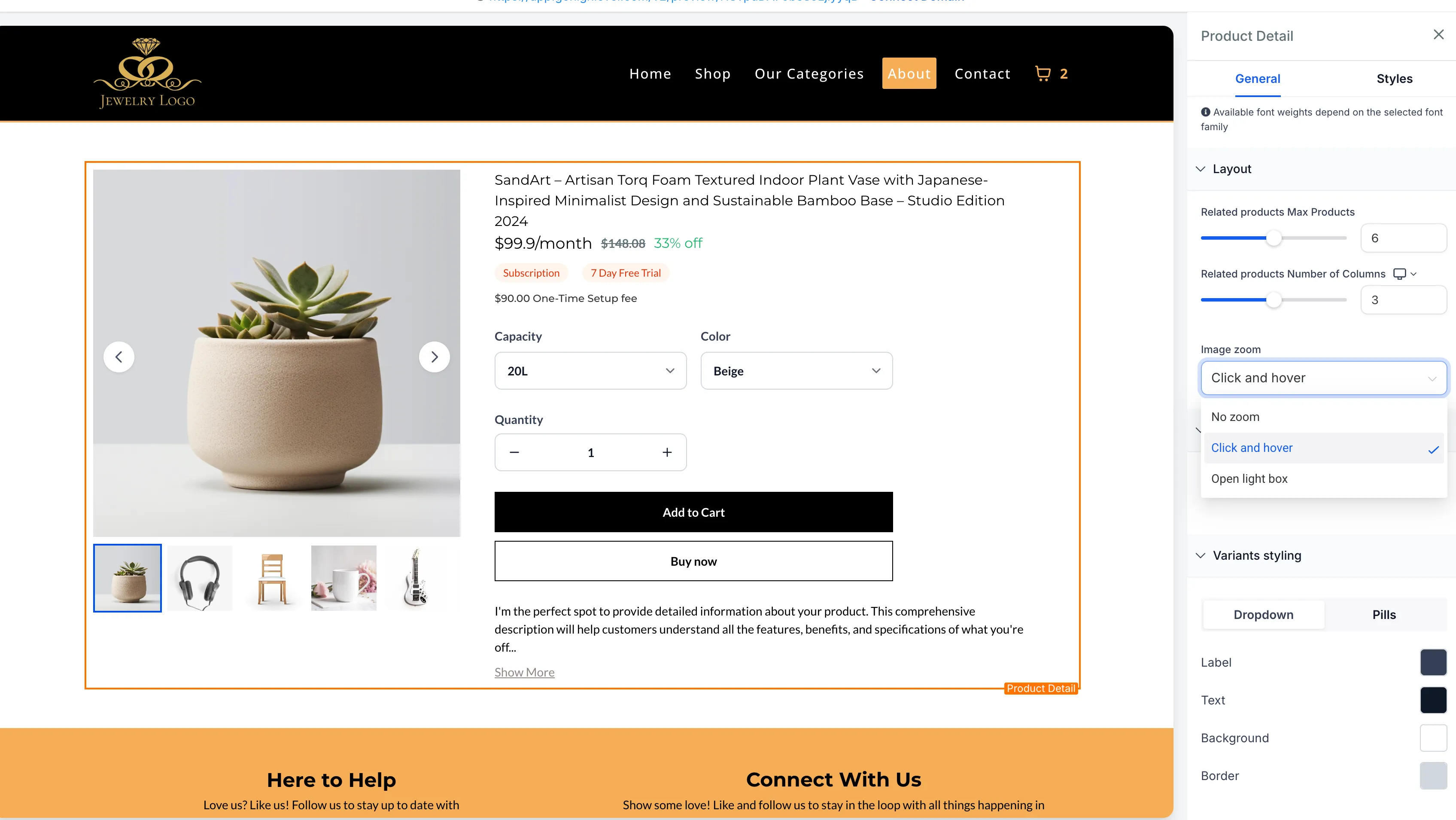
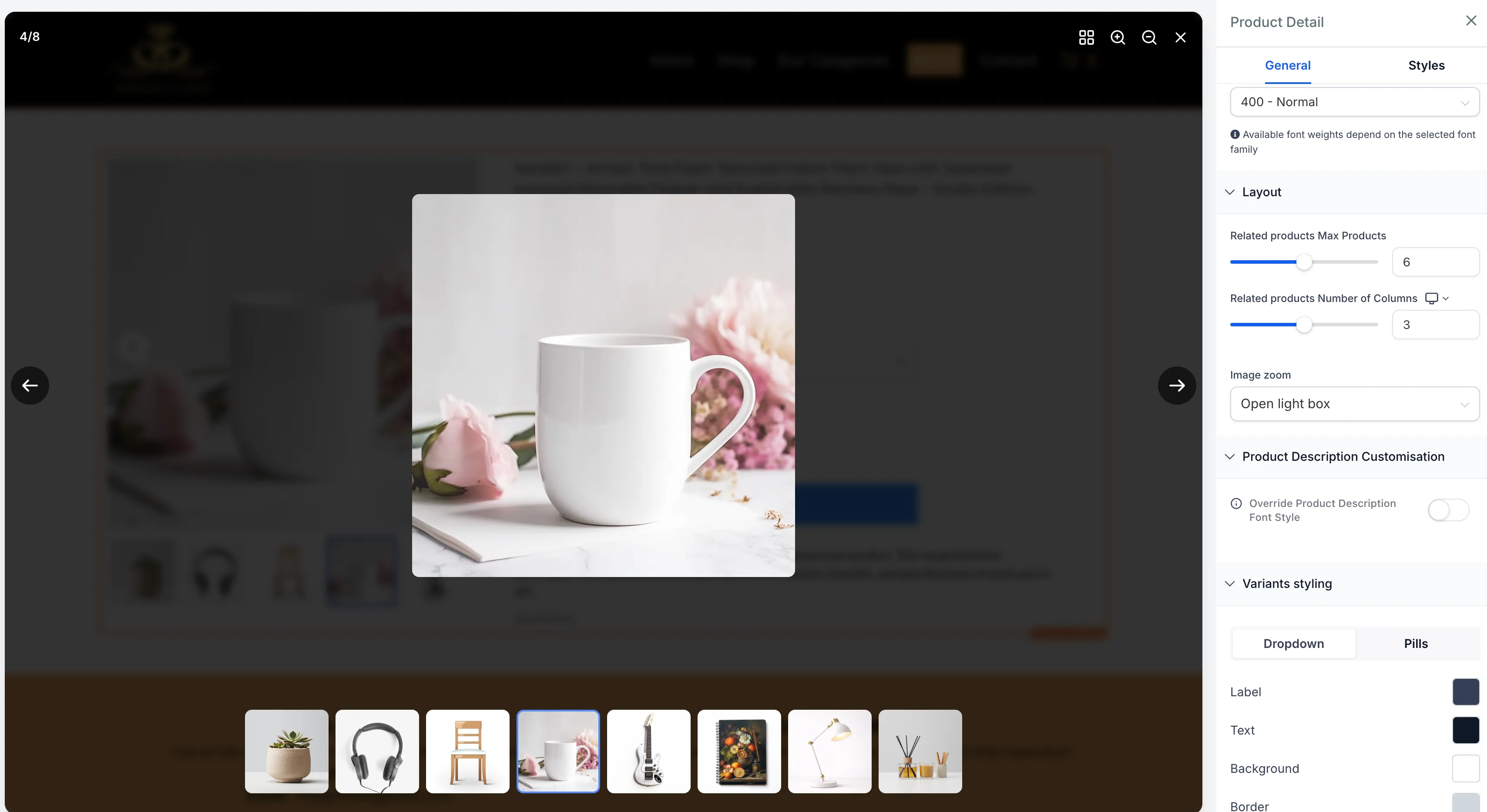
A new Image Zoom setting is available in the Product Details element on the product details page.
You can choose from three image behaviors:
- No Zoom for standard image display
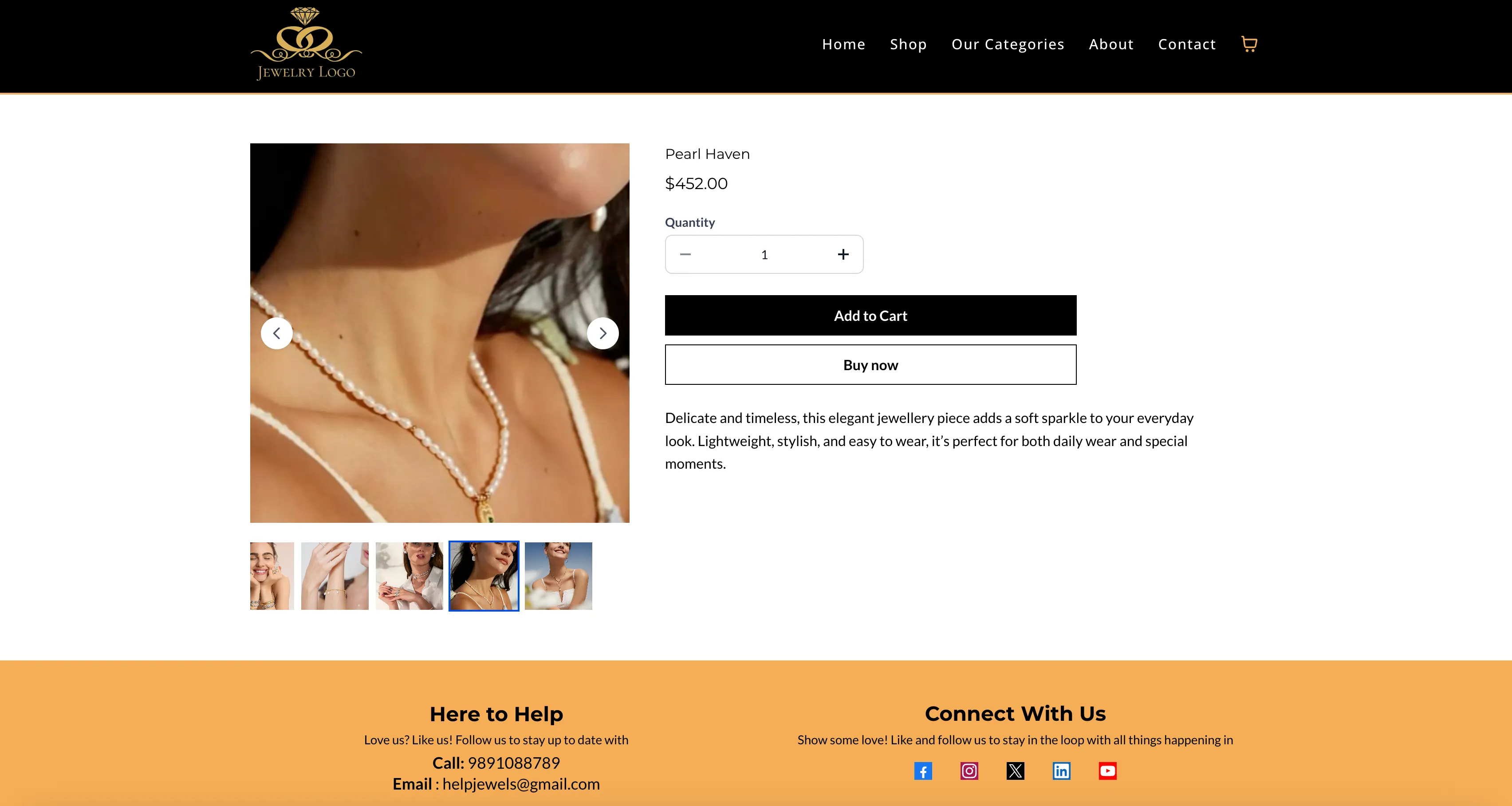
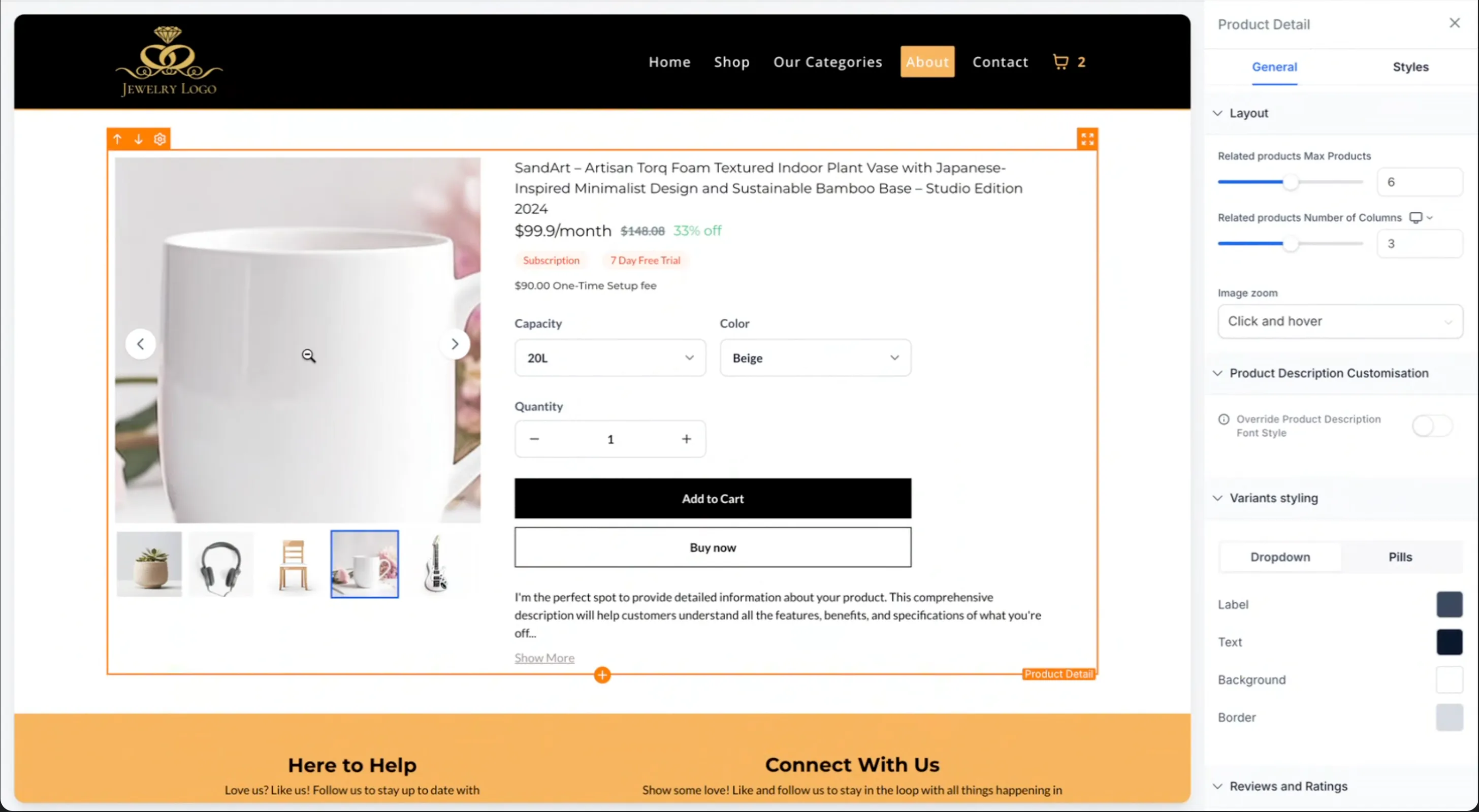
- Click & Hover Zoom so customers can inspect a specific area more closely
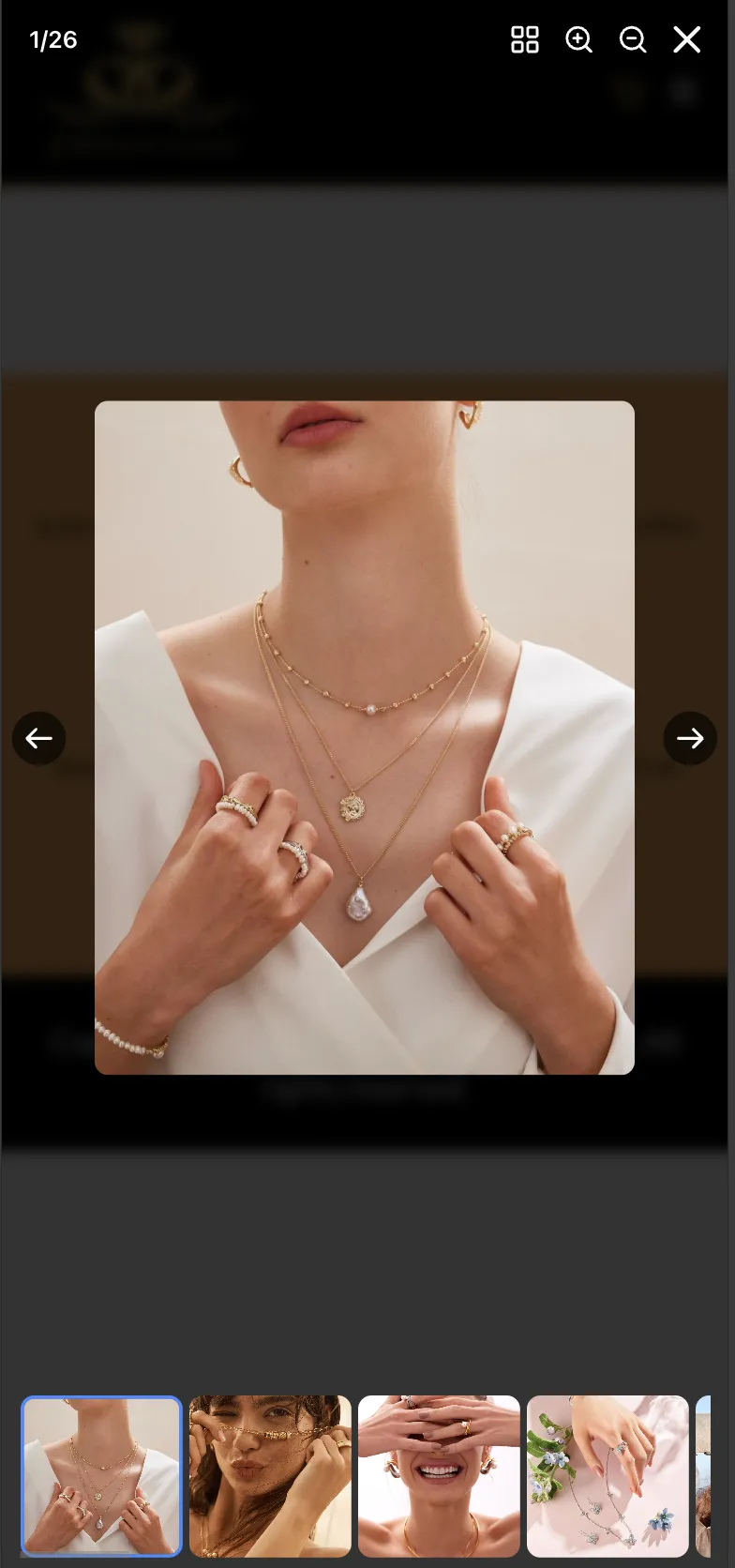
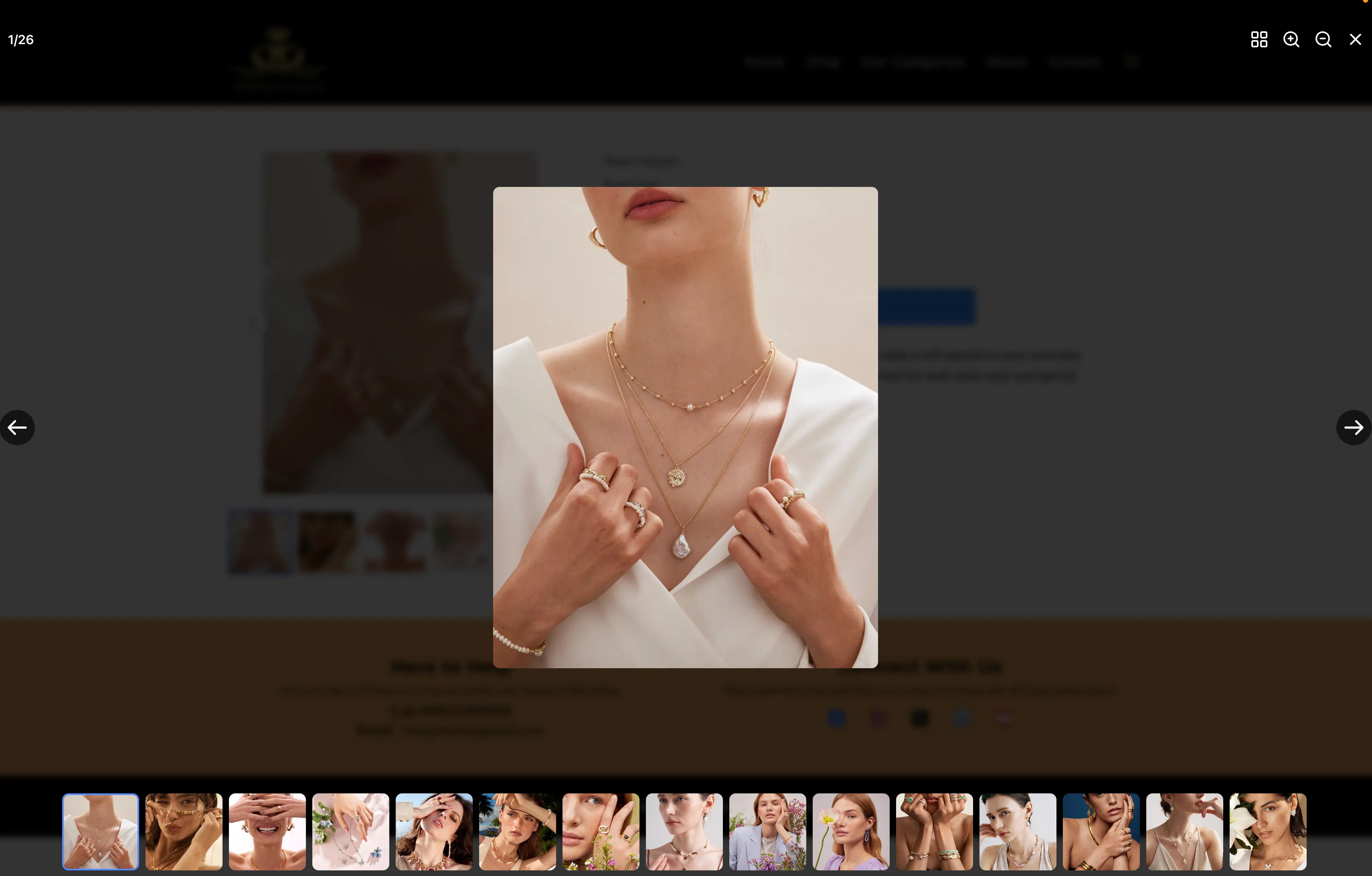
- Open Lightbox Zoom to open the product image in a fullscreen viewer with zoom controls
Lightbox Experience
When Open Lightbox Zoom is enabled, customers can:
- View product images in a fullscreen popup
- Zoom in or out for closer inspection
- Move between images with previous and next controls
- Browse images using thumbnail navigation
Compatible Layouts
This zoom feature works with all product media layouts listed in the release:
- Stack Gallery
- Stack Carousel
- Two-Column Layout
How to Enable It
- Open your Store and edit the Product Details Page.
- Select the Product Details element.
- In Layout Settings, find the Image Zoom option.
- Choose No Zoom, Click & Hover, or Open Lightbox.
- Save and publish your changes.
Notes
- Zoom applies only to product images
- Videos are not included in zoom behavior
- Click & Hover Zoom works best on desktop
- On mobile devices, interactions adapt to touch behavior
In Case You Missed It
You can also read about ACH Bank Transfers for US and Canada Accounts Using NMI.
Release Images
Need Help Applying This Update?
If you’d like help rolling this out in SMBcrm, visit Support or request a demo.