Set a Default Path for Workflow Branches
You can now choose a default path in workflows that use multiple parallel branches. This helps you control which branch a contact enters during workflow tests and when a contact is sent in from another workflow.
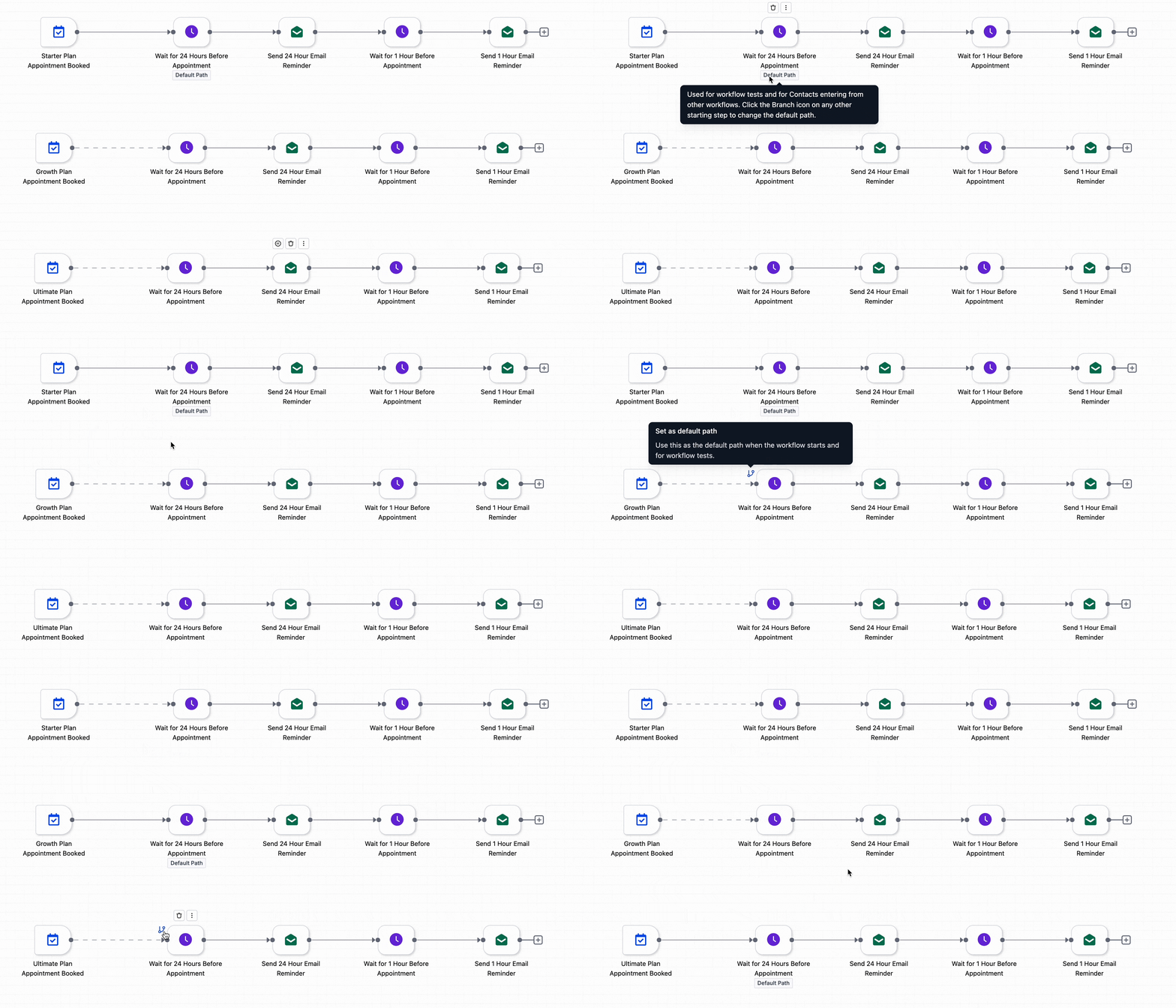
In Automation workflows with parallel branches, the root node is now labeled Default Path. You can set the default by clicking the branch icon on the first action in the branch you want to use.
How It Works
Once a branch is set as the default path:
- workflow tests follow that branch
- contacts entering from another workflow follow that branch
- the selected branch shows a solid trigger connector
- branches reached through a Go To connector show a dashed trigger connector and are not the default path
How to Use It
- Open a workflow with multiple parallel branches.
- Click the branch icon on the first action in the branch you want to use.
- Set that branch as the default path.
- Run your workflow test or send contacts into the workflow from another workflow.
Why It Matters
Previously, testing and configuring parallel branches was more restrictive when only one root path handled tests and cross-workflow entries. This update gives you more control over branch-level testing and makes it easier to validate each path without reorganizing your workflow.
Example
If your workflow includes multiple reminder branches, you can set one branch as the default path so a test contact enters that specific branch first.
In Case You Missed It
You can also read about Blog Domain Management and Sitemap Improvements.
Need Help Applying This Update?
If you’d like help rolling this out in SMBcrm, visit Support or request a demo.