Smarter Notes on the Contacts Page
Notes on the contacts page are now more structured and easier to manage. These updates help teams organize contact details more clearly and find important information faster inside CRM & Sales.
What changed
The Notes section now supports several improvements for contact management:
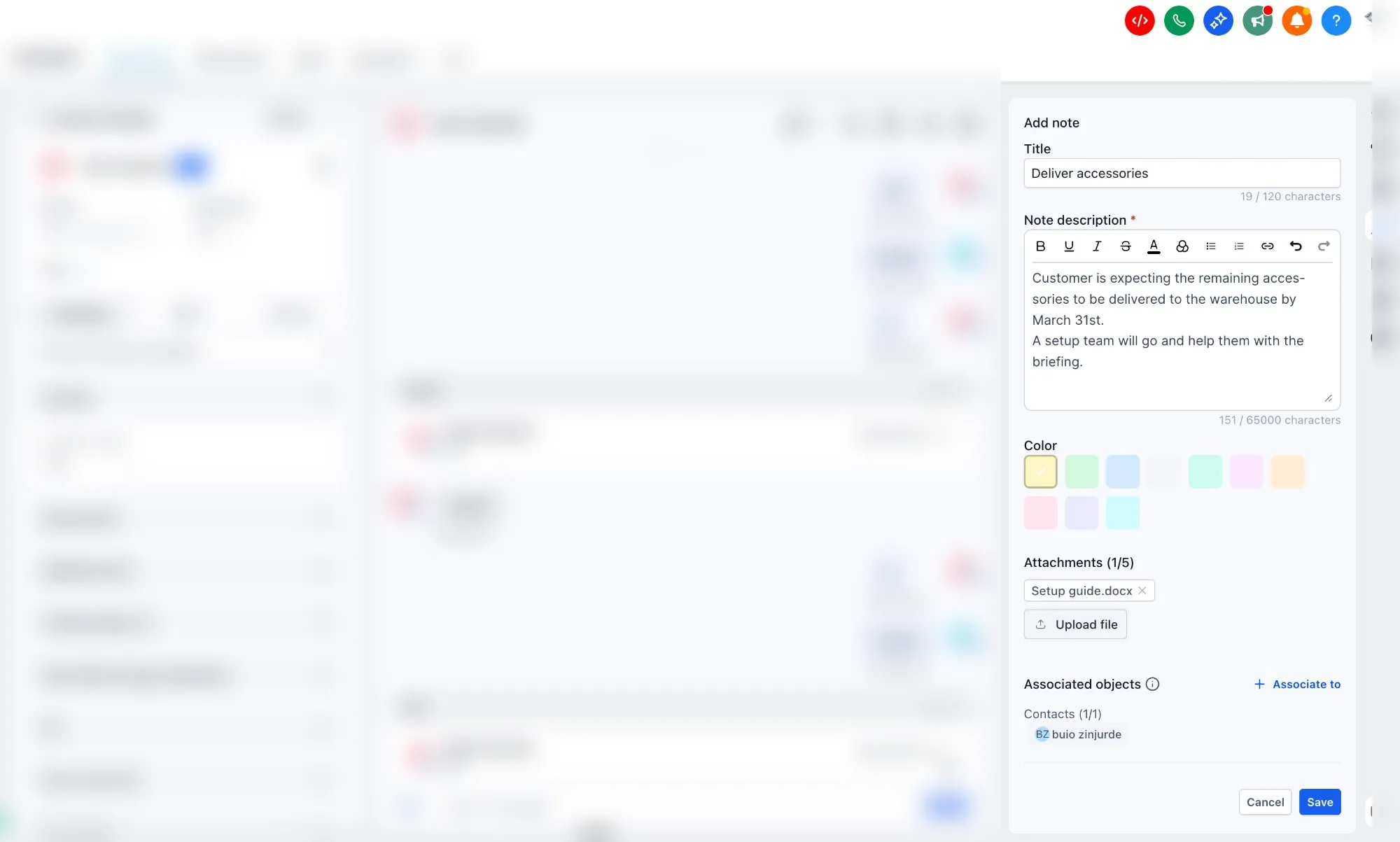
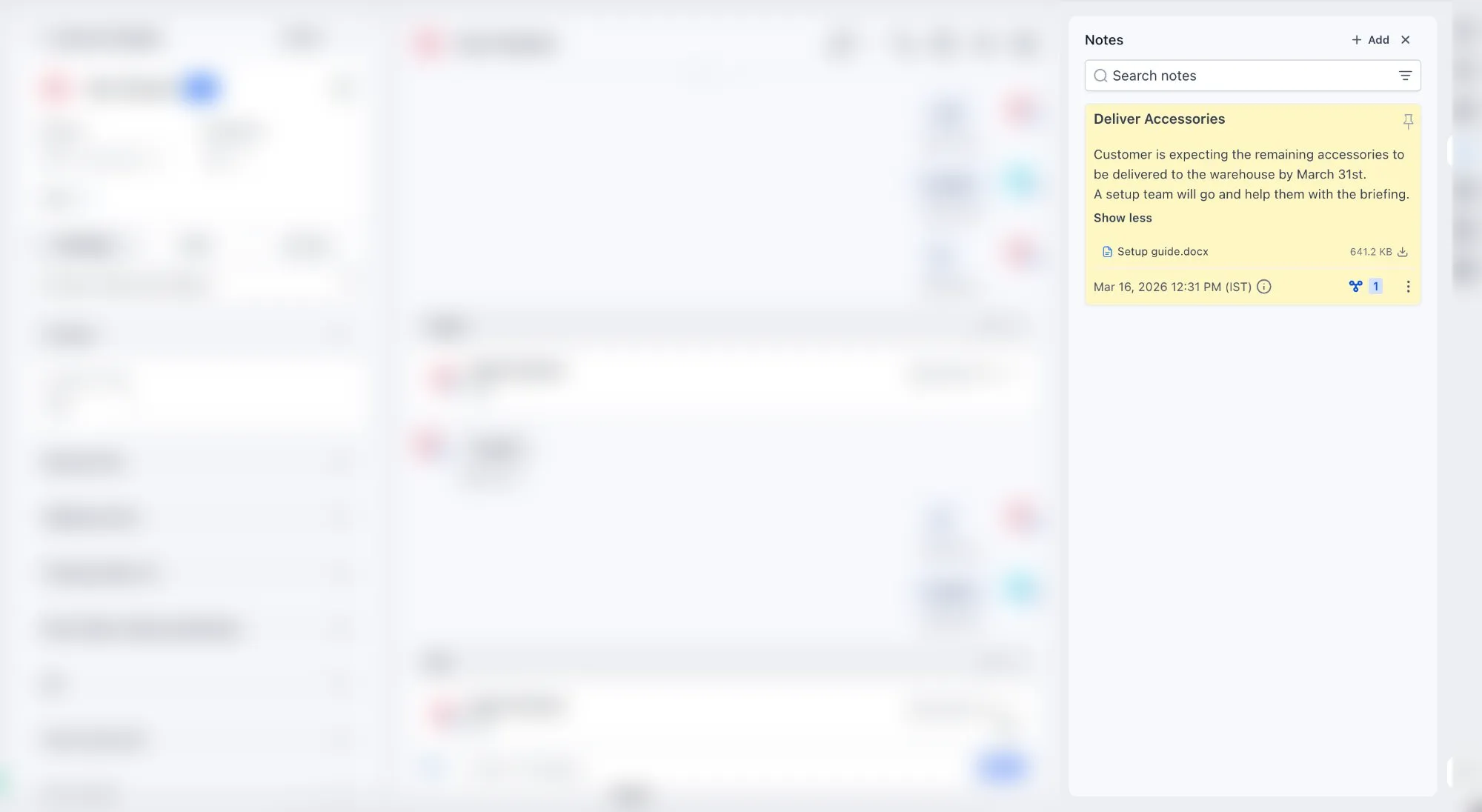
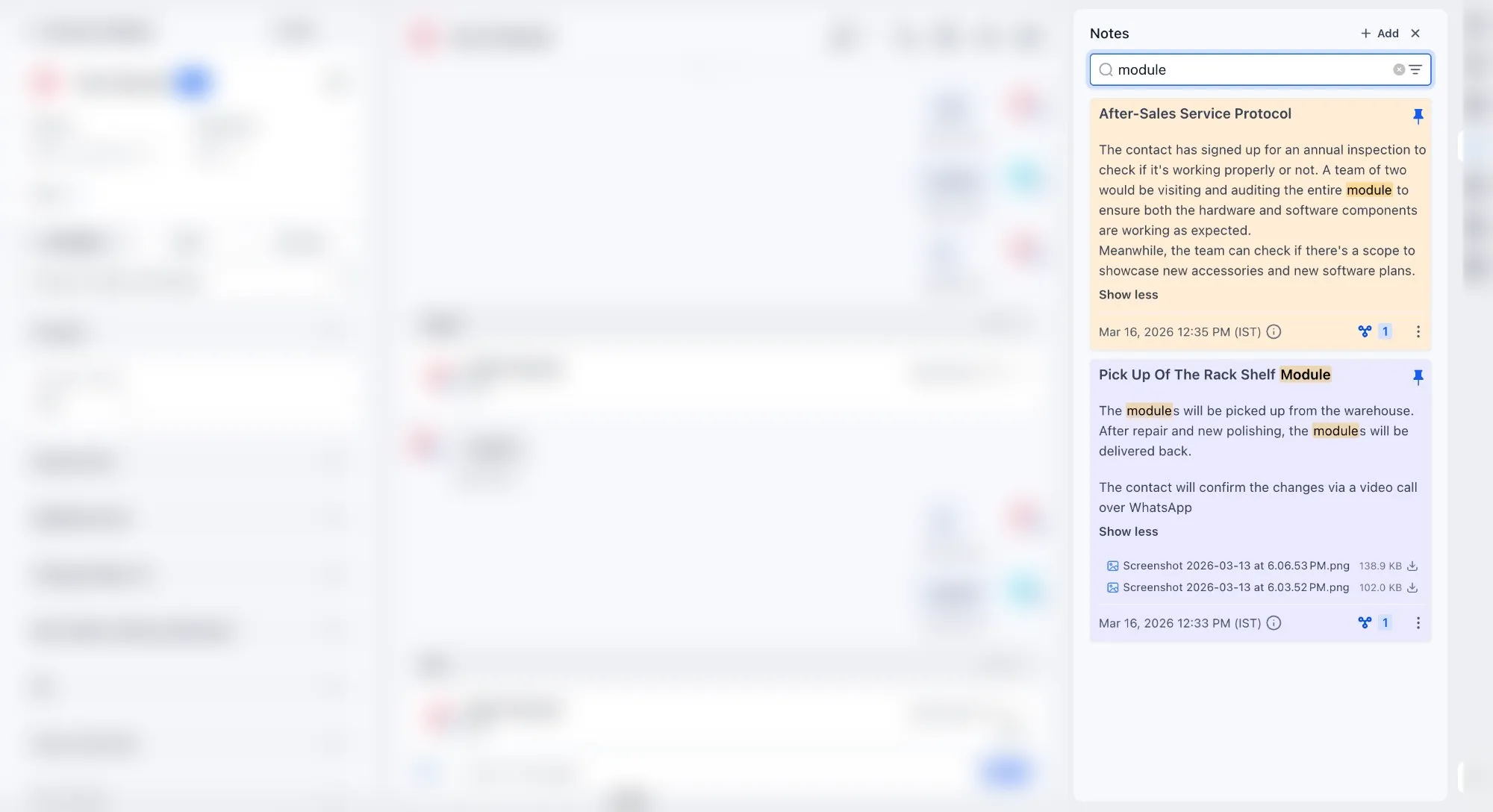
- Add a note title for better structure and easier searching
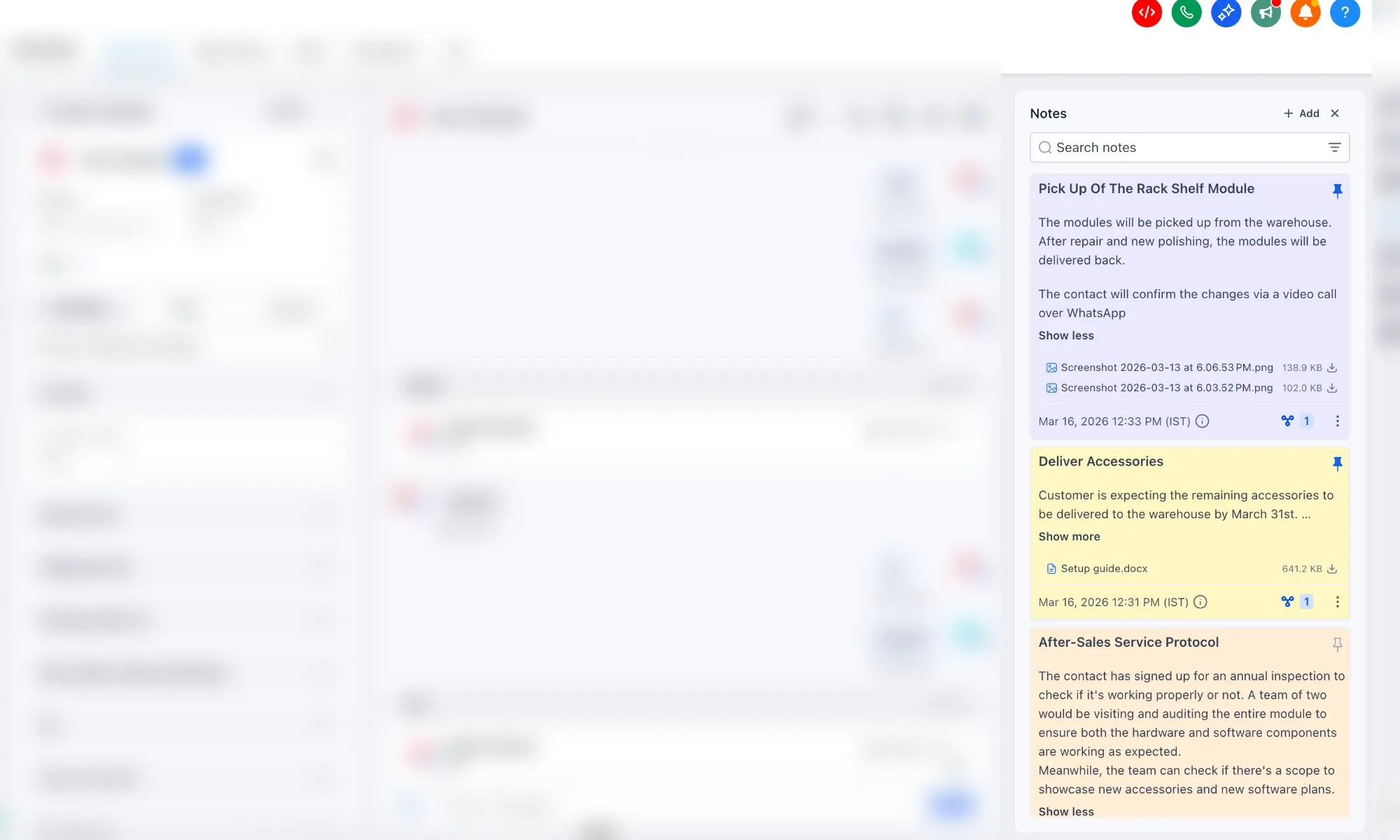
- Use color-coded notes for faster visual organization
- Attach files directly to notes
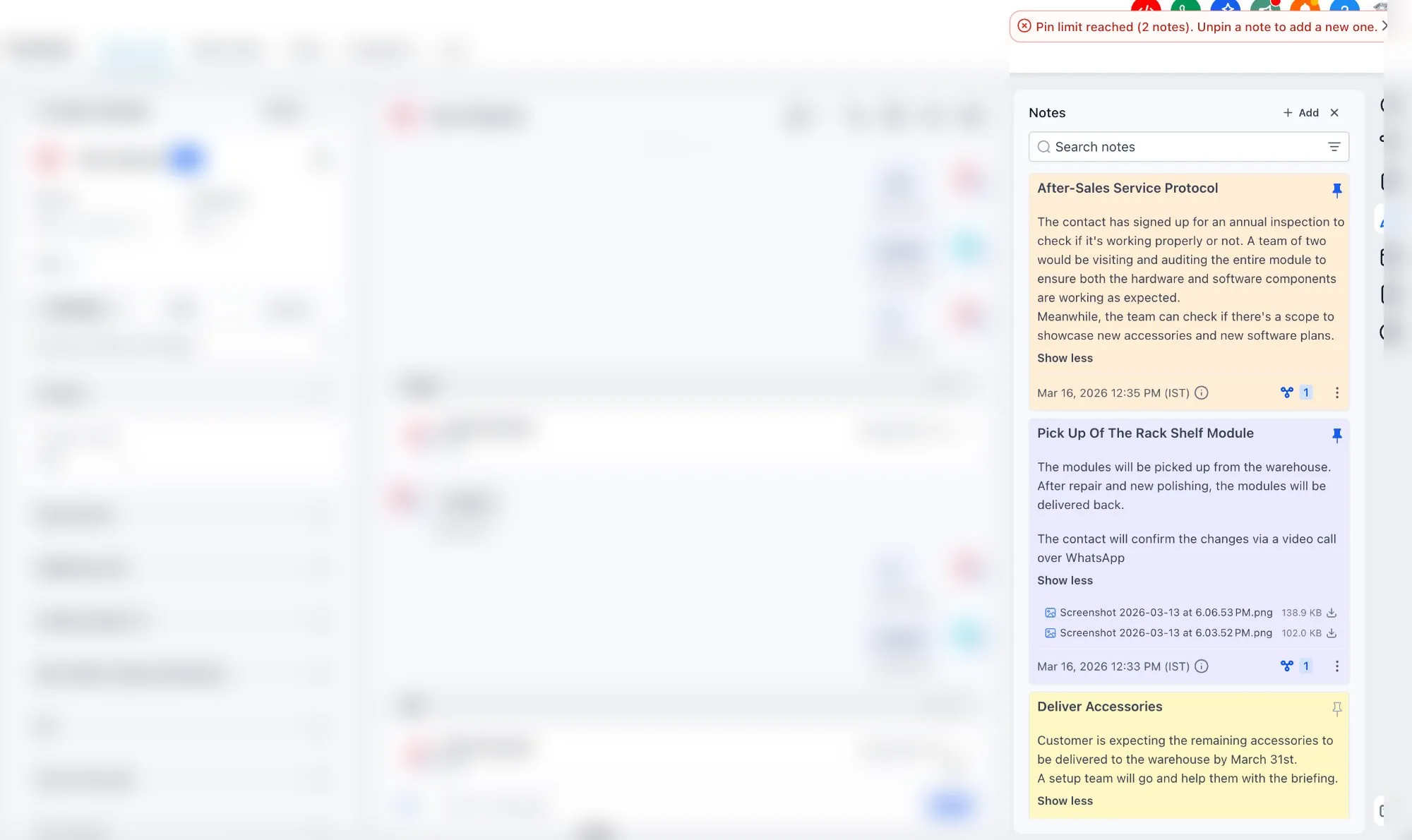
- Pin important notes to the top of the timeline, with a limit of 2 pinned notes
- Search notes by both title and description
How to use it
- Open a contact and go to the Notes section in the right panel.
- Click Add Note.
- Enter a title and description.
- Choose a color label, pin the note if needed, and attach files.
- Save the note to keep it in the contact timeline.
Why it matters
These updates make notes more useful for daily CRM work:
- Important details are easier to spot and prioritize
- Structured titles and color labels improve organization
- File attachments keep supporting information in one place
- Search helps users find key contact information faster
What to expect next
The source update also mentions planned improvements for notes, including:
- A rich text editor
- Manual note rearrangement
- User tagging
- Auto-save or draft saving
- Microphone support for dictated notes
In Case You Missed It
You can also read about Email AI using your knowledge base for better responses.
Need Help Applying This Update?
If you’d like help rolling this out in SMBcrm, visit Support or request a demo.