Workflow Builder Keyboard Shortcuts
Keyboard shortcuts are now available in the standard workflow builder, making it faster to build, edit, and navigate workflows.
This update adds shortcut support for editing actions, moving through nodes, adjusting the canvas view, opening panels, and saving your work. For teams using automation workflows, it helps reduce repetitive clicks and makes larger workflow edits easier to manage.
What Changed
Shortcuts in the standard builder are grouped into five areas:
- Essential
- Edit
- View
- Navigation
- Tools
Depending on the action, a shortcut may apply to the selected node, all actions from the selected node onward, or the current builder view.
How to Use It
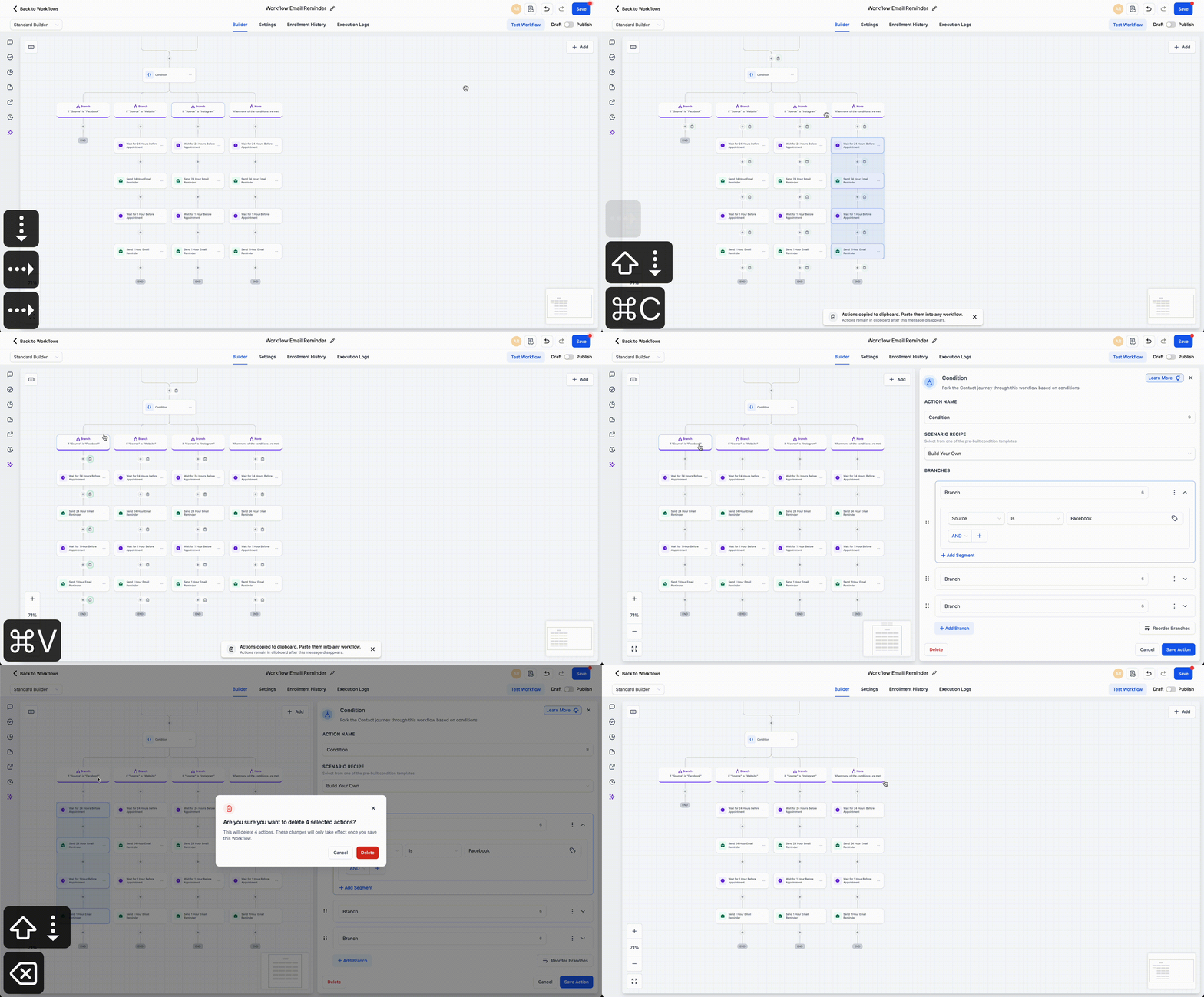
- Open a workflow in the standard builder.
- Select a node when the shortcut requires it.
- Use the matching keyboard shortcut.
- Save your workflow and continue building without switching back to mouse clicks.
Available Shortcuts
Edit
- Move selected node(s):
⌘ + X/Ctrl + X - Copy selected node(s):
⌘ + C/Ctrl + C - Paste node(s):
⌘ + V/Ctrl + V - Copy all actions from selected node onward:
⌘ + Shift + C/Ctrl + Shift + C - Move all actions from selected node onward:
⌘ + Shift + X/Ctrl + Shift + X
View
- Zoom in:
+ - Zoom out:
- - Zoom to 100%:
0 - Fit view:
1
Navigation
- Select all nodes:
⌘ + A/Ctrl + A - Select all actions:
⌘ + Shift + A/Ctrl + Shift + A - Select all triggers:
⌘ + ⌥ + A/Ctrl + Alt + A - Move to next node:
↓ - Move to previous node:
↑ - Move to right sibling node:
→ - Move to left sibling node:
← - Select upstream nodes:
Shift + ↑ - Select downstream nodes:
Shift + ↓
Tools
- Delete selected node(s):
Del - Delete all actions from selected node onward:
⌘ + Del/Ctrl + Del - Open trigger panel:
Shift + Tab - Open action panel:
Tab - Save workflow:
⌘ + S/Ctrl + S
Notes
- Some shortcuts work only after a node is selected.
- Some shortcuts appear in more than one section because they support multiple workflow tasks.
Why It Matters
Workflow building often involves the same actions repeatedly. These shortcuts help speed up edits, simplify navigation, and make it easier to work through more complex workflow setups.
In Case You Missed It
You can also read about setting a default path for workflow branches.
Need Help Applying This Update?
If you’d like help rolling this out in SMBcrm, visit Support or request a demo.