Schema Markup Form View Now Shows Missing Fields
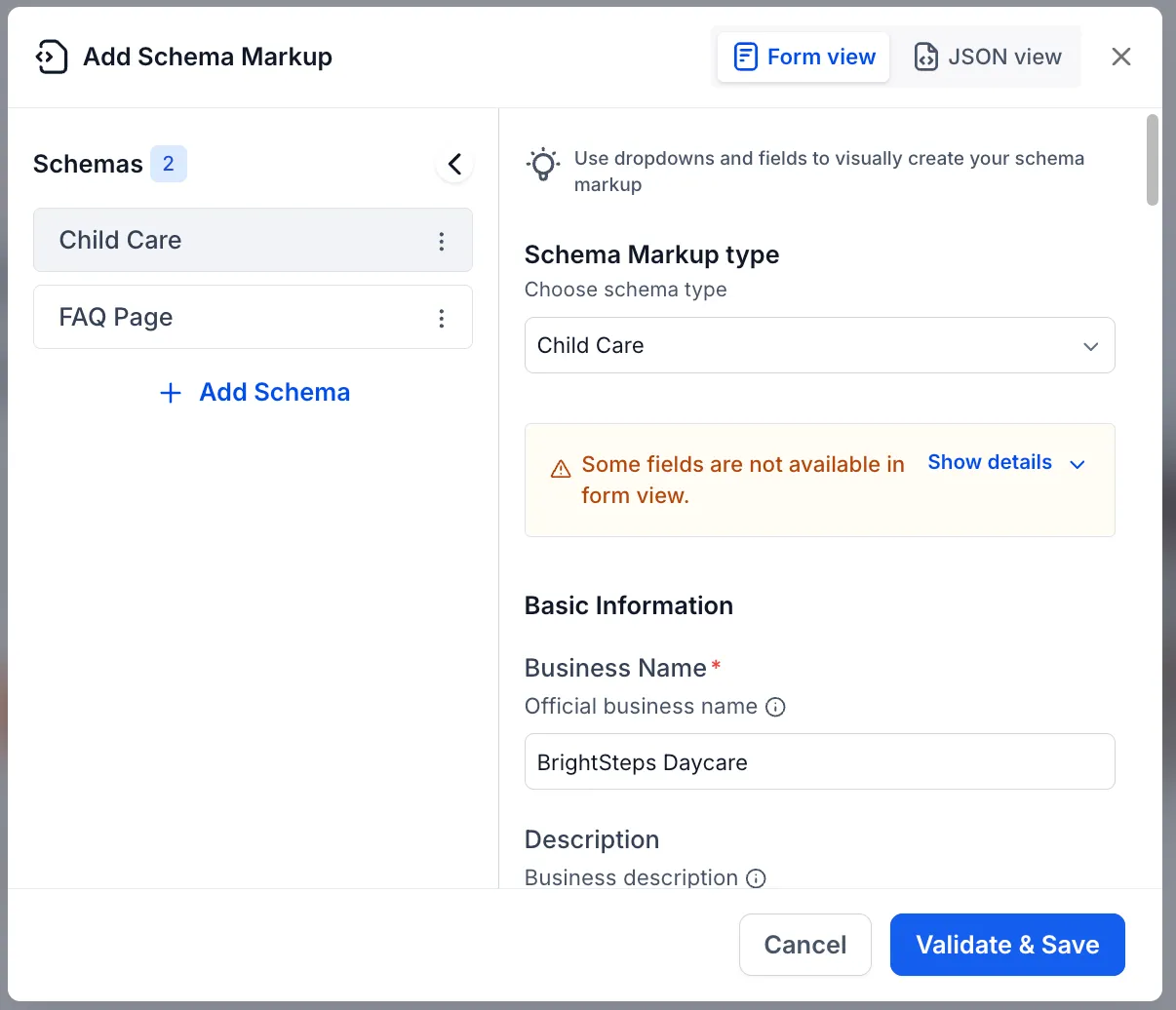
Users working with schema markup in the website and funnel builder will now see a warning when form view cannot display every field in a schema.
This update makes schema editing clearer by showing when unsupported fields are present and giving users a direct path to full editing in JSON view.
What Changed
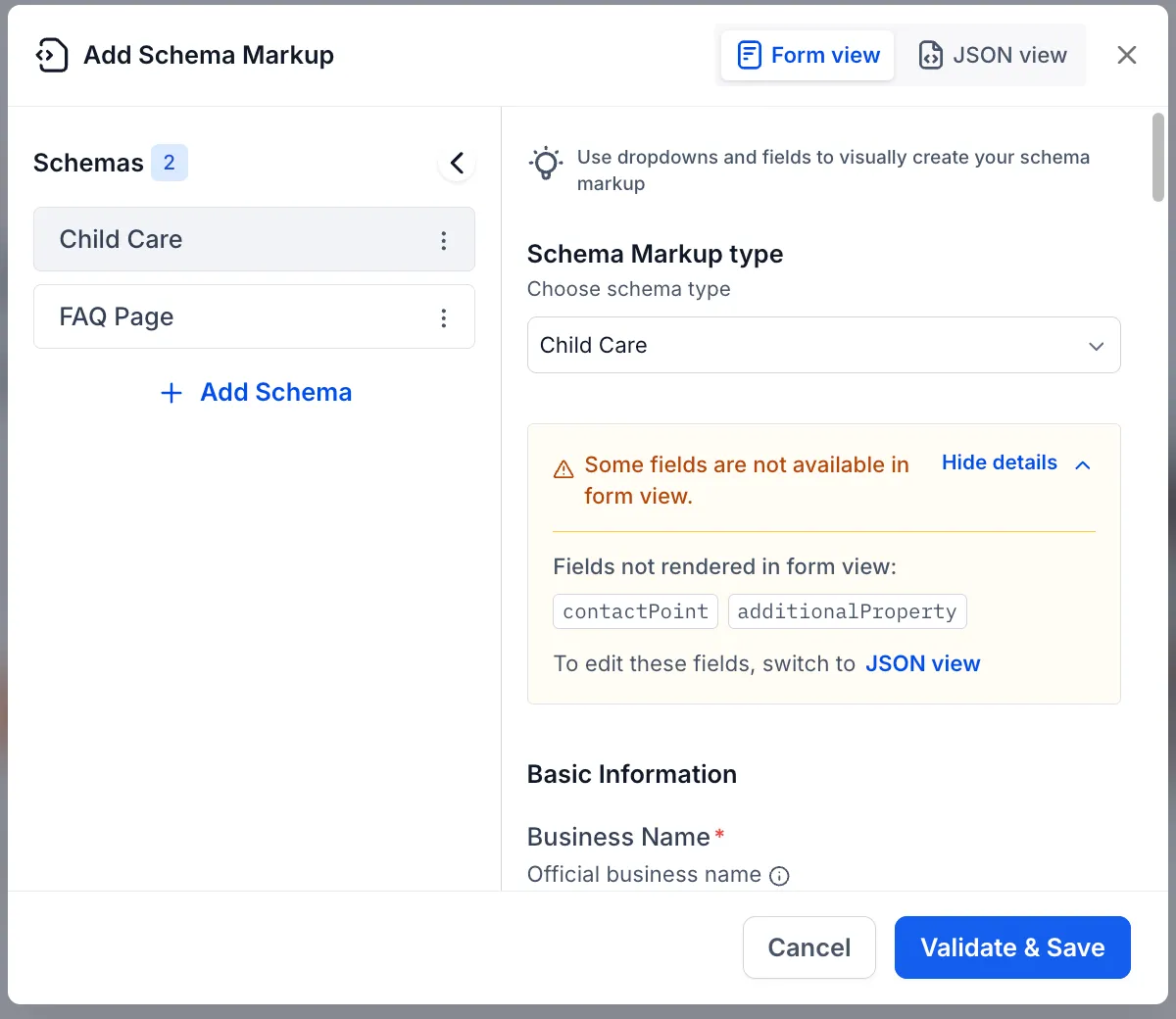
When a schema contains fields that the form view cannot render, an amber warning banner appears below the schema type.
The banner:
- appears only for schemas with unmapped fields
- lets users expand View details to see the exact missing field names
- shows nested fields using dot notation, such as
estimatedCost.value - displays the first 5 fields, with a
+X moreindicator for longer lists - includes a JSON view link so users can switch directly to full editing
- updates automatically if missing fields are later mapped or removed
Why It Matters
Previously, unsupported fields were hidden in form view with no indication that anything was missing. Now users can quickly see when a schema is incomplete in the editor and understand how to access the full data.
This improves:
- transparency when AI-generated or pasted schema includes unsupported fields
- confidence that important fields are not being overlooked
- guidance for switching to JSON view when full control is needed
For teams using SMBcrm for lead capture and website experiences, this helps reduce confusion when managing structured data inside the builder.
How to Use It
- Add schema using AI or a JSON script.
- Open the schema in form view.
- If unsupported fields exist, the warning banner appears below the schema type.
- Click View details to review the missing fields.
- Click JSON view to edit the full schema.
Fully mapped schemas are unaffected and continue to display normally.
In Case You Missed It
You can also read about Digital Product Delivery by Email and Instant Access.
Need Help Applying This Update?
If you’d like help rolling this out in SMBcrm, visit Support or request a demo.